

Outlook 365 Web Access: Where to Sign In and What to Try if It Fails
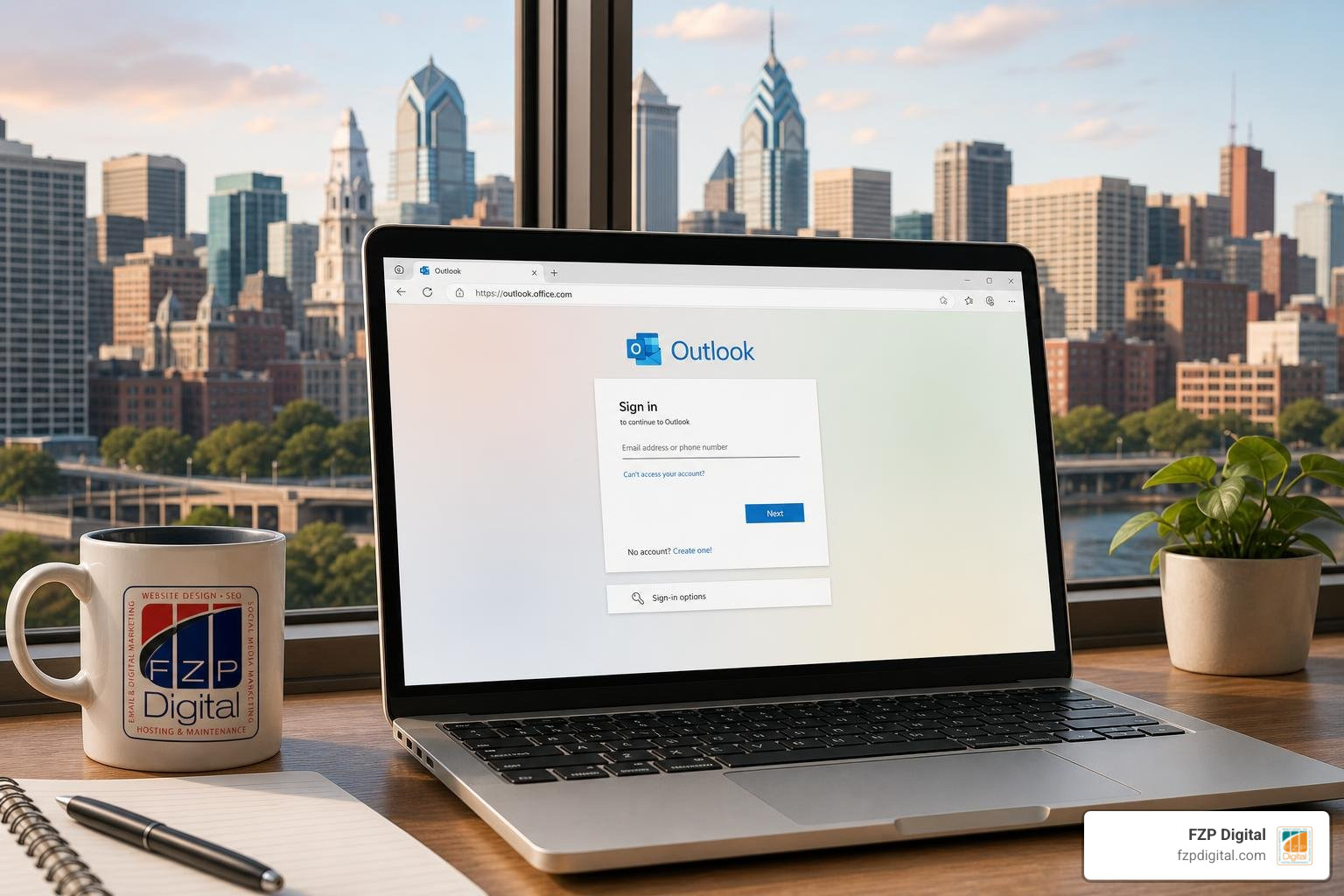
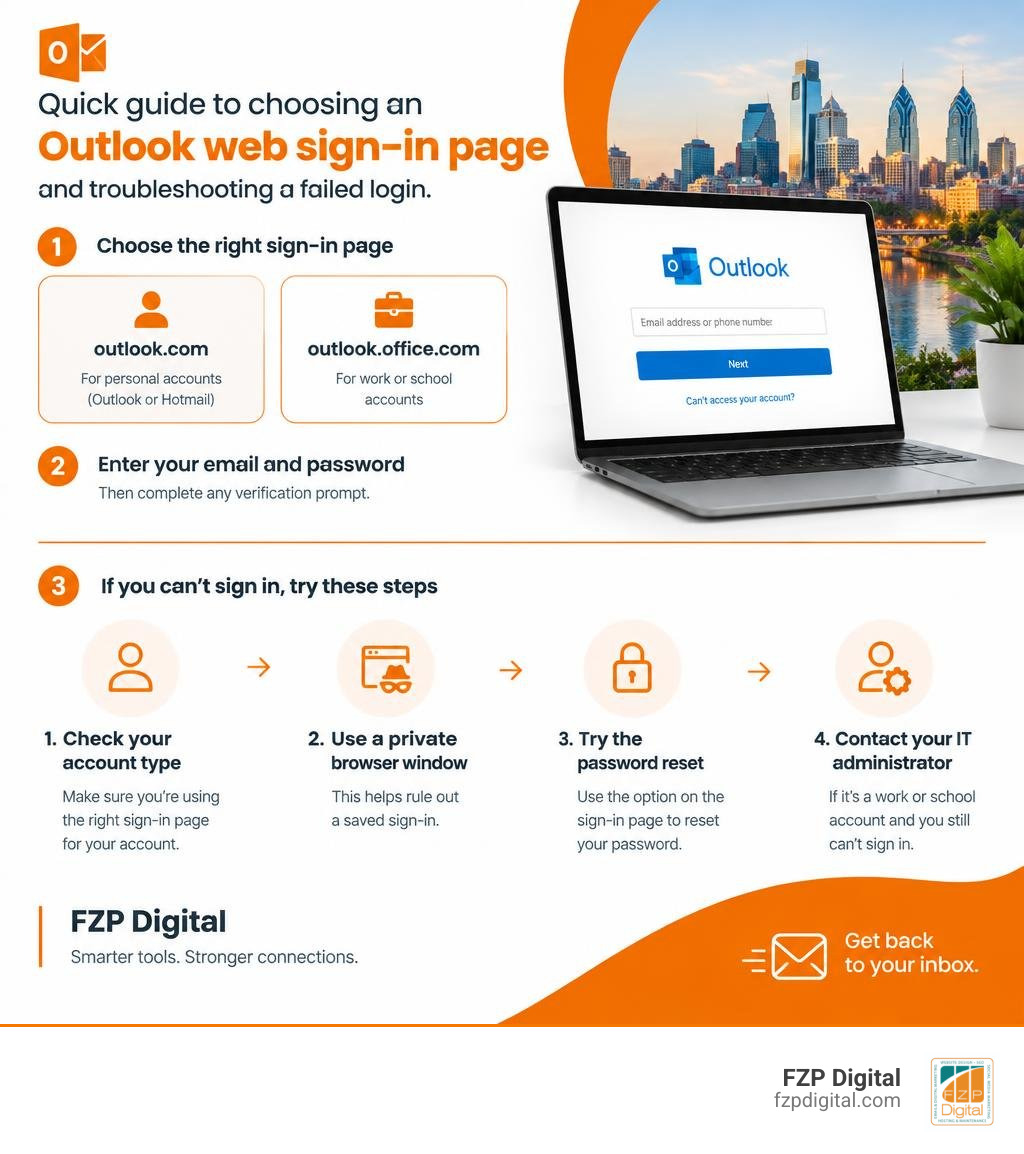
Need to check your email? For outlook 365 web access, open outlook.com for a personal Outlook or Hotmail account, or outlook.office.com for a work or school account. Enter the email address and password for that account, then complete any verification prompt.
If you can’t get in, first check that you’re using the right account type. Then try a private browser window to rule out a saved sign-in, or use the password-reset option on the sign-in page. If it’s a work or school account and you still can’t sign in, contact your organization’s IT administrator.
I’m Fred Z. Poritsky. My background in nonprofit financial management and digital technology helps me explain everyday tools like outlook 365 web access in practical terms, so let’s start with the fixes most likely to get you back to your inbox.
Understanding Outlook on the Web vs Desktop Apps
Have you ever wondered what makes Outlook on the web—often called OWA (Outlook Web App or Outlook on the web)—different from the desktop version sitting on your computer? In simple terms, the web client lets you log into your mailbox from virtually any modern web browser without downloading or installing bulky software. Whether you are using a shared computer, traveling with a lightweight tablet, or checking a quick message from home, your inbox is always right there waiting for you.
While the desktop app gives you deep offline storage and niche power-user plugins, the browser experience has evolved into a sleek, lightning-fast workspace. Microsoft 365 powers over 1 billion users worldwide, and web-based email clients now handle roughly 30% of corporate email traffic. With OWA, you get real-time cloud updates, built-in security scans, and seamless connections across Microsoft’s productivity suite. If your business relies on fast communication, you can save hours of manual data entry by connecting Outlook to your CRM so your customer conversations stay synced automatically.
| Feature | Outlook on the Web (OWA) | Outlook Desktop Application |
|---|---|---|
| Installation Requirement | Zero installation; runs directly in any browser | Requires local software download and setup |
| System Storage Impact | Minimal footprint; uses web browser cache | Stores offline data files (.ost or .pst) locally |
| Update Cycle | Automatically updated with the latest cloud features | Requires periodic software patches and updates |
| Free Storage Tier | 15 GB free mailbox + 5 GB cloud storage | Depends on connected account tier |
| Paid Microsoft 365 Tier | 100 GB mailbox storage + 1 TB cloud storage | 100 GB mailbox storage + 1 TB cloud storage |
| Cross-Device Access | Instant login across Windows, Mac, Linux, and tablets | Device-specific licensing and installation |
| AI Copilot Integration | Built directly into the cloud web interface | Available in modern Microsoft 365 desktop builds |
Creating and Managing Your Account
If you don’t already have an address, getting started is straightforward. You can create a free account right on the main portal by clicking “Create free account” and selecting an @outlook.com or @hotmail.com handle.
Did you know that back in 2013, Microsoft retired the legacy Hotmail brand and transitioned everything under the Outlook umbrella? If you still have a vintage @hotmail.com, @live.com, or @msn.com address, don’t worry—it still works perfectly on the modern login page without any extra configuration. Once registered, your single Microsoft account dashboard lets you manage your profile security, payment subscriptions, and connected devices in one central hub.
Step-by-Step Guide to Logging Into Your Portal
Logging in only takes a few seconds when you have the right web address handy. To get started, open your favorite web browser and head straight to the Official Microsoft 365 Login Portal.
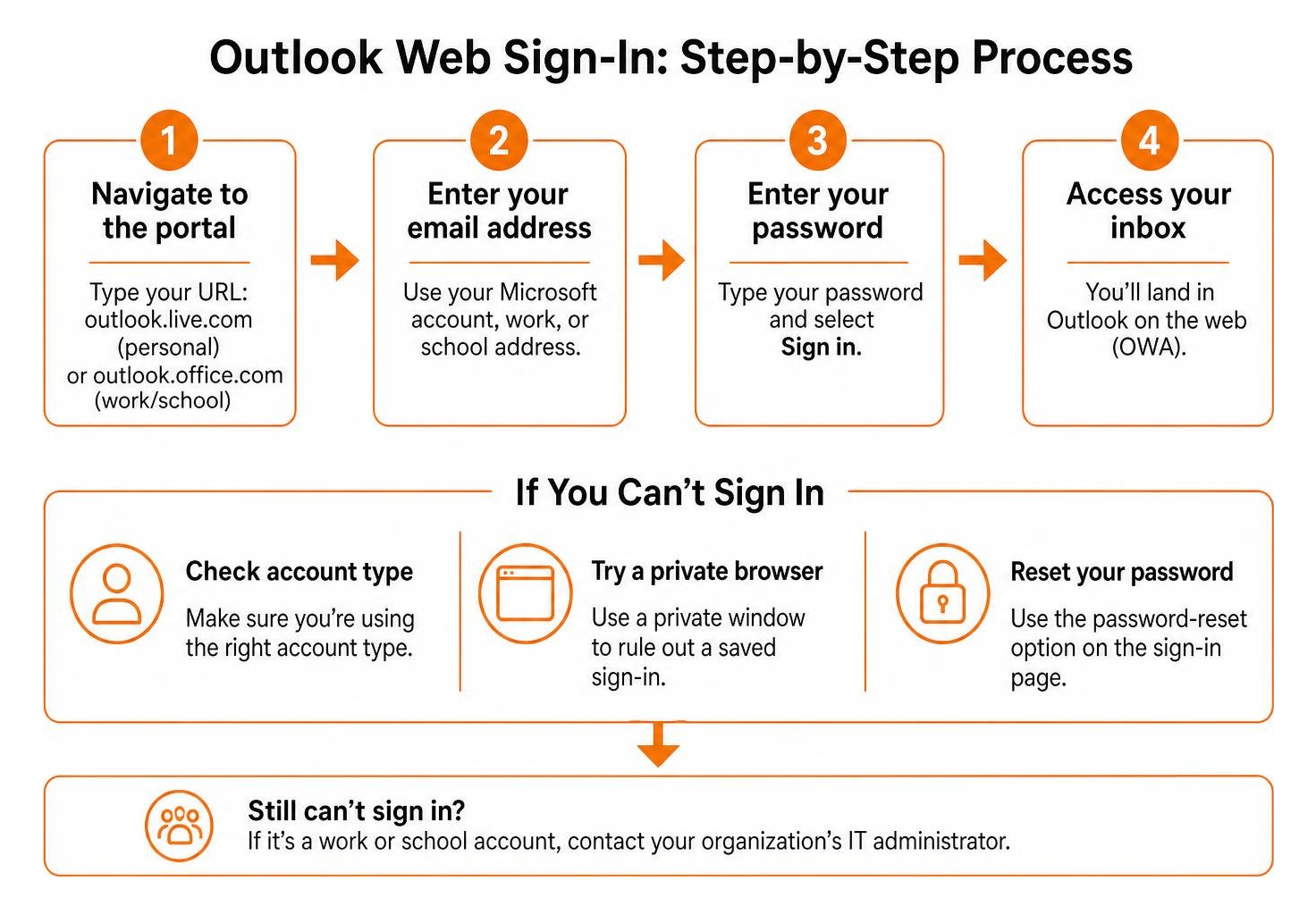
Here is the exact step-by-step sequence to get inside:
- Navigate to the portal: Type your destination URL (
outlook.live.comfor personal mail oroutlook.office.comfor business and education). - Enter your username: Type your full email address (like
name@outlook.comoryourname@company.com) and click Next. - Type your password: Carefully input your password.
- Approve verification prompts: If you have multi-factor authentication turned on, confirm the prompt on your phone or enter your one-time code.
- Decide on session persistence: You will see a box asking “Stay signed in?” If you are on your private computer, checking this reduces repetitive logins. If you are on a public or shared device, always click No.
Signing In with Personal vs Work Credentials in Outlook 365 Web Access
A frequent source of login confusion happens when people mix up their personal Microsoft accounts and organizational Microsoft 365 profiles. A personal account is created by you for everyday life, whereas a work or school account is provisioned by an organization’s IT department.
If your organization buys business email through domain registrars, your login credentials for webmail are separate from your domain management portal. For instance, when setting up your corporate email, you will enter your Microsoft 365 email and password rather than your GoDaddy account login. If your browser auto-fills old credentials, simply clear the field and type your full corporate email address to reach the correct tenant mailbox.
Accessing Regional and Shared Accounts with Outlook 365 Web Access
Does your team share an info@ or support@ inbox? Outlook on the web makes delegated access remarkably easy without requiring you to constantly sign in and out of different accounts.
To open a shared mailbox:
- Click your profile icon in the top-right corner of the web window.
- Select Open another mailbox.
- Type the email address of the shared mailbox and click Open. It will launch instantly in a dedicated browser tab.
If your organization operates in specific sovereign cloud environments, you will use dedicated regional login endpoints instead of the standard global URL:
- Microsoft 365 operated by 21Vianet (China): Navigate to
login.partner.microsoftonline.cn. - Office 365 Germany: Access your webmail portal through
portal.office.de. - US Government Community Cloud: Connect via
outlook.office365.us.
How to Fix Common Login Errors in Outlook 365 Web Access
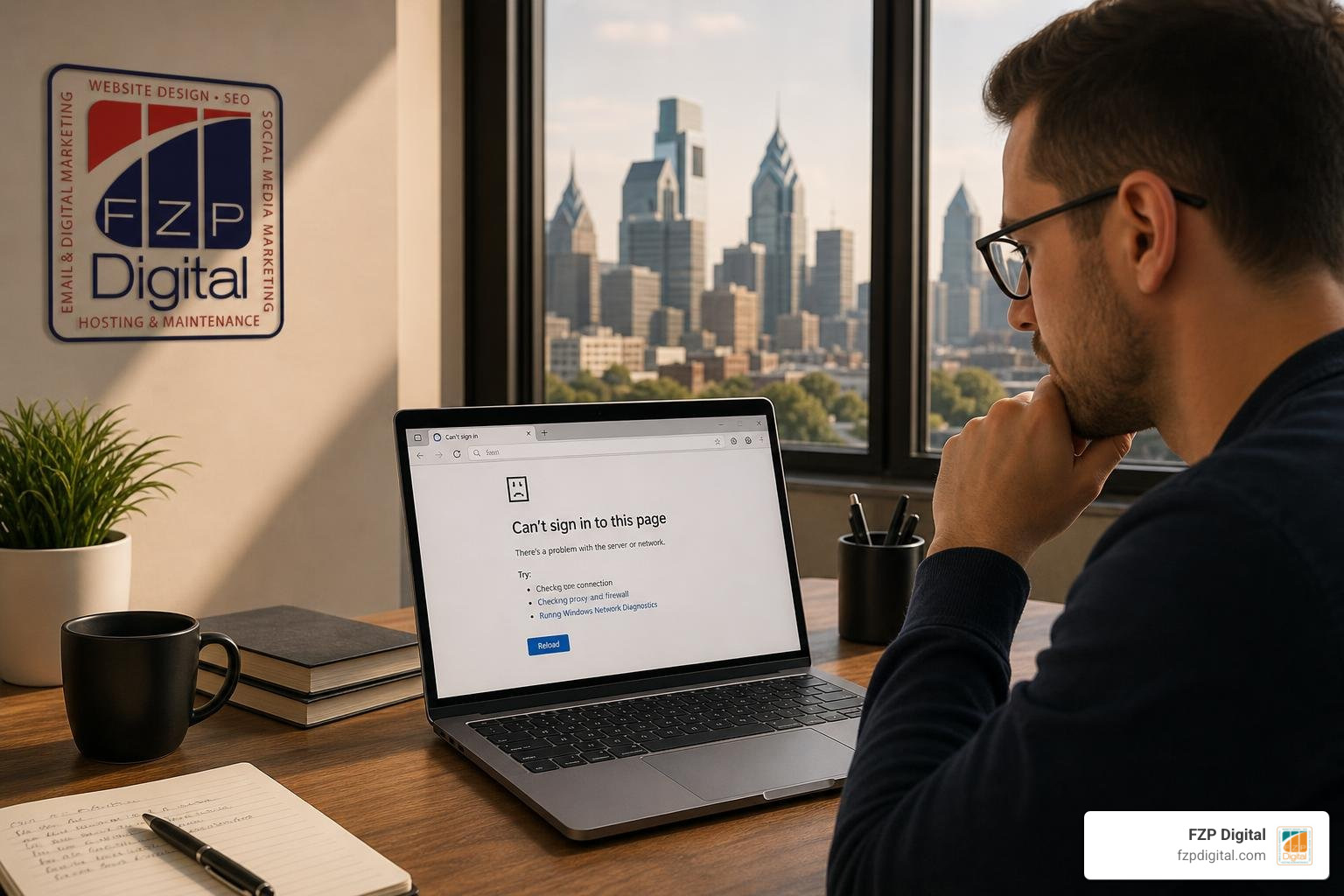
Running into a stubborn error message when you are trying to read an urgent email can be frustrating. Thankfully, most authentication glitches stem from a handful of predictable triggers like cached browser tokens, strict extensions, or expired passwords.
If you find yourself stuck in a loop where the screen constantly refreshes or gives you an access denied notice, you can review helpful pointers on how to fix Outlook sign in issues to pinpoint the root cause.
Let’s walk through the most reliable fixes:
- Use Self-Service Password Reset: If you forgot your password, click the “Forgot password?” link on the sign-in screen or visit Microsoft’s self-service reset portal (
passwordreset.microsoftonline.com). Enter your alternate phone number or recovery email to receive a secure reset pin. - Disable Aggressive Ad Blockers: Have you ever noticed your profile picture or certain inbox action buttons failing to load? Privacy extensions and ad blockers sometimes mistakenly block Microsoft’s authentication scripts or graphic assets. Temporarily pause your ad blocker for
office.comand reload the page. - Clear Broken Cookie Loops: If the login page bounces back and forth between authentication screens, your browser is holding onto conflicting session cookies. Clearing your browser’s recent cookies or launching an Incognito/Private window instantly breaks the loop.
Browser Optimization and Security Troubleshooting
Outlook on the web is engineered to perform best on the latest builds of Microsoft Edge, Google Chrome, Mozilla Firefox, and Apple Safari. Outdated browsers can drop connection tokens or fail to render modern web features properly.
To keep your account locked down while maintaining a smooth login routine:
- Set Up Microsoft Authenticator: Multi-factor authentication (MFA) adds an ironclad layer of defense. By approving sign-ins via push notifications on your phone, you prevent unauthorized parties from accessing your data even if your password is leaked.
- Understand the 10-Day Re-Authentication Cycle: For security purposes, Microsoft 365 apps and browsers will prompt you to re-verify your identity at least every 10 days. If you suddenly see a verification pop-up after days of automatic access, this is a standard safeguard, not a system failure.
- Stop Automatic Sign-In on Shared Machines: If you want to prevent the browser from automatically logging you in, ensure you uncheck “Keep me signed in” during login. When you finish your session, click your initials or profile image in the top-right corner and select Sign out.
Maximizing Productivity with Integrated Web Features
Once you are safely logged in, you will find that Outlook on the web is much more than a simple message reader. It is an intelligent command center designed to help you organize your workday with minimal friction.
- Focused Inbox: Outlook automatically sorts your incoming messages into two tabs: Focused for important client and team emails, and Other for newsletters and automated receipts.
- Smart Organization Tools: Use the Sweep and Snooze buttons at the top of your inbox to clean out recurring bulk emails or temporarily hide a message until you are ready to tackle it later in the afternoon.
- Microsoft Copilot AI Integration: Available across Microsoft 365 Personal, Family, and Business plans, Copilot can summarize lengthy email chains in seconds, draft thoughtful replies, and adjust the tone of your message before you hit send.
- Integrated Calendar and Microsoft To Do: Click the side panel icons to view your daily schedule, drag emails directly into your task list, or schedule Teams video meetings without leaving your inbox.
- Cloud File Sharing: Attach files directly from OneDrive with custom viewing and editing permissions, eliminating bulky email attachments.
When your communication tools work harmoniously, your whole business moves faster. Just as connecting your inbox to business tools creates a seamless workflow, setting up a comprehensive CRM integration bridges the gap between client conversations and closed deals. Navigating complex integrations, web systems, and organic search visibility can sometimes feel overwhelming. That is where having seasoned guidance from our team at FZP Digital, led by founder Fred Z. Poritsky, makes all the difference in crafting dependable digital systems that drive measurable results.
Frequently Asked Questions About Webmail Login
Is Outlook 365 web access free to use for personal email?
Yes! Anyone can sign up for a free personal Outlook.com account. The free tier gives you 15 GB of dedicated mailbox storage along with 5 GB of secure OneDrive cloud storage. Free accounts include standard security features and are supported by clearly labeled sponsor ads in your inbox. If you want an ad-free interface, 100 GB of mailbox storage, and advanced AI Copilot tools, you can easily upgrade to a paid Microsoft 365 subscription.
Why does my browser keep signing me into the wrong Microsoft account?
This usually happens when you manage both a personal Microsoft account and an organizational work or school account on the same computer. Browsers cache your active login tokens and try to be helpful by automatically selecting your last active profile. To fix this, log out completely via the top-right profile icon, open an Incognito/InPrivate window, or set up distinct browser profiles in Edge or Chrome for work and personal use.
Can I connect third-party email accounts like Gmail or Yahoo to Outlook web?
Yes, Outlook on the web allows you to connect other personal mail providers like Gmail, Yahoo Mail, or iCloud. You can link these services under your account settings, enabling you to manage multiple inboxes, calendars, and contacts through a single, unified web interface.
Conclusion
Getting into your inbox should never slow down your workday. By using the right sign-in links, understanding the difference between personal and organizational accounts, and knowing how to quickly clear browser hiccups, you can ensure smooth and uninterrupted access to your emails from anywhere.
A reliable digital workflow goes hand-in-hand with an exceptional online presence. Whether you are streamlining your internal communication tools or building fast, modern digital experiences, our team at FZP Digital is here to help you develop, design, and deliver practical solutions that help your brand stand out. When you pair clean tech habits with an accessible website design, you make it effortless for customers and team members alike to connect with your business. If you ever need a hand elevating your search rankings, refining your site architecture, or optimizing your managed WordPress hosting—where we consistently recommend trusted platforms like GoDaddy and WP Engine— reach out to us today!