

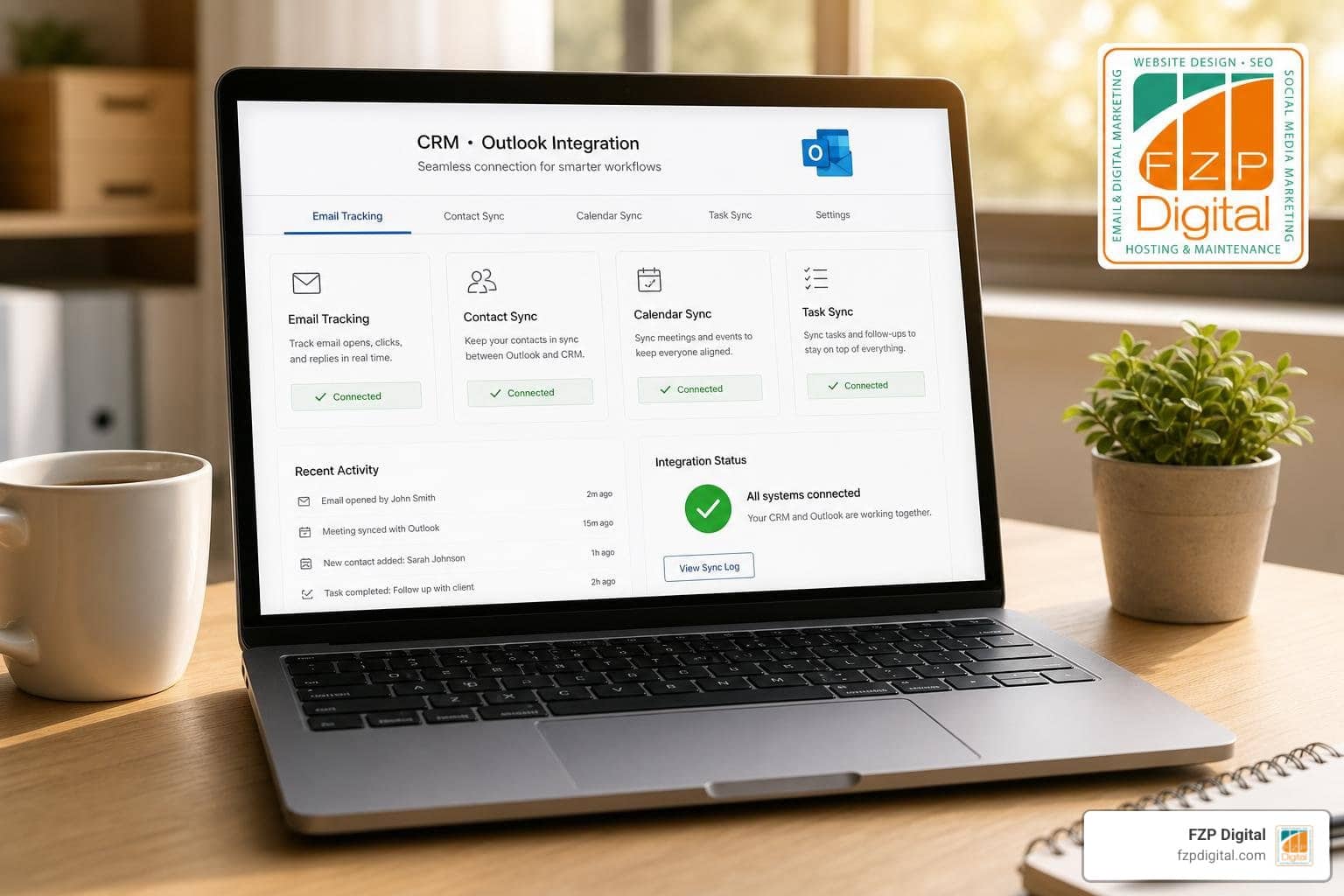
Stop Toggling Tabs by Connecting Outlook to Your CRM
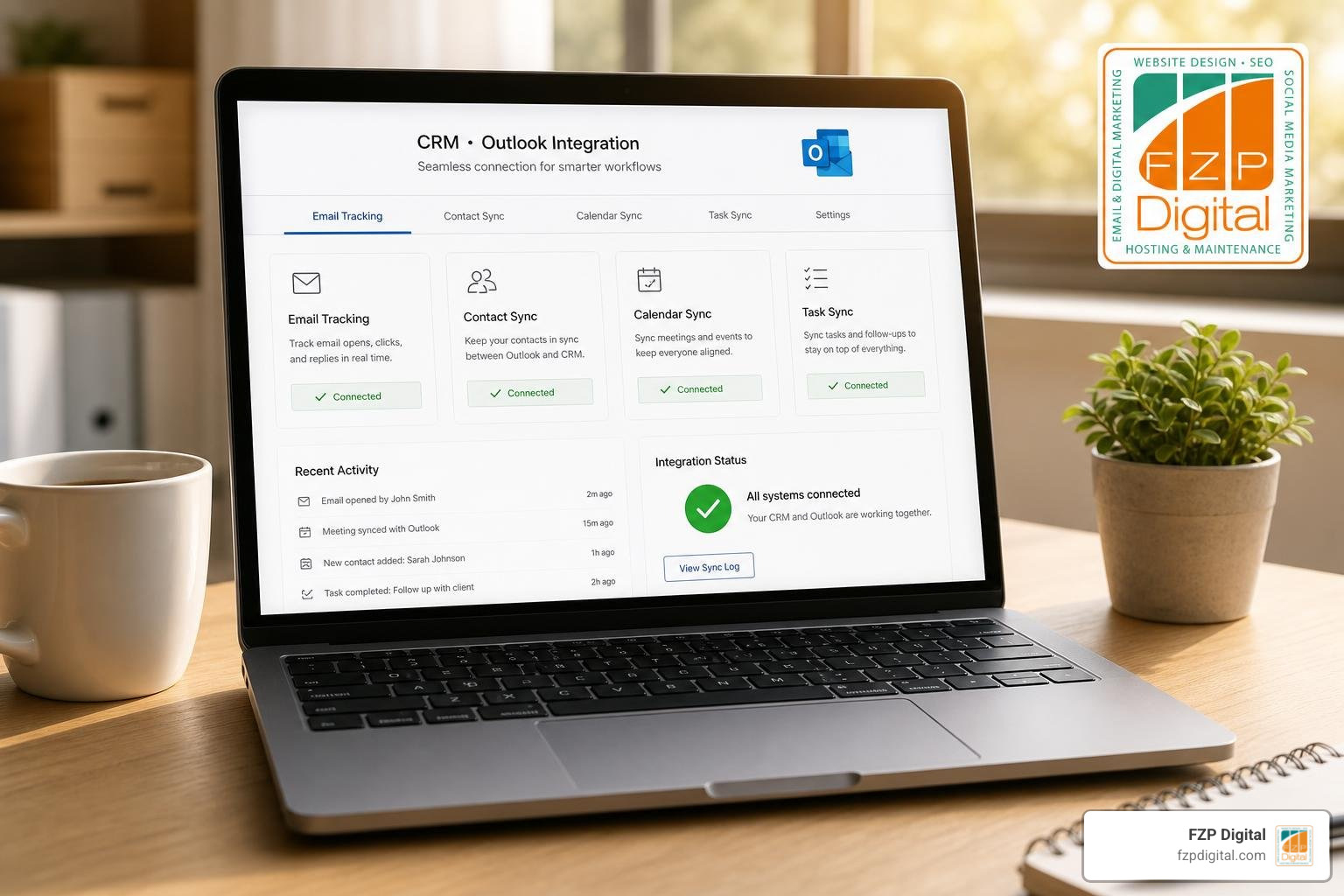
Why Toggling Between Outlook and Your CRM Is Costing You More Than You Think
If you’ve ever wondered how to integrate CRM with Outlook, you’re not alone — and the answer is simpler than most people expect.
Here’s the quick version:
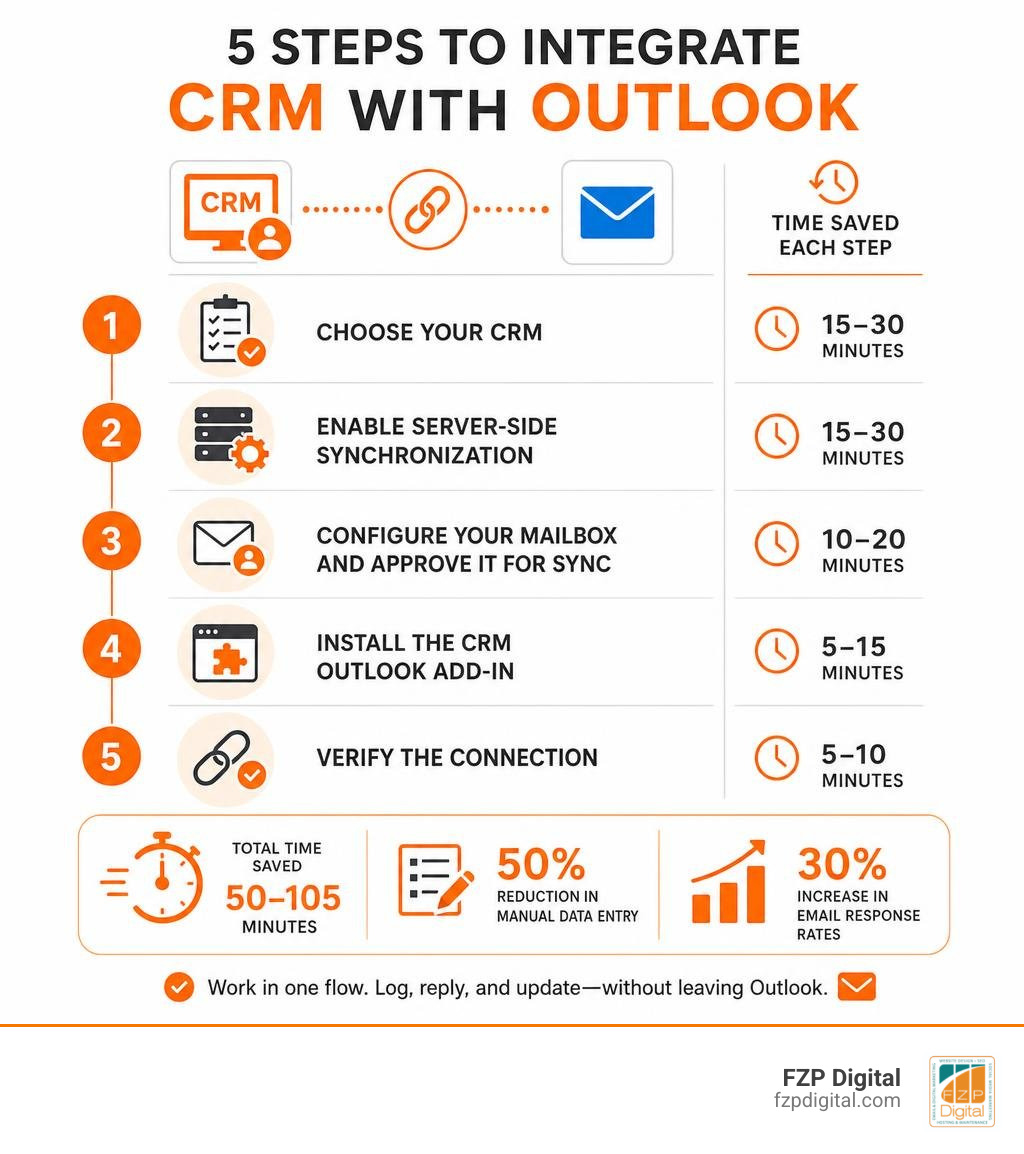
- Choose your CRM (Dynamics 365, HubSpot, Salesflare, Zoho, etc.)
- Enable server-side synchronization in your CRM’s email settings
- Configure your mailbox and approve it for sync
- Install the CRM’s Outlook add-in via your CRM settings or the Microsoft 365 admin center
- Verify the connection by opening the CRM pane inside Outlook and linking a test email to a record
That’s the core of it. The rest of this guide walks you through each step in detail — including troubleshooting when things go sideways.
Now, picture this: you get an important email from a prospect. You jump to your CRM to log it. Then back to Outlook to reply. Then back to the CRM to update the contact record. Then back to Outlook because you forgot to attach the proposal.
Sound familiar?
This kind of tab toggling quietly drains hours from your week. Research shows that users who connect their CRM to Outlook experience a 50% reduction in manual data entry — and sales teams report a 30% increase in email response rates after making the switch.
That’s not a small win. That’s a real shift in how your business operates.
The problem is that most small and medium-sized business owners either don’t know the integration is possible, assume it’s too technical to set up, or tried once and ran into a confusing error message. This guide is here to fix all three of those situations.
I’m Fred Z. Poritsky, founder of FZP Digital, and through years of helping Philadelphia-area businesses build smarter digital workflows — including advising clients on how to integrate CRM with Outlook as part of their broader marketing and operations strategy — I’ve seen how this one connection can transform a team’s productivity. Let’s walk through everything you need to know so you can stop switching tabs and start working in one unified flow.
Related content about how to integrate crm with outlook:
- how to integrate chatbot with crm for lead capture
- how to integrate company data into crm using api
- how to integrate sms and phone systems with crm
Why You Need to Know How to Integrate CRM with Outlook
Let’s face it: we all suffer from app fatigue. In 2026, the average business professional uses dozens of different cloud applications every single day. If your email client and your customer relationship management (CRM) database exist on two separate islands, you’re constantly building manual bridges between them.
When you learn how to integrate CRM with Outlook, you’re not just saving a few clicks. You’re creating a single source of truth for your entire business. Every email exchange, every meeting scheduled on your calendar, and every newly discovered contact details from an email signature automatically flows into your central database.
This automation has a massive ripple effect. Beyond saving time, it dramatically reduces human error. No more forgotten follow-ups because a lead’s email got buried in your personal inbox. No more missing context when a colleague steps in to help a client. If you want to see how these types of workflow improvements can transform your team’s day-to-day operations, check out our guide on How Pipedrive CRM Integrations Can Save Your Sales Team Time.
Core Benefits for Sales, Support, and Project Teams
An Outlook-CRM integration isn’t just a tool for your sales reps—it benefits almost every department in your business:
- Sales Teams: Your reps can view live sales pipelines, deal stages, and customer history directly from the Outlook sidebar. They can instantly convert a inbound email inquiry into a new lead, link pricing proposals, and set follow-up tasks without breaking their focus.
- Customer Support Teams: When a customer sends an email with a technical issue, support agents can convert that message into a support ticket or case with a single click. They can view the customer’s entire purchase and service history right next to the message, leading to faster resolutions and personalized care.
- Project Teams: Project managers can track and link critical client emails, approvals, and scope-change requests directly to specific project records. This ensures that everyone on the team has visibility into client communications, keeping timelines and expectations aligned.
To make sure you’re getting the most out of your setup, check out these Microsoft Dynamics 365 Outlook Integration: 5 Essential Tips for deeper guidance on keeping your team’s data organized and clean.
Key Features to Look For in an Outlook-Integrated CRM
If you’re still choosing a CRM or evaluating your current one, you want to make sure its Outlook integration offers more than just basic email syncing. Here are the core features that deliver the highest ROI:
- Bidirectional Email Tracking: The ability to track email opens, link clicks, and entire conversation threads automatically.
- Auto-Contact Creation: Smart systems that detect when an email comes from a new contact and let you add them to your CRM—complete with details pulled from their email signature—in one click.
- Relationship Insights: Advanced systems that analyze interaction frequency and email traffic to calculate “relationship strength” scores, warning you when a key account is going cold.
- Task and Meeting Sync: Bidirectional syncing that ensures meetings booked in Outlook appear in your CRM, and tasks created in your CRM populate your Outlook calendar.
Connecting your email is just the first step in building a fully integrated communication hub. For instance, you can also learn How to Integrate SMS and Phone Systems with CRM to ensure all client calls and text messages are logged alongside their emails.
Dynamics 365 App for Outlook vs. Legacy Add-ins: What Changed?
If you’ve used Microsoft Dynamics in the past, you might remember the legacy “Dynamics 365 for Outlook” COM add-in. This older tool was retired by Microsoft because it relied on local desktop installations that frequently caused Outlook to slow down, crash, or fail to sync.
Today, Microsoft uses the modern, cloud-based Dynamics 365 App for Outlook. This modern app is an Office Add-in that runs entirely on server-side synchronization. Because it doesn’t store CRM data locally on your computer, it is faster, incredibly stable, and works seamlessly across Outlook desktop, Outlook on the web, and mobile devices.
Here is a quick look at how the legacy and modern integrations compare:
| Feature | Legacy COM Add-in (Retired) | Modern App for Outlook |
|---|---|---|
| Installation | Local installation on each PC | Cloud deployment via Admin Center |
| Performance | Can slow down Outlook desktop | Lightweight, zero desktop lag |
| Mobile Support | No mobile support | Works on iOS and Android Outlook apps |
| Data Sync Method | Client-side (requires Outlook to be open) | Server-side sync (runs automatically in background) |
| Local Storage | Uses SQL Server Express locally | No local data storage |
Step-by-Step: How to Integrate CRM with Outlook Seamlessly
Before you begin the integration process, you need to ensure your environment meets the necessary system requirements and licensing prerequisites.
For a native Microsoft integration, you will need:
- A Microsoft 365 subscription with Exchange Online (while on-premises Exchange is supported in some legacy scenarios, Exchange Online is highly recommended for modern OAuth 2.0 authentication).
- An active Dynamics 365 (or other CRM) license assigned to your users.
- Administrative privileges in both your Microsoft 365 tenant and your CRM environment to configure the initial server-to-server connection.
Step 1: Preparing Your System for How to Integrate CRM with Outlook
To ensure a smooth setup, you must first configure server-side synchronization. This acts as the secure background bridge between Microsoft Exchange and your CRM database.
- Configure the Email Server Profile: Sign in to your CRM as an administrator. Navigate to your email configuration settings and create or verify your Exchange Online email server profile. Ensure it is set to use OAuth 2.0 for secure, modern authentication.
- Enable User Mailboxes: Go to your active mailboxes list. Select the target user mailboxes and set their incoming email, outgoing email, and appointments/contacts/tasks processing methods to Server-Side Synchronization.
- Approve and Test Mailboxes: Select the mailboxes, click Approve Email, and then select Test & Enable Mailboxes. Monitor the test results until the status changes from “Not Run” to “Success” for all active streams.
- Assign Security Roles: Ensure that all users who need the integration are assigned the appropriate security roles (such as the “Dynamics 365 App for Outlook User” role) so they have permission to access the app.
For a detailed walkthrough of this backend configuration, check out this Step-by-step guide to setup Dynamics 365 integration with Outlook – Dynamics Services Group .
Step 2: Deploying the App and Learning How to Integrate CRM with Outlook Daily
Once your server-side sync is running successfully, deploying the app to your team is a matter of a few clicks.
- Deploy the App: In your CRM settings, navigate to the App for Outlook deployment page. Select the eligible users and click Add App to Outlook. You can also configure the system to automatically deploy the app to all new eligible users.
- Access the App in Outlook: Open Outlook (desktop, web, or mobile). When viewing an email, you will now see the CRM icon in your toolbar or action menu. Clicking this opens a side pane showing live context about the sender.
- Use “Set Regarding” to Link Records: To save an email to your CRM, open the side pane and search for the specific account, opportunity, or support case you want to link it to. Click Set Regarding, and the email is permanently logged to that record.
- Set Up Folder Tracking: For even faster logging, you can configure folder tracking rules. This allows you to drag an email into a specific Outlook folder and have it automatically tracked to a pre-defined CRM record.
- Sync Contacts and Calendar Events: If you are using other CRMs like Creatio, you can utilize selective calendar sync using category tags (like a “Creatio sync” tag) to ensure only professional meetings—and not your personal appointments—are imported into your CRM.
To see how other platforms handle these steps, read this guide on How to Integrate Creatio CRM with Outlook? – Solution for Guru for a look at automatic email binding and AI-driven contact matching.
Troubleshooting Common Outlook-CRM Sync Issues
Even with the best planning, you might occasionally run into a sync hiccup. Here is a quick troubleshooting checklist to help you resolve the most common integration issues:
- “Unable to Connect to Server” Error: This is usually caused by a corrupted browser or webview cache. Clearing your local browser cache (or your system’s temporary internet files) almost always fixes this loading error.
- Mailbox Fails to Sync: Check the mailbox status in your CRM’s email configuration page. If the status is “Failure,” run the Test & Enable Mailbox process again. Make sure the mailbox has been approved by a global administrator.
- Add-In is Missing in Outlook: Double-check that the user has the correct security role assigned in the CRM. It can also take up to 15 minutes for Microsoft 365 to push a newly deployed add-in to a user’s Outlook client.
- Appointments are Syncing as Canceled: Ensure that the “Organizer” field is properly mapped and included on your CRM’s appointment form customizations.
If you are dealing with a complex custom database setup and need to build custom sync rules, learning How to Hook Your Data Up to Your CRM Using APIs can give you the flexibility you need to solve persistent sync issues.
Frequently Asked Questions about Outlook CRM Integrations
What is the difference between server-side synchronization and client-side sync?
Client-side sync (used by legacy add-ins) requires your Outlook desktop application to be open and running on your computer to process data updates. Server-side synchronization runs as an asynchronous background service directly between Microsoft Exchange and your CRM server. It operates on a dynamic schedule based on your mailbox activity levels, meaning your emails and contacts sync automatically even when your computer is turned off.
Can I connect multiple CRM environments to a single Outlook mailbox?
Generally, no. An Exchange mailbox can only be designated to synchronise with one CRM organization or environment at a time. This prevents data conflicts and ensures a clean, single “synchronizing organization” relationship. If your company uses separate development, testing, and production environments, we highly recommend using separate testing email accounts for each environment.
Does Outlook have a built-in CRM tool?
Outlook itself does not have a native, built-in CRM system. While Microsoft 365 has excellent contact and calendar management, it lacks core CRM features like sales pipeline tracking, lead scoring, and customer lifecycle management. To get true CRM functionality, you must connect Outlook to an external platform like Dynamics 365, HubSpot, or Pipedrive.
If you are running a business on WordPress, we often recommend hosting your site with highly reliable managed WordPress hosting providers like GoDaddy or WP Engine to ensure your online lead capture forms connect flawlessly to your integrated Outlook-CRM setup. Once your lead flow is connected, you can also Make Your Money Talk by Connecting CRM and Accounting to build a complete, end-to-end business engine.
Conclusion
At the end of the day, learning how to integrate CRM with Outlook is one of the easiest ways to give your team their time back. By eliminating the friction of switching between your inbox and your customer database, you empower your sales, support, and project teams to focus on what they do best: building relationships and closing deals.

But we also know that managing software integrations, optimizing your website’s lead capture forms, and navigating complex SEO challenges can feel overwhelming when you’re busy running a business. That is where we come in.
At FZP Digital, we are a premier digital marketing agency serving business owners in Philadelphia, Downtown Philadelphia, Richboro, and Newtown. Led by our founder, Fred Z. Poritsky, we specialize in premium responsive WordPress website design, professional logo design, and boosting your organic search rankings. We believe in a collaborative “Develop . Design . Deliver” process that aligns your technology, your website, and your marketing into one powerful growth engine.
Whether you need help connecting your WordPress site to your CRM, designing a beautiful new website, or launching an organic search campaign that gets your phone ringing, we are here to guide you every step of the way.
Ready to streamline your systems and scale your digital presence? Partner with FZP Digital for Expert Digital Marketing Services today, and let’s build a workflow that actually works for you!