


Website Navigation Best Practices for a Smooth Experience

Why Poor Website Navigation Is Costing You Visitors (and Customers)
User friendly website navigation is one of the most important factors determining whether a visitor stays on your site or leaves within seconds.
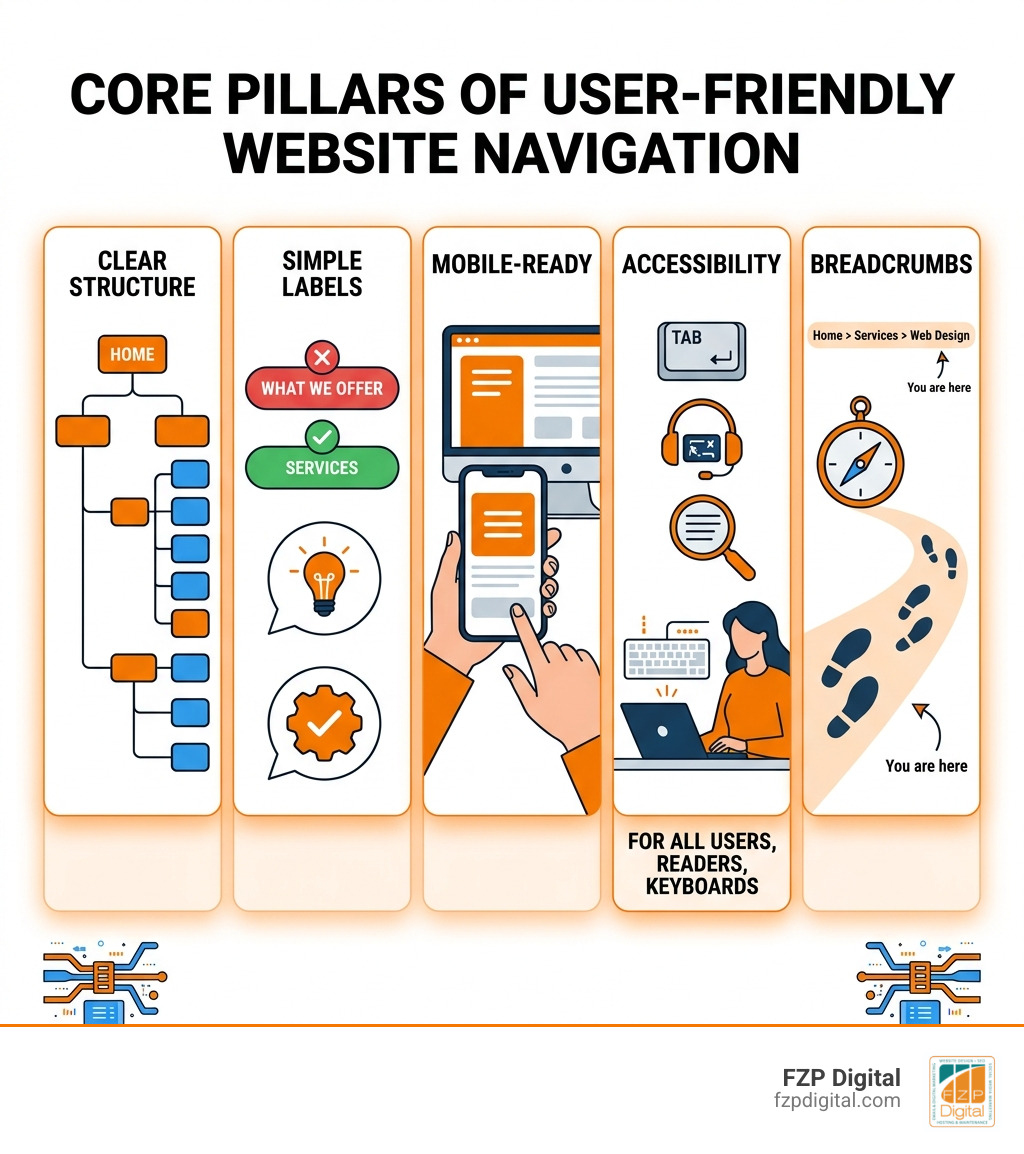
Here’s a quick snapshot of what makes navigation truly user friendly:
| Principle | What It Means |
|---|---|
| Clear structure | Organize pages in a logical hierarchy users can predict |
| Simple labels | Use plain, jargon-free words like “Services” not “What We Offer” |
| Limited choices | Keep top-level menu items to 5-7 to avoid overwhelming visitors |
| Mobile-ready | Design menus that work just as well on phones as on desktops |
| Accessible | Ensure navigation works for screen readers, keyboard users, and everyone in between |
| Consistent placement | Keep menus in the same spot on every page |
| Breadcrumbs | Help users track where they are and how to get back |
Think about the last time you landed on a website and couldn’t figure out where to go. Chances are you left pretty quickly.
You’re not alone. Research shows that website visitors spend just over 6 seconds checking out a site’s navigation menu. That’s it. Six seconds to convince someone they’re in the right place and that finding what they need won’t be a frustrating ordeal.
And yet, the stakes couldn’t be higher. A site that’s genuinely easy to navigate builds trust, keeps visitors engaged longer, and — critically for your business — turns browsers into buyers or donors.
Poor navigation, on the other hand, drives people straight to your competitors.
For small business owners and nonprofits in the Philadelphia area, this isn’t just a design problem. It’s a revenue problem. An outdated or confusing site structure can quietly bleed leads every single day without you even realizing it.
I’m Fred Z. Poritsky, founder of FZP Digital, and after years of building professional WordPress websites for CPAs, attorneys, nonprofits, retailers, and businesses across the Philadelphia region, I’ve seen how a thoughtful approach to user friendly website navigation transforms a site from a digital brochure into a genuine growth engine. Let’s walk through exactly how to get yours there.
Handy user friendly website navigation terms:
Why Navigation is the Heart of Your User Experience
When we talk about navigation, we’re really talking about Information Architecture (IA). Imagine walking into the Free Library of Philadelphia and finding all the books piled in the middle of the room with no signs. You’d walk right back out, wouldn’t you? That’s exactly what happens when your website lacks a clear map.
Navigation is the “tip of the iceberg” for your site’s structure. Beneath the surface lies hours of research into how your customers think. When navigation is intuitive, your bounce rates drop because people actually find what they’re looking for. It also increases dwell time, which is a fancy way of saying people stick around longer. Search engines like Google notice this. If users spend time clicking through your pages, Google assumes your site is valuable and boosts your rankings.
Beyond the technical side, navigation is about User Trust. If a site is hard to use, visitors often assume the business is hard to work with, too. Whether you’re a law firm in Newtown or a boutique in Richboro, your website is your digital handshake. Bucks County web development is about more than just a pretty interface; it’s about creating a path that guides your neighbor from a question to a solution.
According to research from Shopify, effective navigation steers visitors to high-value pages, directly impacting your bottom line. If you make it hard for someone to find your “Contact” page, you’re essentially closing your doors while the “Open” sign is still lit.
Choosing the Right User Friendly Website Navigation Menu
Not every website should use the same type of menu. A local restaurant in Downtown Philly needs something different than a massive e-commerce store.
- Horizontal Bar: This is the gold standard. It sits at the top of the page, where everyone expects it to be. It’s great for sites with 5 to 7 main categories.
- Vertical Sidebar: Often used for dashboards or sites with many links that don’t fit across the top. However, be careful—these can sometimes feel cluttered on smaller screens.
- Dropdown Menus: These help clean up your header by hiding sub-pages until they’re needed. The trick is making sure they aren’t “touchy”—nothing is more annoying than a menu that disappears the moment you try to click a link!

Desktop vs. Mobile Navigation Needs
| Feature | Desktop Priority | Mobile Priority |
|---|---|---|
| Space | Ample; can show more links | Extremely limited; must hide links |
| Interaction | Mouse hover/click | Finger tap (44px targets) |
| Visibility | Persistent top-level links | Hamburger menu (three-line icon) |
| Search | Integrated in header | Often a dedicated icon or top bar |
When to Use Mega Menus for User Friendly Website Navigation
If you run a large e-commerce site or a complex nonprofit portal, a standard dropdown might not be enough. This is where Mega Menus come in. These are large, expandable panels that show many options at once, often grouped into columns.
Mega menus are fantastic for Product Catalogs because they allow you to use Visual Cues, like small icons or photos, alongside text. This reduces Cognitive Load—a scientific term for “brain fatigue.” Instead of reading a long list, the user’s eye can jump straight to the category they need.
We often implement these when working on WordPress website design, ensuring that even with a lot of content, the site remains fast and accessible. The goal is to make a big site feel small and manageable.
Descriptive Labels for User Friendly Website Navigation
One of the biggest mistakes we see is “creative” labeling. Calling your services page “Our Magic” might sound clever in a boardroom, but it confuses your visitors. People scan websites; they don’t read them like novels.
Stick to Jargon-free Nouns. Use “Services,” “About,” “Blog,” and “Contact.” This improves Scannability and Predictability. When a user knows exactly what to expect when they click, they move through your site with confidence. Research consistently shows that clear labels outperform “clever” ones every single time.
10 Best Practices for a Seamless Journey
To ensure your visitors have a smooth ride, we follow these 10 commandments of navigation:
- The 3-Click Rule: Users should be able to find any piece of information within three clicks of the homepage.
- Serial Position Effect: People remember the first and last items in a list best. Put your most important link (like “Shop” or “Services”) first, and your “Contact” link last.
- Visual Hierarchy: Use font size and weight to show what’s most important.
- Limit Top-Level Items: Aim for 5 to 7 items. Any more and you risk “decision paralysis.”
- Logo Links to Home: It’s a universal web rule—clicking the logo should always take you back to the start.
- Be Consistent: Don’t move the menu around on different pages.
- Use a Search Bar: Especially for sites with a lot of content, a search bar is a lifesaver.
- Avoid Hover-Only: Ensure your menus work for people who can’t use a mouse (like mobile users or those with motor impairments).
- Highlight the Current Page: Use an “active state” (like a different color or an underline) so users know exactly where they are.
- Include a “Fat Footer”: Use the bottom of your site to link to secondary pages like Privacy Policies, Careers, or social media.
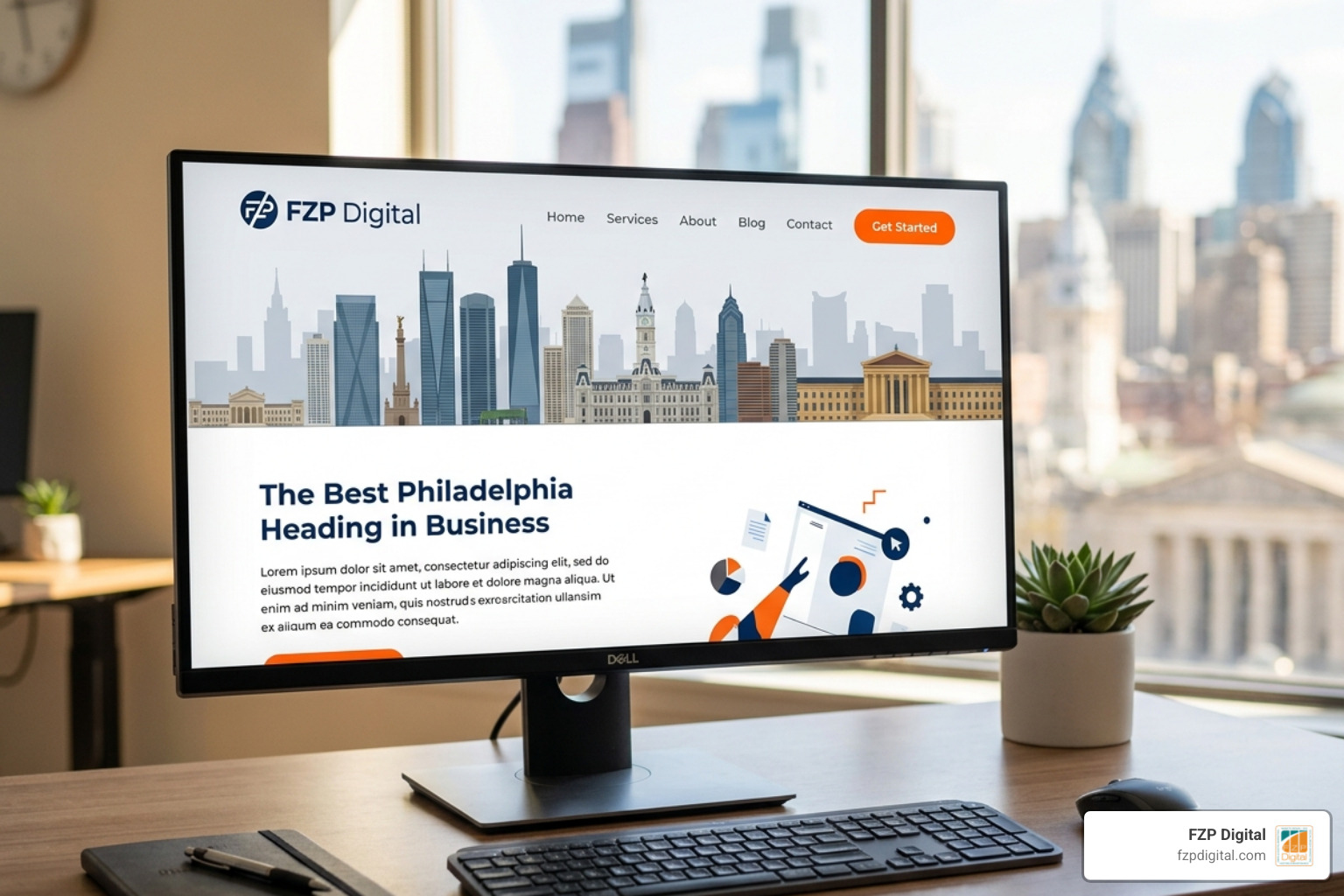
Implementing these responsive design solutions ensures that your site feels professional regardless of how someone is viewing it.
The Power of Breadcrumbs and Search
Have you ever been deep in a website and realized you don’t know how to get back to the main category? That’s where Breadcrumbs come in. They look like this: Home > Services > Web Design.
They are essential for Path Tracking and easy Backtracking. Think of them like the Maps & Directions you’d find when navigating the streets of Philadelphia—they tell you exactly where you stand in the grand scheme of things.
For larger sites, Search is your best friend. Modern search bars should have Auto-suggest (guessing what you’re typing) and Zero-result Resilience. If someone typos “Wbe Design,” your search should still know they meant “Web Design” rather than showing a “No Results Found” dead end.
Mobile Optimization and Digital Accessibility
In Q2 of 2022, nearly 60% of all web traffic came from mobile devices. If your navigation doesn’t work on a phone, it doesn’t work, period.
The Hamburger Menu (the little three-line icon) is the industry standard for mobile. It saves precious screen real estate. However, the buttons inside must be large enough to tap. We follow the 44px Rule—every tappable link should be at least 44×44 pixels to avoid “fat-finger” errors.
Using Off-canvas Menus (menus that slide in from the side) is another great way to keep things tidy. We specialize in responsive web design in Philadelphia, ensuring that your site’s “handshake” is just as firm on an iPhone as it is on a 27-inch monitor.
Ensuring ADA Compliance for All Users
Digital accessibility isn’t just a “nice to have”—for many businesses, it’s a legal requirement under the ADA. But more importantly, it’s the right thing to do.
- Screen Readers: Use semantic HTML tags so software can read your menu aloud to visually impaired users.
- Color Contrast: Ensure your text stands out against the background. Light gray text on a white background is a nightmare for everyone.
- Alt Text: Every image should have a description so everyone knows what it represents.
- Tools like UserWay: We often recommend tools like UserWay to provide an extra layer of accessibility options for your visitors.
According to research, 94% of the top e-commerce sites fail basic accessibility tests. By prioritizing this, you aren’t just being inclusive—you’re outperforming the vast majority of your competition.
Measuring Success and Avoiding Common Pitfalls
How do you know if your user friendly website navigation is actually working? You look at the data.
We use GA4 Path Exploration to see exactly where people drop off. If 80% of your visitors go to the “About” page but never make it to “Contact,” we know there’s a roadblock. Heatmaps are another great tool; they show us exactly where people are clicking (and where they aren’t).
One common pitfall to avoid is Menu Creep. This happens when you keep adding “just one more link” to the header until it’s a cluttered mess. Regularly audit your links. If a page isn’t getting traffic, move it to the footer or a sub-menu.
Whether we’re doing Bucks County web design or working with a client in Center City, we always start with a “tree test” to make sure the structure makes sense before we even start designing.
Frequently Asked Questions about Website Navigation
How many items should be in my main menu?
We generally recommend keeping it to 5 to 7 items. This fits the “Magical Number Seven” rule in psychology, which suggests our short-term memory can only hold about seven items at once. If you have more, use sub-menus or a mega menu.
Does navigation affect my SEO rankings?
Absolutely. Clear navigation helps search engine bots crawl your site more effectively. It also distributes “link juice” (authority) from your homepage to your inner pages. Good navigation leads to higher dwell times and lower bounce rates, both of which are positive signals to Google.
Why is my mobile bounce rate so high?
It’s often due to navigation. If your menu is hard to open, the links are too small to tap, or the search bar is missing, mobile users will get frustrated and leave. Mobile users are often on the go and have even less patience than desktop users!
Conclusion
At the end of the day, your website should work for your visitors, not against them. User friendly website navigation is the difference between a visitor who feels welcomed and one who feels lost.
At FZP Digital, we don’t believe in “set it and forget it.” Our founder, Fred Z. Poritsky, leads our team through a collaborative “Develop . Design . Deliver” process. We take the time to understand your specific business goals—whether you’re looking to increase organic search rankings or need a complete brand overhaul.
We’re proud to serve our neighbors in Richboro, Newtown, and across Philadelphia. We frame SEO and web design as a partnership; we handle the technical heavy lifting so you can focus on running your business.
If you’re ready to turn your website into a smooth, lead-generating machine, it’s time to partner with a top graphic design and web company in Philadelphia. Let’s build something great together.