


How WordPress Custom Post Types Help You Organize Your Website
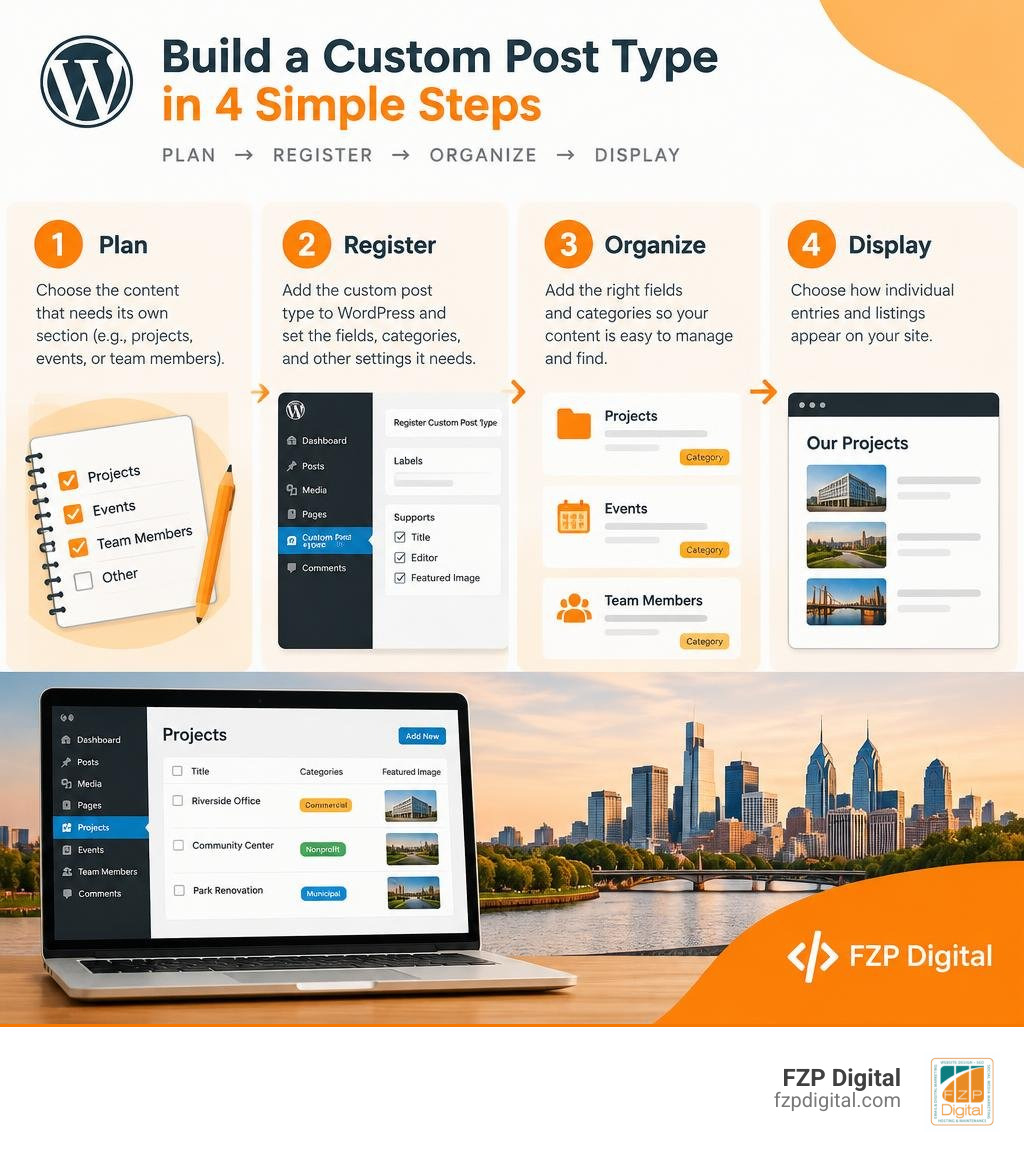
To create WordPress custom post types, first identify content that needs its own section, such as projects, events, or staff profiles. Register that content type with WordPress, add only the fields and categories it needs, and choose how its individual entries and listings should appear on your site.
Why bother? If everything goes into Posts or Pages, your team may have to work harder to keep different kinds of content organized. A custom post type gives related entries a dedicated place to manage them without separating them from WordPress itself.
I’m Fred Z. Poritsky, and my background in nonprofit financial management and WordPress web design shapes how I approach WordPress custom post types: the structure should make sense to the people using the site. Whether you are exploring affordable wordpress design bucks County options or planning comprehensive wordpress blog setup services, getting your data architecture right from day one makes all the difference. Let’s start with how to choose the right structure for your content.
Understanding WordPress Content Architecture and Custom Data
Did you know that WordPress powers over 43% of all websites on the internet today? It started out as a humble blogging tool, but it evolved into a world-class content management system because of how smartly it handles data under the hood.
At the center of this engine sits the wp_posts database table. Whether you publish a standard blog entry, create an “About Us” page, upload a photo attachment, or manage navigation menus, WordPress stores all of them right in that exact same table. It differentiates between them using a single database field: the post_type column. Out of the box, WordPress ships with seven default post types:
- Posts (
post) - Pages (
page) - Attachments (
attachment) - Revisions (
revision) - Navigation Menu Items (
nav_menu_item) - Custom CSS (
custom_css) - Changesets (
customize_changeset)
When we build specialized data structures, we aren’t creating messy new tables from scratch; we are creating custom post types (CPTs) that use this proven foundation. By pairing these post types with custom fields and taxonomies, you follow core WordPress website design best practices that ensure your site remains fast, scalable, and easy to maintain.
Why Use WordPress Custom Post Types Instead of Default Posts and Pages?
Have you ever tried running an online store, a real estate directory, or an events calendar by cramming everything into standard blog posts? It quickly turns your admin dashboard into a chaotic mess.
Using dedicated custom post types gives your team several huge advantages:
- Clean Content Separation: Your portfolio projects, team members, client testimonials, and case studies get their own dedicated sidebar menus in the WordPress admin panel.
- Custom Admin Interfaces: You can configure each post type to show only the editor tools it actually needs. A simple testimonial type might only need a title and a quote box, skipping the full block editor or excerpt panel entirely.
- Tailored User Capabilities: You can grant specific team members permission to edit “Events” or “Job Listings” without giving them access to your primary marketing pages or blog posts.
- Content Portability: When you want to redesign your site or refresh your theme, your custom data stays completely intact in your database because it isn’t tangled up in generic page builders or theme-locked shortcodes.
When to Choose Custom Fields, Taxonomies, or Custom Tables
Before jumping into code or setting up plugins, it pays to plan your content architecture carefully. Picking the wrong container for your data makes searching and filtering much harder later on.
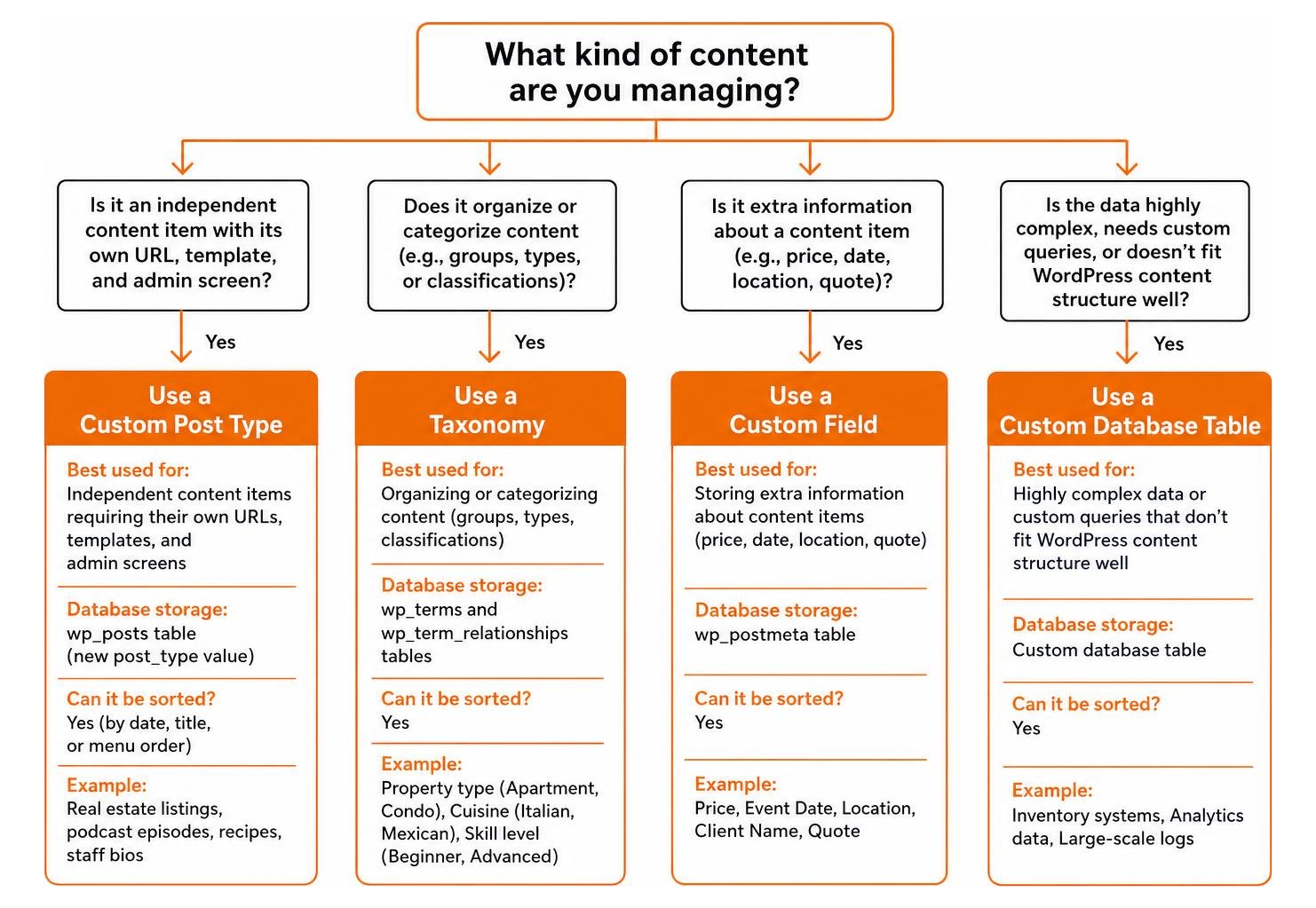
Here is a straightforward way to decide where your content belongs:
| Content Element | Best Used For | Database Storage | Can It Be Sorted? | Example Use Case |
|---|---|---|---|---|
| Custom Post Type | Independent content items requiring their own URLs, templates, and admin screens | wp_posts table (new post_type value) |
Yes (by date, title, or menu order) | Real estate listings, podcast episodes, recipes, staff bios |
| Custom Taxonomy | Grouping and classifying post items together | wp_terms & wp_term_taxonomy |
No (built strictly for filtering) | Property locations, podcast genres, recipe cuisines |
| Custom Fields (Metadata) | Storing specific attributes attached to an individual item | wp_postmeta table |
Yes (via meta query sorting) | Property price, podcast duration, recipe cooking time |
| Custom Database Table | High-volume transactional data (millions of rows) with custom relational queries | Dedicated custom SQL table | Yes (via direct SQL queries) | Form submissions, payment logs, analytics tracking |
If you need a distinct page with its own URL, make it a custom post type. If you need to group items by non-sortable labels, use a taxonomy. If you need specific details you can sort or filter by (like price or date), use custom fields.
How to Register and Configure WordPress Custom Post Types Step-by-Step
Registering a custom post type in WordPress is done through the native register_post_type() function. This function must always be attached to the init action hook so that WordPress loads your content type right as the core engine initializes.
To keep your setup clean, you define two main arrays: your labels (what shows up across your admin dashboard) and your configuration arguments.
Here is the essential code pattern for registering a custom post type called “Books”:
Let’s look at the most critical arguments in that setup:
public: Setting this totruetells WordPress that this content type should be visible in search results, viewable on the front end, and manageable in the admin area.has_archive: When set totrue, WordPress automatically creates a main listing page for your post type atyoursite.com/books/.show_in_rest: Setting this totrueis required if you want to use the modern Gutenberg block editor. If you leave it asfalse, WordPress falls back to the legacy classic editor.supports: This array defines exactly which core features appear on your edit screen, such as the featured image (thumbnail), post excerpt, or custom fields.
For specialized setups requiring custom logic or integration with external systems, opting for custom WordPress plugin development in Richboro gives you complete control over your content model without relying on bloated third-party tools.
Choosing the Right Location: Custom Plugin vs Theme functions.php
Where should you place your custom post type code? You generally have two choices: your active theme’s functions.php file, or a custom, site-specific plugin.
We strongly recommend placing your custom post type code inside a site-specific plugin or a dedicated functional plugin.
Why? Think about what happens when you redesign your website down the road. If your CPT code lives inside your theme’s functions.php, switching themes will immediately unregister your post types. Your data remains in the database, but your admin menus, URL routing, and edit screens vanish instantly.
Keeping your content architecture in a separate plugin guarantees total portability: you can swap themes as often as you like while your content structure stays completely safe and accessible.
Methods to Create WordPress Custom Post Types: Plugins vs Custom Code
If you prefer not to write PHP code directly, several trusted visual plugins make it easy to create and manage custom post types from your WordPress admin dashboard.
- Custom Post Type UI: An intuitive, lightweight plugin used on over one million websites. It provides clean input fields for all registration arguments and even includes a built-in tool to export your settings as pure PHP code whenever you’re ready to remove the plugin.
- CubeWP Framework: An all-in-one dynamic content framework that combines post type registration, custom taxonomy management, custom field builders, and front-end search forms.
- Pods / Advanced Custom Fields (ACF): Modern versions of these popular tools allow you to register post types, taxonomies, and custom field groups from a single unified dashboard.
Writing manual code gives you zero plugin overhead, tighter version control, and ultimate flexibility. Using visual plugins allows non-technical team members to spin up new content models in minutes. Both approaches write the exact same underlying registration rules into WordPress, so choose the method that best matches your team’s workflow.
Displaying and Querying Custom Post Type Content on the Front End
Once your post type is registered and populated with entries, you’ll want to display it on your website. WordPress uses a straightforward template hierarchy to find the right layout file in your theme:
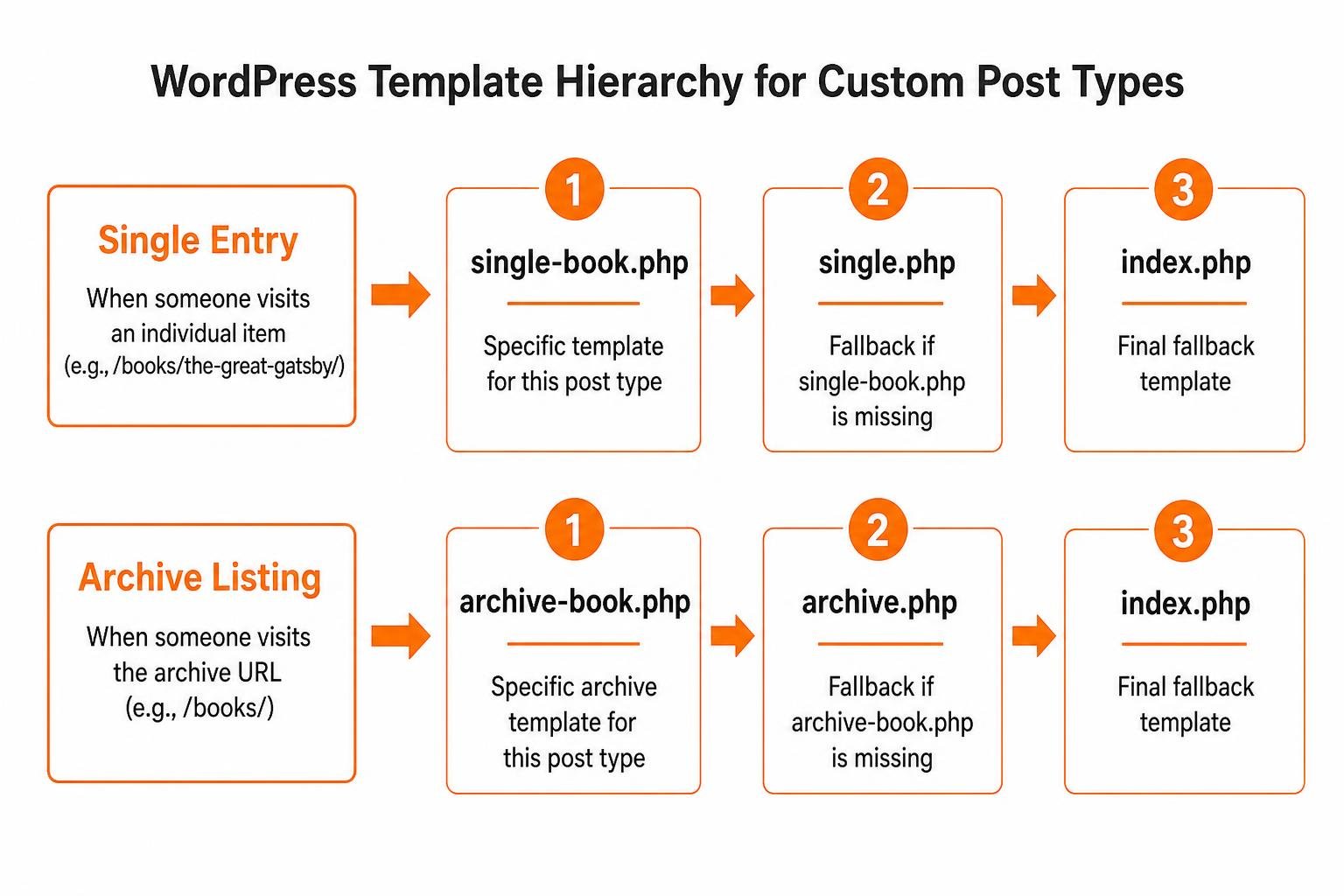
- Single Entry Template: When someone visits an individual item (like
yoursite.com/books/the-great-gatsby/), WordPress looks forsingle-book.php. If that file doesn’t exist, it falls back tosingle.php, and finally toindex.php. - Archive Listing Template: When someone visits your archive URL (
yoursite.com/books/), WordPress searches forarchive-book.php. If missing, it usesarchive.php, and thenindex.php.
If you want to pull custom post type entries onto a landing page, homepage, or custom section, you can run a custom query using WP_Query:
Always remember to run wp_reset_postdata() after running a secondary loop. This resets the global $post object so other elements on your page continue working properly. If you want a tailored look that aligns with your brand, working with a team skilled in professional WordPress design ensures your custom templates look sharp across desktop and mobile screens.
Customizing Archives and Integrating Taxonomies
To organize your custom post types, you can register custom taxonomies using register_taxonomy(). For instance, our “Books” post type might use a hierarchical “Genres” taxonomy (behaving like categories) and a non-hierarchical “Writers” taxonomy (behaving like tags).
When visitors click on a genre term like “Fiction,” WordPress automatically routes them to taxonomy-genre-fiction.php, then taxonomy-genre.php, then taxonomy.php, and finally archive.php.
Inside these templates, you can output dynamic content, display breadcrumbs, and include clean pagination links to help visitors navigate your catalog effortlessly.
Integrating Custom Post Types into the Main Query with pregetposts
By default, the standard WordPress blog homepage and search results pages only show standard posts ('post'). What if you want your custom content to appear in your main site search or alongside your regular blog feed?
Never run a second WP_Query loop directly on your archive templates—that wastes server resources and breaks pagination. Instead, use the pre_get_posts action hook to modify the main query before WordPress fetches posts from the database:
This clean adjustment ensures your custom items show up in site searches without slowing down page loads. When planning your site structure, learning how to optimize WordPress for Google helps ensure your new archive pages, custom URLs, and taxonomy feeds get indexed cleanly by search engines.
Performance Optimization and Troubleshooting Common CPT Issues
Working with custom post types is generally smooth, but you might run into a few common hurdles. Here is how to resolve them quickly:
- The Dreaded 404 Error on Single Pages: You register a new post type, publish an item, click “View Post,” and see a 404 page. Don’t worry! This happens because WordPress hasn’t regenerated its internal rewrite rules for your new URL slug. Simply go to Settings > Permalinks in your admin dashboard and click Save Changes to flush your rewrite rules.
- Performance Overhead from Too Many CPTs: WordPress registers custom post types on every single page request. While having 5 to 10 CPTs won’t slow down a well-built site, registering dozens of unnecessary types can add processing overhead. Keep your data structure lean, and consider dedicated database tables if you are storing hundreds of thousands of transactional records (like raw user activity logs).
- Custom Post Type Missing from Admin Menu: If your registered CPT isn’t showing up in the sidebar, verify that both
'show_ui'and'show_in_menu'are set totruein your$argsarray. - White Screen or Critical Error on Activation: Always prefix your function names (e.g.,
fzp_register_post_types()) and your post type identifiers to prevent conflicts with WordPress core functions or third-party plugins. CPT keys cannot exceed 20 characters in length.
Frequently Asked Questions About WordPress Custom Post Types
How do I fix 404 errors on single custom post type pages?
A 404 error on a newly created post type almost always means your rewrite rules need a quick refresh. Navigate to your WordPress admin menu, open Settings > Permalinks, and click the blue Save Changes button at the bottom of the screen. You don’t need to change any settings—simply loading that page forces WordPress to flush its permalink cache and recognize your new custom post type URLs.
What is the performance impact of registering multiple custom post types?
Because WordPress stores all post types in the same wp_posts table and runs registration code during the init hook on every request, adding several custom post types has virtually zero impact on a properly hosted site. However, performance can degrade if you attach dozens of unindexed custom fields (in wp_postmeta) and run complex meta queries across massive databases. To keep your site flying, use custom taxonomies for filtering, cache your custom queries, and use high-performance hosting.
How do I enable the Gutenberg block editor for a custom post type?
To use the modern block editor instead of the classic editor, you must set 'show_in_rest' => true in the arguments array when calling register_post_type(). Gutenberg relies on the WordPress REST API to communicate with the database, so enabling REST API support is what unlocks the modern editing canvas.
Conclusion
Custom post types are the secret ingredient that turns WordPress from a simple publishing platform into an enterprise-ready content management system. By organizing your projects, services, staff bios, and listings into structured data types, you make content management intuitive for your team and provide a polished experience for your visitors.
Of course, planning database structures, designing custom templates, and building advanced search filters can feel overwhelming if you’re juggling a busy business. Our team at FZP Digital helps businesses across Philadelphia, Bucks County, Newtown, and Richboro build high-performing digital platforms using our collaborative “Develop . Design . Deliver” process. We also make sure your site stays lightning-fast by pairing clean development with top-tier hosting—we always recommend reliable managed WordPress platforms like GoDaddy and WP Engine.
If you’re ready to organize your website and climb search engine rankings with affordable SEO services, reach out to us at FZP Digital today. Let’s build a custom WordPress platform that helps your business grow!