

Master Google Business Profile to Put Your Brand on the Map
How to Optimize Your Google Business Profile for Local Search
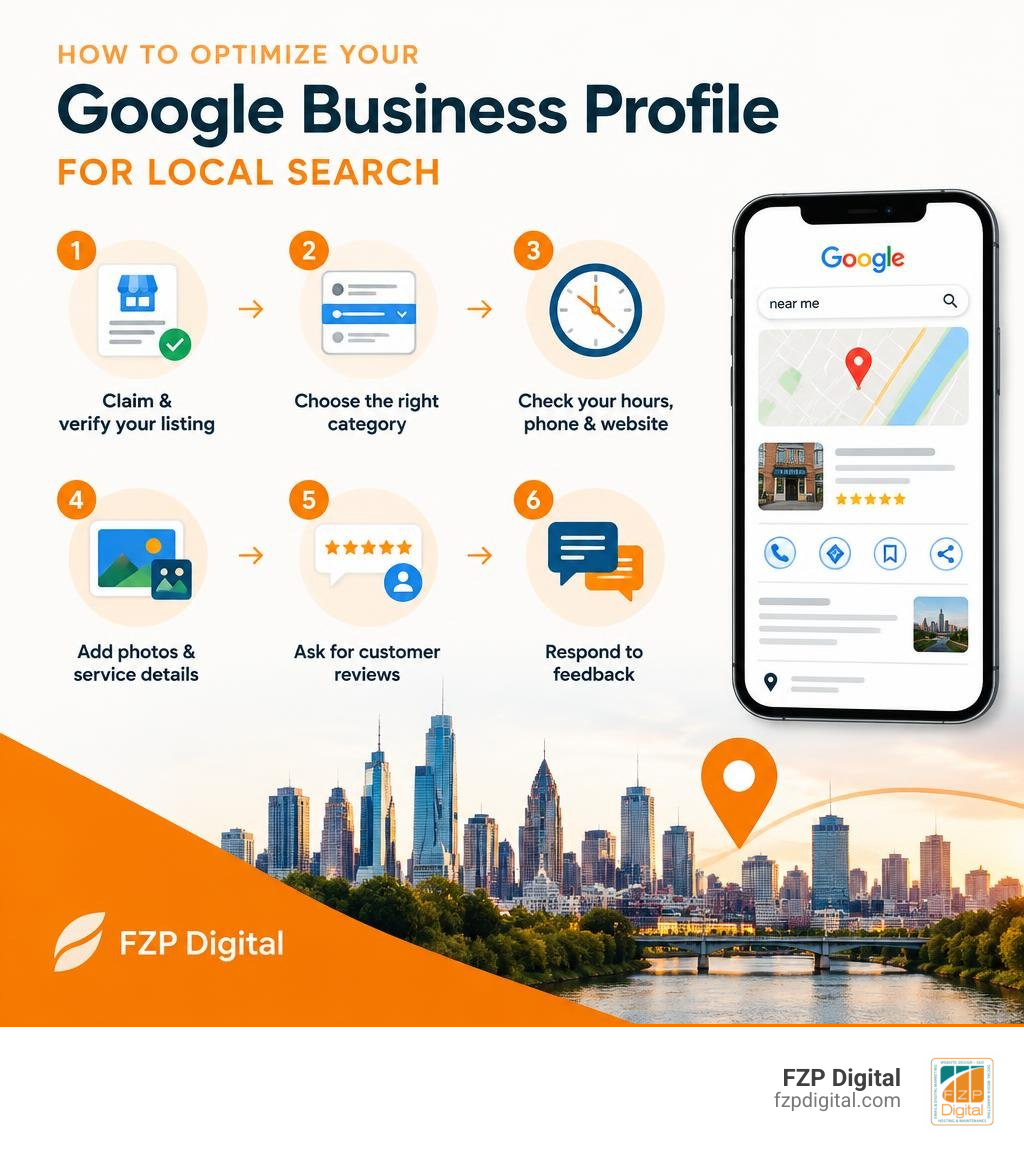
To improve your Google Business Profile, start with accuracy: claim and verify your listing, choose the category that best describes your business, and check your hours, phone number, and website link. Then add useful photos and service details, ask customers for honest reviews, and respond to the feedback you receive.
Your profile is free to manage and can help people find you on Google Search and Maps. For a business or nonprofit in Philadelphia or Bucks County, it gives nearby searchers a quick way to learn what you do and get in touch.
I’m Fred Z. Poritsky, founder of FZP Digital. My background in accounting, nonprofit financial management, web design, and SEO shapes my approach to a Google Business Profile: make it accurate, useful, and easy for people to act on.
Google business profile terms made easy:
Why Local Search Success Starts with a Google Business Profile
Have you ever searched for a morning coffee, an emergency plumber, or a boutique in your neighborhood and immediately clicked on the top three map listings? You’re not alone. That prominent top section is known as the Google Local 3-Pack, and earning a spot there is one of the most effective zero-cost marketing strategies available today.
Local search discovery has transformed how customers connect with nearby brands. When searchers look for immediate solutions, their intent to purchase is incredibly high. By mastering your local presence and discovering how local SEO works in practice, you position your organization directly in front of motivated prospects at the precise moment they are ready to make a decision.
The Evolution from Google My Business to GBP
If you’ve been running your organization for several years, you likely remember managing your listing through an old dashboard called Google My Business (GMB). To simplify local management, Google rebranded the service to Google Business Profile (GBP).
For anyone understanding Google My Business, the most significant shift is accessibility. Instead of navigating a complex standalone backend, you can now manage, edit, and update your business information directly within Google Search and Google Maps. Whether you’re on a desktop or checking your listing on mobile between meetings, updating your profile is faster and more intuitive than ever.
Core Benefits for Local Traffic and Conversions
Why invest time into fine-tuning your profile? Consider the numbers: Google processes around 5.4 billion searches every single day, holding over 92% of the global search market share.
Even more compelling for local storefronts and service providers:
- High-Intent Action: 88% of consumers who do a local search on their smartphone call or visit a business related to their search within 24 hours.
- Immediate Trust: 98% of consumers consult online reviews before choosing a local company.
- Conversion Impact: 47% of consumers will not consider businesses with fewer than 20 reviews, and 31% exclusively patronize businesses rated 4.5 stars or higher.
- Proven Growth: Strategic profile optimization has helped local businesses achieve up to an 800% increase in inbound leads.
A complete profile shortens the distance between a search query and a paid transaction by offering direct click-to-call buttons, driving directions, and instant booking options.
Eligibility Criteria and Online-Only Store Limitations
While GBP offers incredible visibility, not every enterprise qualifies. To create a profile, your business must have a physical location that customers can visit or provide in-person services directly to clients within a designated service area.
- Eligible Businesses: Brick-and-mortar retail stores, restaurants, medical practices, and service-area businesses (like plumbers, electricians, and mobile consultants) that meet face-to-face with clients.
- Ineligible Businesses: Strictly online-only ecommerce stores, virtual offices without dedicated physical staff during business hours, and digital brands that lack face-to-face customer interaction.
Hybrid businesses—such as a local boutique that operates a brick-and-mortar storefront while also selling through an online shop—are fully eligible to maintain a listing.
How to Claim, Create, and Verify Your Listing
Setting up your listing correctly lays the groundwork for all future local search visibility. Google often creates unverified profiles automatically using public directory data, which means your business might already exist on Maps without your direct oversight.
To take full control, consult the official support guide on adding or claiming a listing to ensure you register using a permanent, secure Google Account.
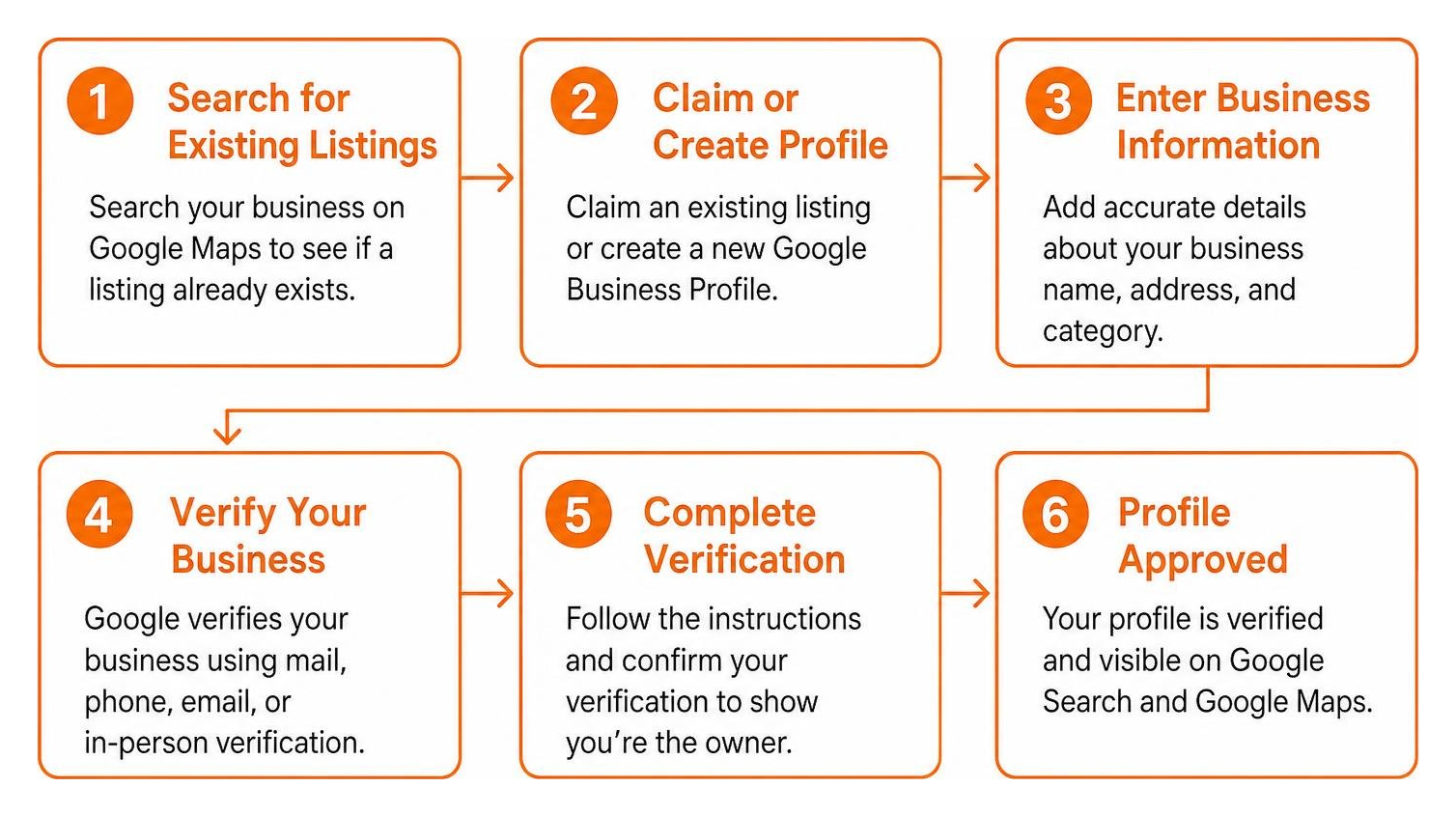
How to Claim or Create a Google Business Profile
Securing your listing involves a few straightforward steps:
- Search for Existing Listings: Open Google Maps and search for your exact company name and address. If your listing appears, click “Own this business?” or “Claim this business.”
- Create from Scratch if Unlisted: If no listing exists, navigate to Google Business Profile setup, enter your official company name, and select your primary category.
- Establish Location or Service Area: If customers visit your physical shop, enter your full street address. If you travel to customers, choose the service-area option and select up to 20 cities, counties, or postal zones.
- Ensure NAP Consistency: Your Name, Address, and Phone number (NAP) must match across your website and every essential business directory. Inconsistent contact details can confuse search algorithms and dilute your rankings.
Navigating Ownership Requests and Fraudulent Claims
What happens if an ex-employee, a past marketing agency, or an unknown third party has already claimed your business listing? Don’t worry—Google provides a clear path to reclaim ownership:
- Visit Google Business Profile setup and search for your business.
- When prompted with an alert stating someone else manages the profile, click Request Access.
- Complete the request form by specifying your relationship to the company and the level of access required (Ownership or Management).
- The current listing manager receives an automated notification and has 3 days to grant access.
- If the current owner fails to respond within 3 days or denies your legitimate claim, Google typically unlocks an option allowing you to verify ownership directly and reclaim the listing.
Modern Verification Methods in 2026
Google has continually modernized its security standards to combat spam and protect local brands. The verification method assigned to your profile is automated based on your category, public web footprint, and risk factors.
| Verification Method | Typical Turnaround Time | Primary Requirements | Best For |
|---|---|---|---|
| Video Recording | 1 to 5 business days | Continuous video showing street signage, physical workplace, and proof of management (keys, POS system) | Service providers & physical storefronts |
| Live Video Call | Instant after scheduled call | Live interaction with a Google representative demonstrating business operations | High-competition service categories |
| Phone or SMS Code | Instant (seconds) | Automated code sent to the official, publicly verified company telephone | Established businesses with consistent records |
| Email Verification | Instant (minutes) | Code sent to an official domain-branded email (e.g., name@yourcompany.com) | Pre-verified domains linked in Google Search Console |
| Postcard Mail | 5 to 7 business days | Physical postcard containing a 5-digit PIN sent to your physical address | Standard fallback when digital verification isn’t assigned |
For regional operations setting up specialized profiles, reviewing external educational resources such as the UNH extension setup guidelines can provide additional clarity on service-area configuration.
Practical Strategies to Maximize Search Rankings and Engagement
Simply verifying your listing isn’t enough to secure top rankings; ongoing optimization is what separates market leaders from hidden listings. Applying proven local SEO optimization strategies signals to search algorithms that your business is relevant, active, and trustworthy.
Key Elements of an Optimized Google Business Profile
To build maximum authority, ensure every single field in your profile dashboard is complete and accurate:
- Primary Category Selection: Choose the most specific primary category available (for example, “WordPress Web Designer” or “Italian Restaurant” rather than a vague generic label). This category carries massive weight in local ranking calculations.
- Secondary Categories: Add relevant secondary categories to capture secondary searches without diluting your core offering.
- 750-Character Business Description: Write an informative, engaging summary highlighting your mission, history, and key offerings. Keep it natural and avoid awkward keyword stuffing, which can trigger algorithmic penalties.
- Strategic Attributes: Select applicable badges such as “Wheelchair accessible,” “Identifies as women-owned,” or “Free Wi-Fi.” These attributes help searchers find your business through filtered search queries.
- Defined Service Areas: For home service professionals, applying tailored tactics for local SEO for service businesses ensures your profile targets the exact towns and zip codes where your crews operate.
Managing Customer Reviews and Handling Fake Feedback
Customer reviews are vital social proof and a key ranking signal. Gathering positive feedback and maintaining active responses shows both Google and potential clients that you care about customer satisfaction.

To build a stellar review profile:
- Ask Proactively: Request feedback at natural touchpoints—after completing a project, at checkout, or through a follow-up email with a direct review link.
- Respond to Every Review: Thank positive reviewers for their feedback and address critical reviews calmly, offering an offline resolution. This responsive approach builds trust and shows accountability.
- Managing Malicious or Fake Reviews: If you encounter fraudulent reviews from competitors or bots, click the three-dot menu next to the comment and report a policy violation. You can track removal status directly inside your GBP support portal. For a deeper breakdown, explore our guide on effective Google review management.
Utilizing Google Posts, Media, and Product Showcases
Treat your profile like an active social storefront. Profiles that consistently upload fresh visual content earn significantly higher engagement rates:
- High-Resolution Photography: Upload at least three high-quality photos across key categories—exterior building views, interior atmosphere, team members, and completed work.
- Short Video Clips: Add 30-second video walkthroughs or customer transformations to capture attention quickly.
- Google Posts: Share time-sensitive updates, special offers, and upcoming events. Posts keep your listing fresh and give searchers an immediate reason to take action.
- Product and Service Catalogs: Showcase detailed item cards complete with photos, transparent pricing, descriptions, and direct ordering links.
Tracking Performance and Maintaining Your Profile
Local SEO is never a “set-and-forget” project. Search algorithms frequently evolve, competitors actively optimize, and customer search habits shift over time. Systematically tracking your listing’s performance helps you continuously refine your strategy and focus on improving search rankings across your target service areas.
Decoding GBP Performance Metrics and Insights
Google provides a powerful, built-in analytics dashboard that reveals exactly how users discover and interact with your brand.
By regularly logging into the Google business locations dashboard, you can monitor critical performance indicators:
- Search Queries: The exact terms searchers typed into Google before discovering your profile (both direct brand searches and broader discovery searches).
- Platform Views: Whether users discovered your listing through standard Google Search or Google Maps.
- Customer Actions: How many people clicked through to visit your website, tapped your phone number to call, or requested driving directions.
- Bookings and Messages: Real-time engagement numbers for direct quote requests and appointment bookings.
Reviewing these metrics monthly highlights which services generate the highest interest and where you might need to expand your local content.
Updating Seasonal Hours and Managing Multiple Locations
Nothing damages customer trust faster than someone driving to your business only to find a “Closed” sign during posted open hours.
To maintain total data accuracy:
- Set Special and Holiday Hours: Add temporary hours for major holidays, special events, or seasonal shifts well in advance. Google will display a helpful green notice confirming your holiday schedule is up to date.
- Multi-Location Management: If you operate multiple storefronts or service hubs, maintain separate listings under a single Google Business Account location group. Ensure each location features unique photos, a dedicated local phone number, and a direct link to that location’s specific landing page on your website.
Frequently Asked Questions About Local Business Listings
Can online-only businesses create a listing?
No. Google’s strict guidelines require eligible businesses to have a physical location that customers can visit or provide direct, face-to-face services at the customer’s location. If your business operates entirely through digital downloads or shipped ecommerce products without in-person customer contact, you cannot create a profile. Instead, focus your digital strategy on organic SEO, content marketing, and targeted advertising.
How long does verification take in 2026?
Verification turnaround depends on the assigned method. Automated phone, SMS, and email verifications are often completed within a few minutes. Video recording reviews and live video verifications typically take between 1 and 5 business days for Google’s support team to evaluate. Physical postcards generally arrive within 5 to 7 business days.
How do you transfer ownership to a new account?
To transfer primary ownership of your profile:
- Log into your Google Business Profile dashboard.
- Select Profile Settings and choose Managers / Users.
- Click Add User, enter the new owner’s Google email address, and assign their role as Owner.
- Once the invitee accepts, wait out Google’s mandatory 7-day security holding period.
- After 7 days, return to the user management panel, click the dropdown next to the new user’s name, and select Primary Owner.
Conclusion
Your Google Business Profile is often the very first interaction prospective clients have with your brand. When properly claimed, fully verified, and actively maintained, it serves as a powerful engine for local awareness, customer trust, and steady inbound leads.
While the fundamentals are straightforward, dominating competitive local search results requires consistent effort, technical precision, and experienced digital strategy. Navigating algorithm shifts, managing review profiles, resolving ownership hurdles, and coordinating location pages can quickly become overwhelming for busy business owners.
At FZP Digital, we specialize in helping local businesses across Philadelphia and Bucks County build dominant search visibility. Through our collaborative “Develop . Design . Deliver” process, we take the guesswork out of digital marketing by pairing high-performance WordPress web design with targeted search strategies.
Whether you’re looking to launch a brand-new listing, resolve complex profile suspensions, or boost your local organic reach, our team is here to help. Explore our transparent, affordable local SEO services today, and let’s work together to put your business firmly on the map.