

Help Users Navigate Through Website Pages Without Getting Lost
Help Visitors Navigate Through Website Pages With Ease
To help people navigate through a website, give them a clear main menu, organize pages under familiar labels, and show where they are with page headings or breadcrumbs. Make links easy to recognize, add a way to skip straight to the main content, and ensure every menu works with a keyboard.
Think about the visitor who lands on a service page instead of your home page. Can they tell what you offer, find related information, and reach the next step without starting over? A good navigation structure makes those choices obvious on both desktop and mobile.
I’m Fred Z. Poritsky. My background in nonprofit management and web design shapes how I build WordPress sites that help people navigate through website pages without losing sight of what they came to do.
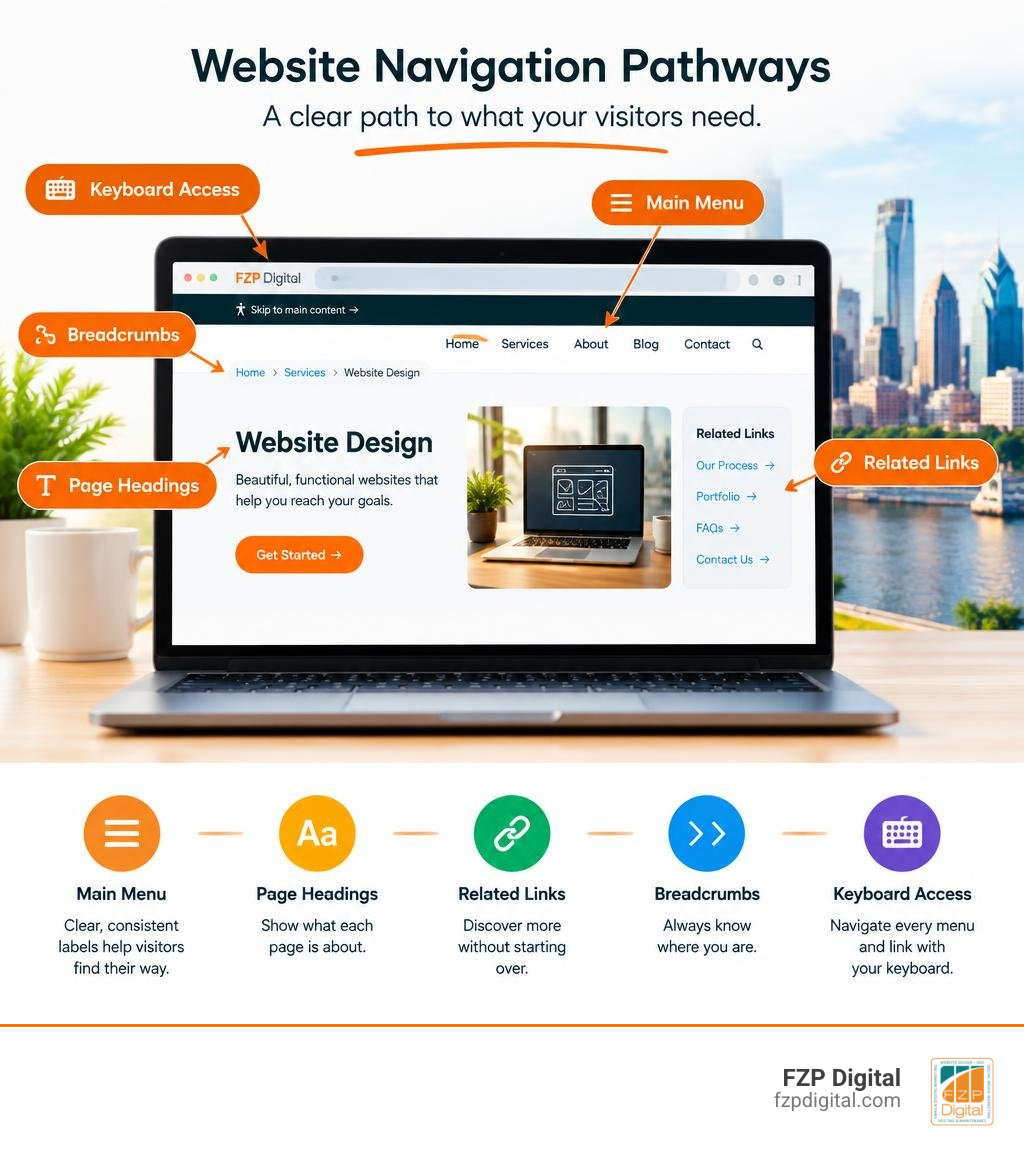
Core Architecture Methods to Navigate Through Website Structures
Have you ever walked into a massive library where none of the aisles were labeled? You probably felt an instant urge to walk right out the front door! The exact same thing happens when people arrive on your site and can’t find what they need in seconds. Good website architecture acts as your digital map, turning potential confusion into a smooth, effortless journey.
When we set up an intuitive structure, we group information logically from broad topics down to specific details. This approach relies on a clear hierarchy:
- Global Menus: Present on every single page, these give visitors instant access to top-level categories like Services, About, and Contact.
- Local Submenus: These drill down into specific sub-topics or service lines without cluttering the primary header.
- Breadcrumb Trails: Visual trails (like Home > Services > Web Design) that help users understand their current location and step backward with a single click.
- Contextual In-Text Links: Relevant links embedded directly within the content that point visitors to related guides and resources.
To dive deeper into structuring these hierarchies, take a look at our practical guide to website navigation best practices.
| Navigation Type | Primary Scope | User Purpose | Key Placement |
|---|---|---|---|
| Hierarchical | Parent-to-child relationships | Exploring specific subcategories step-by-step | Breadcrumb trails, sidebar menus |
| Global | Whole website | Accessing primary pages from anywhere | Top sticky navigation bar, site header |
| Universal | Network of related subsites | Moving across separate domains or parent organizations | Top utility bar above main header |

How Global and Universal Navigation Help Users Navigate Through Website Networks
If your organization runs distinct microsites, parent brands, or dedicated subsites (like separate portals for distinct departments or regional offices in Philadelphia or Bucks County), you need more than standard navigation. You need universal navigation.
Universal navigation acts like an exit sign in a large building. It gives users a dependable cue showing them how to get back to the main organization’s mothership no matter how deep they’ve wandered into a subsite. Research shows that keeping a clear visual hierarchy between the subsite menu and the universal parent bar prevents visitors from feeling trapped. As we’ve seen across hundreds of builds, the easiest websites to navigate prove that simple design always wins. Keep the main brand logo placed consistently toward the top-left, label domains clearly, and let your visitors explore without fear of losing their place.
Organizing Main Menus and Home Page Pathways
Your main menu shouldn’t be an exhaustive index of every single URL on your server. When menus are overloaded with dozens of competing links, cognitive load skyrockets, causing decision paralysis.
Instead, focus on strong “information scent.” Give links clear, descriptive labels that accurately preview what awaits on the other side. If you’re refining your core header, our walkthrough on home page navigation 101: building menus that drive engagement provides actionable ways to prune unnecessary clutter. Remember: navigation gets used about twice as much when it is immediately visible rather than hidden behind obscure menu toggles on desktop screens!
Browser Shortcuts and Keyboard-Only Navigation Techniques
Did you know that millions of internet users browse the web entirely without a mouse? Whether out of preference, efficiency, or temporary motor limitations (like trying to work with a sprained wrist), mastering keyboard navigation unlocks incredible speed.

Every modern web browser comes equipped with built-in commands for moving around:
- Focusing the Address Bar: Pressing
Ctrl + L(orAlt + Don Windows, andCmd + Lon macOS) jumps directly to the address bar so you can type a new URL or search query immediately. If you enjoy deep browser customization, checking out the Address Bar customization guide shows how flexible modern address bars can be. - Refreshing the Page:
F5orCtrl + Rtriggers a standard reload, whileCtrl + F5performs a hard cache refresh. - Viewport Scrolling: Arrow keys allow smooth incremental scrolling, while
Page UpandPage Downlet you glide through long articles effortlessly. - Jumping to Extremes: Pressing
Home(orCtrl + Home) brings you right back to the top of the page, whileEnd(orCtrl + End) jumps straight to the footer.
Using the Tab Key and Quick Navigation Keys to Navigate Through Website Content
The Tab key is the workhorse of keyboard browsing. Pressing Tab moves focus sequentially forward through all interactive elements—links, buttons, form fields, and dropdown controls. Pressing Shift + Tab reverses that flow, moving you backward.
When you land on an interactive control:
- Press Enter to open hyperlinks, click buttons, or submit forms.
- Press Spacebar to toggle checkboxes or expand select boxes.
- Use Arrow Keys to choose options inside radio groups and dropdown lists.
- Tap Esc to dismiss open modals, popups, or flyout menus.
For this to work smoothly, websites must feature crisp, high-contrast visual focus indicators (the outline around the active button). When focus indicators are stripped away by careless styling, keyboard users are left navigating completely in the dark!
In-Page Search and Element Lists for Fast Browsing
Need to find one specific term on a 3,000-word page? Hitting Ctrl + F (or Cmd + F) opens the browser’s native Find tool, letting you type a keyword and jump between matches using Enter.
Accessible sites also feature “Skip to Content” links. These hidden gems sit at the very top of the page and become visible the moment a keyboard user presses Tab. Activating a skip link bypasses repetitive header menus, dropping you straight into the main article text so you don’t have to tab through twenty menu items every time a new page loads.
Assistive Technologies: Navigating with Screen Readers
For visually impaired individuals, screen readers like JAWS (Job Access With Speech), NVDA, and Windows Narrator translate visual page layouts into synthesized speech or refreshable Braille displays.
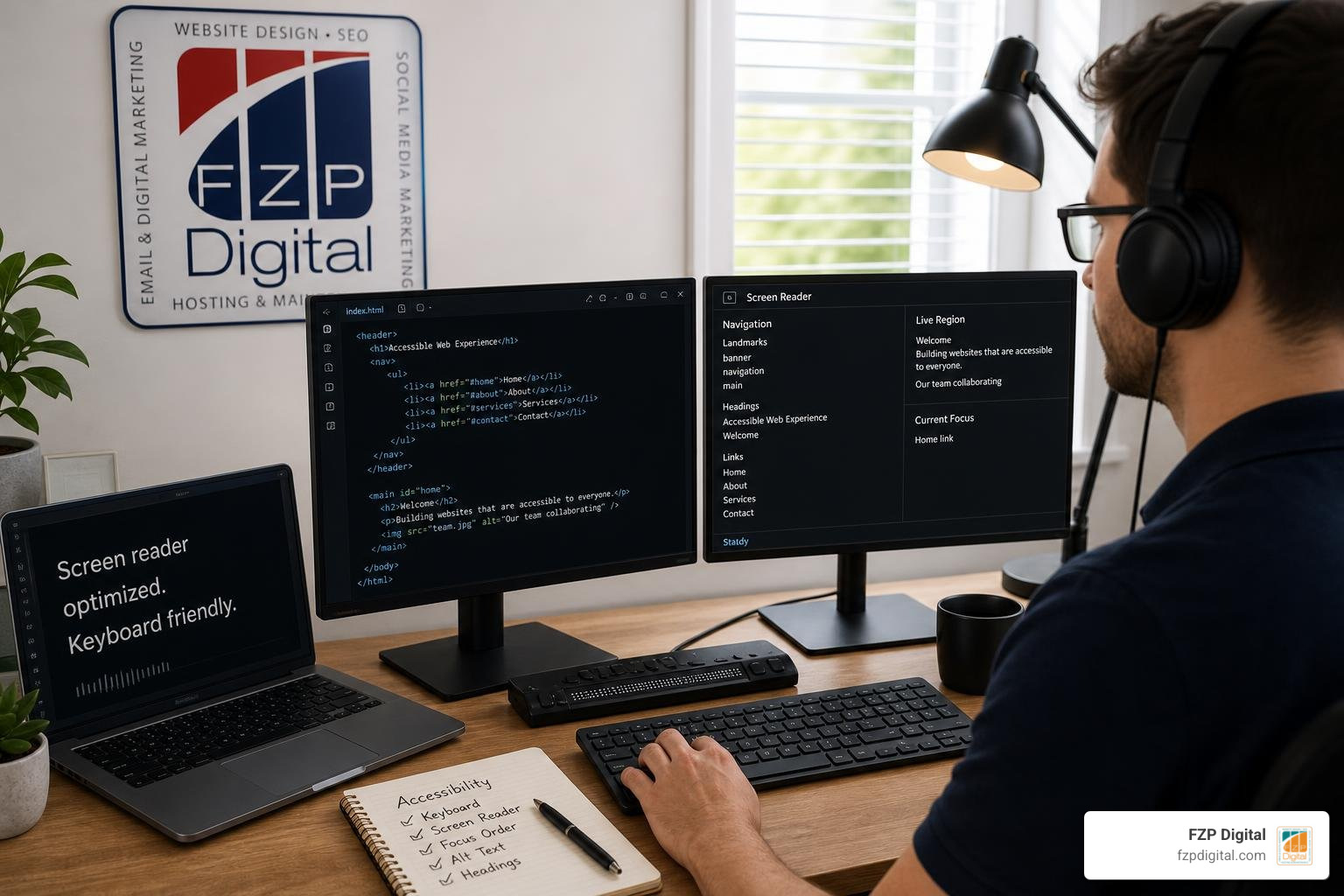
Screen readers do not just read flat text from top to bottom like a book; they provide robust navigation controls that allow users to skim, jump, and filter content dynamically. The foundational guidelines in the JAWS Web Navigation Guide illustrate how vital clean HTML structure is for assistive software.
Reading via Headings, Landmarks, and Semantic Regions
Imagine reading a newspaper where all the headlines, captions, and body text were printed in the exact same font size and weight. Skimming would be impossible! Screen readers solve this by scanning heading tags (H1 through H6) and ARIA landmark regions.
- Headings (
H): Users can press theHkey to cycle through major section titles, or press numbers1through6to target specific heading levels. - Landmark Regions (
R): Clean markup assigns semantic regions such as,,, and. Screen reader users can jump straight to the navigation bar or main body with a single keystroke. - Lists (
L) and Paragraphs (P): Quick keys enable users to leap across structured lists and blocks of text without listening to unrelated sidebars.
For step-by-step techniques on semantic formatting, review the comprehensive HTML Page Navigation Guide.
Link Lists, Form Controls, and Image Alt Text
Screen reader users frequently pull up interactive element lists to find what they need quickly:
- Link Lists (
Insert + F7in JAWS): Opens an alphabetized dialog of every hyperlink on the page. This is why links labeled “Click Here” or “Read More” are so problematic; in an isolated list, nobody knows where “Read More” leads! Always use descriptive link text. - Form Lists (
Insert + F5): Gathers all text inputs, checkboxes, and buttons into one window so users can jump directly to checkout fields. - Image Alt Text (
G): PressingGcycles through graphic elements, reading aloud the descriptive alternative text provided in the code.
Built-in operating system tools offer similar shortcuts; exploring Windows Narrator navigation support reveals how built-in tools pull webpage summaries and popular links on demand.
Best Practices for Designing Accessible, Frictionless Navigation
Building an exceptional navigation experience isn’t an accident—it’s the result of thoughtful planning, rigorous user empathy, and adherence to accessibility standards. Our team at FZP Digital treats seamless navigation as the cornerstone of every website we develop.
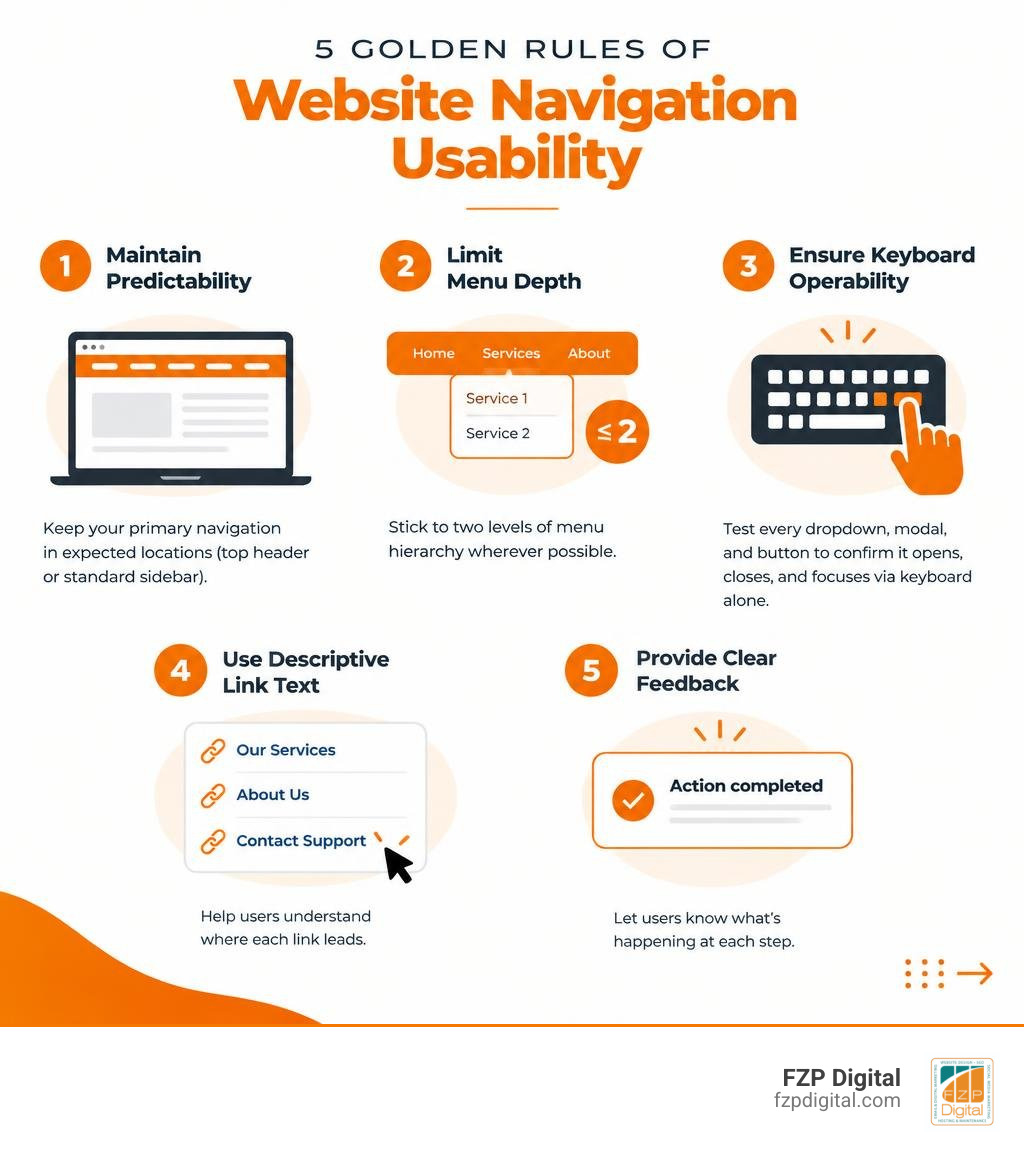
Here are the essential design principles to keep your visitors engaged and moving forward:
- Maintain Predictability: Keep your primary navigation in expected locations (top header or standard sidebar).
- Limit Menu Depth: Stick to two levels of menu hierarchy wherever possible. Overly nested flyouts create frustrating mouse traps.
- Ensure Keyboard Operability: Test every dropdown, modal, and button to confirm it opens, closes, and focuses via keyboard alone.
- Provide Visual Feedback: Clearly highlight active pages, hover states, and keyboard focus outlines.
- Write Informative Anchor Text: Make sure links make sense out of context.
For an extensive breakdown of inclusive design standards, check out our guide on making sure the website is easy to navigate for every visitor.
Ensuring Cross-Device Usability from Desktop to Mobile
Over half of global web traffic happens on mobile devices. What feels breezy on a 27-inch desktop monitor can easily become cramped and frustrating on a smartphone screen.
When adapting your navigation for smaller viewports:
- Use clear, recognizable icons like the standard hamburger menu, paired with the word “Menu” for maximum clarity.
- Design generous touch targets (at least 48×48 pixels) with ample padding so thumbs don’t tap the wrong link by mistake.
- Ensure flyout drawers trap focus properly so mobile screen reader users aren’t left interacting with hidden background content.
Measuring and Enhancing Student and User Navigation Flow
How do you know if your navigation structure is truly succeeding? By looking at user flow metrics, drop-off rates, and task completion times!
In higher education and enterprise platforms, streamlined navigation delivers massive returns. For example, institutions using student success platforms like Navigate360—which serves over 10 million students across 850+ institutions—report retention rate gains of 2% to 12%, graduation rate increases of 3% to 15%, and a typical 7:1 ROI by removing friction from how students access advising, course scheduling, and campus resources. When users can find what they need without obstacles, engagement and satisfaction naturally soar.
Whether you’re running a regional business in Philadelphia or a growing brand across Bucks County, navigating complex web design and SEO challenges requires experienced guidance. Fred Z. Poritsky and our dedicated team at FZP Digital guide organizations through these exact hurdles, building responsive WordPress platforms engineered to convert visitors into loyal customers.
Frequently Asked Questions about Website Navigation
How do keyboard shortcuts help users navigate through a website?
Keyboard shortcuts allow users to move across web pages without using a mouse. By pressing keys like Tab and Shift + Tab, users can jump between interactive elements, activate links with Enter, toggle options using Spacebar, and scroll with arrow keys. Power users and visitors with motor impairments rely on these shortcuts for rapid, precise navigation.
What is the difference between global navigation and universal navigation?
Global navigation refers to the primary menu found consistently across all pages of a single website, linking to core sections like About, Services, and Contact. Universal navigation sits above the global menu across a multi-site network, helping visitors seamlessly transition between distinct subsites, department portals, and the primary parent brand homepage.
How do screen readers locate specific sections on a webpage?
Screen readers utilize semantic HTML tags, heading hierarchies (H1–H6), and ARIA landmark roles (such as , , and ). Screen reader users can press quick navigation keys (like H for headings or R for regions) or open dialog lists (Insert + F7 for links) to jump directly to any section on the page.
Conclusion
A well-crafted navigation system is the invisible backbone of a successful website. When visitors can seamlessly explore your pages, understand their surroundings, and access content regardless of the device or assistive tool they use, bounce rates drop, conversions rise, and your brand authority grows.
Are you ready to elevate your digital presence and deliver an effortless browsing experience? Explore our comprehensive breakdown of website navigation best practices for a smooth experience.
When it comes to hosting and powering high-performance WordPress sites, having a reliable infrastructure is just as vital as clean code. For top managed WordPress hosting, GoDaddy is a top option, and here at FZP Digital, we actively recommend GoDaddy and WP Engine for rock-solid speed, security, and uptime.
Reach out to FZP Digital today, and let’s work together through our proven “Develop . Design . Deliver” process to build a website your visitors will love exploring!