

One Simple Way to Secure Your WordPress Website
Secure Your WordPress Website Before Attackers Find the Gaps

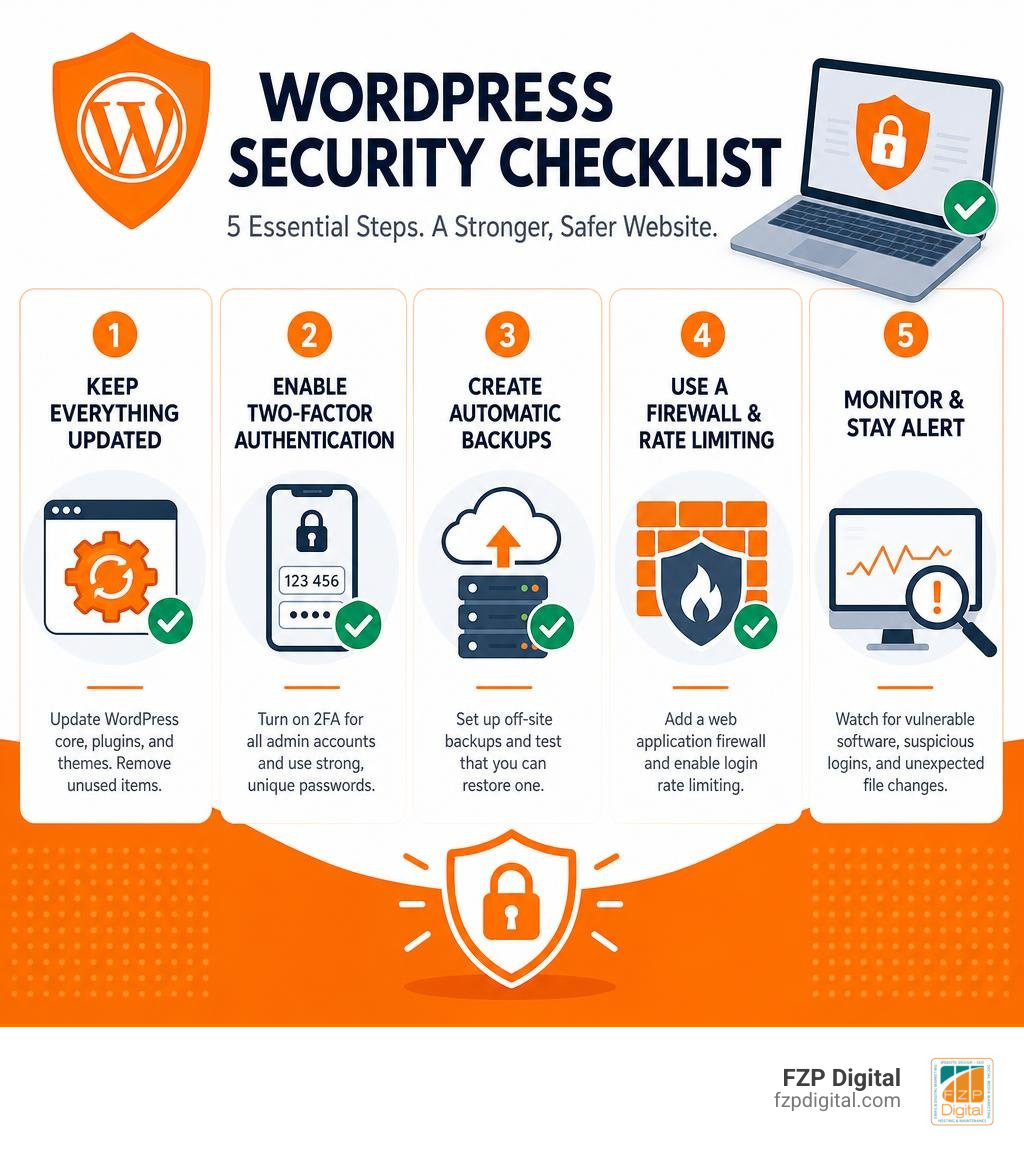
To improve WordPress website security right away, start with these high-impact steps:
- Update WordPress core, plugins, and themes – then remove anything you no longer use.
- Turn on two-factor authentication for every administrator account and use unique passwords stored in a password manager.
- Set up automatic, off-site backups and test that you can restore one.
- Add a web application firewall and enable login rate limiting.
- Watch for alerts about vulnerable software, suspicious logins, and unexpected file changes.
That may sound like a lot, but it is a manageable checklist – and it stops many of the attacks that affect small-business and nonprofit sites.
WordPress itself is widely used, well maintained, and secure when properly managed. Its popularity also makes it an obvious target for automated bots looking for old plugins, weak credentials, exposed login pages, and hosting configuration mistakes. Vulnerable plugins account for an estimated 56% of WordPress compromises, while brute-force login attacks account for another 16%.
The stakes go beyond a broken website. A compromise can lead to malware warnings in Google, spam pages, stolen customer information, redirected visitors, lost donations or leads, and a damaged reputation that takes time to rebuild.
Security is not about making a site impossible to attack. It is about reducing risk, limiting the damage if something goes wrong, and making your website a much less appealing target than the unprotected sites around it.
I’m Fred Z. Poritsky of FZP Digital, and I bring a practical mix of business management, web design, and digital marketing experience to WordPress website security. As we build and maintain sites for businesses and nonprofits, the goal is simple: protect the online presence you depend on without turning security into a confusing technical project.
Learn more about wordpress website security:
Why WordPress Website Security Is Vital in 2026
Have you ever wondered why automated attackers target smaller business websites that seem to fly under the radar? WordPress powers over 40% of all websites across the internet, representing more than half of the world’s content-managed websites. Because of this massive footprint, automated bots scan the web constantly, probing thousands of domains every single hour for recognizable software gaps. Attackers rarely pick websites by hand; instead, they cast wide nets using automated scripts to find unpatched software.
When a breach occurs, the fallout affects your bottom line immediately. Every day, search engines display security warnings to millions of visitors when a compromised site tries to load malware or harvest data. Search engines also blacklist thousands of websites daily due to phishing scripts, spam injection, and suspicious redirects.
If your website gets flagged, your hard-earned search rankings plummet, organic traffic evaporates overnight, and customer trust takes a massive hit. Remediation can cost thousands of dollars in technical labor and days of downtime. Implementing dedicated website security protocols is essential for preserving your revenue, search visibility, and client relationships throughout the year.
Common Attack Vectors and Vulnerability Statistics
Securing your site begins with knowing how unauthorized visitors gain access in the first place. Comprehensive vulnerability reports show clear trends behind modern compromises:
- Vulnerable plugins cause 56% of WordPress website breaches.
- Brute-force attacks attempting automated credential guessing account for 16% of hacks.
- Outdated or insecure themes cause 12% of breaches.
- WordPress core vulnerabilities cause 9% of compromises.
- Server misconfigurations and poor hosting permissions represent 7% of incidents.
Following an up-to-date 2026 WordPress security features checklist helps you address these exact entry points before automated scanners locate your pages.
The Risks of Outdated and Nulled Software
Security research shows that thousands of new WordPress vulnerabilities are documented each year, with over 90% residing inside third-party plugins. When a security researcher or vendor publicly discloses a vulnerability, attackers begin scanning for vulnerable installations almost immediately. In fact, the median time to first exploitation for actively targeted flaws is roughly five hours after disclosure.
The danger multiplies exponentially if your site runs nulled or pirated themes and plugins downloaded from unofficial repositories. These “free” premium downloads almost always contain hidden backdoors, spam injectors, and hardcoded administrative accounts designed to bypass standard login forms. Using genuine software and applying updates promptly closes this dangerous exposure window.
Essential Steps to Harden Your Site Without Coding
You don’t need a degree in computer science to establish robust defense layers. The most effective safeguards involve straightforward settings that anyone can configure directly inside the WordPress dashboard.
Begin by enforcing strict authentication hygiene. Never use default usernames like “admin” or your primary domain name, as automated bots test these by default. Instead, create a distinct administrative username and generate long, complex passwords stored in a dedicated password manager.
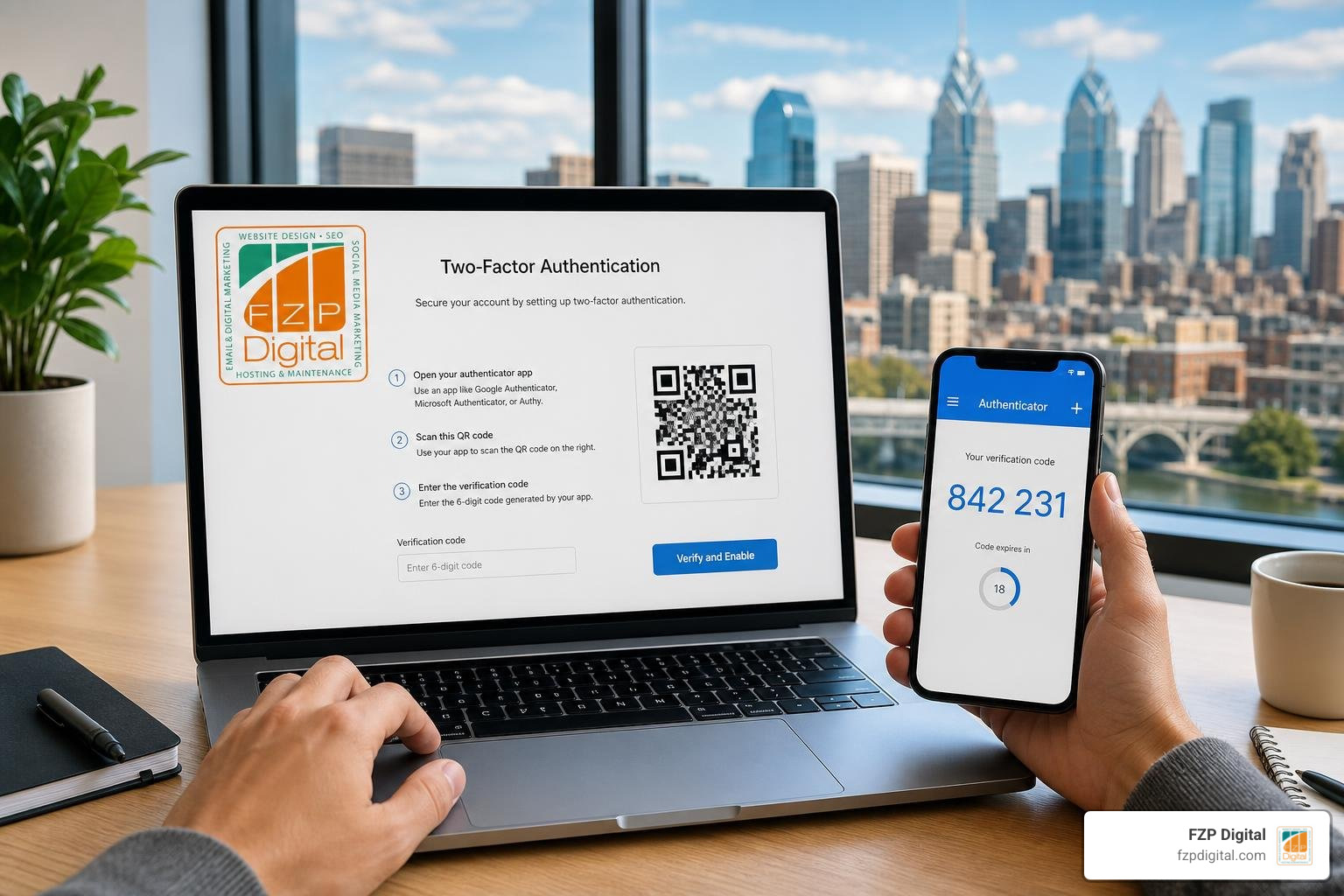
Next, activate two-factor authentication (2FA) for every user with administrative or editor permissions. Requiring a time-sensitive verification code from a smartphone authenticator app stops automated credential stuffing even if your password leaks in an unrelated third-party data breach. Combine 2FA with login rate limiting to temporarily lock out any IP address that fails five consecutive login attempts within fifteen minutes. Reviewing practical ways to protect your website provides a reliable baseline for day-to-day defense.
Non-Technical WordPress Website Security Foundations
Beyond login credentials, your baseline posture relies on three essential elements:
- Transport Encryption (SSL/HTTPS): Install a modern SSL/TLS certificate to encrypt data between visitor browsers and your web server. Enforce HTTPS across your entire site and activate HTTP Strict Transport Security (HSTS) headers to prevent downgrade attacks.
- Automated Off-Site Backups: Maintain independent daily backups saved to a remote cloud destination rather than your hosting server. Verify that your system offers reliable one-click restore points, and test a recovery on a staging environment at least once every quarter.
- Core and Minor Auto-Updates: Enable automatic background updates for minor core versions and trusted extensions. Keeping your software stack up to date also pairs naturally with speed optimization services, ensuring your site stays both secure and lightning fast.
Firewalls vs. Security Plugins: What You Need
Site owners often wonder whether they need a cloud-based firewall, a security plugin, or both. A Web Application Firewall (WAF) inspects incoming web traffic and filters out malicious payloads before they ever hit your server resources.
| Feature / Capability | DNS-Level Cloud Firewall (e.g., Cloudflare, Sucuri) | Application-Level Security Plugin (e.g., Wordfence, Solid Security) |
|---|---|---|
| Traffic Filtering Location | Edge network before reaching your host | Local server level after WordPress boots |
| Server Resource Usage | Low (absorbs bad bot traffic at the edge) | Moderate (runs via local PHP/database) |
| DDoS & Bot Mitigation | Excellent edge protection | Limited to application-level blocking |
| Malware & File Integrity Scans | External scanner integration required | Deep internal file system checksum scans |
| Login Hardening & 2FA | Requires enterprise edge rules | Built-in authentication controls |
| Virtual Patching | Rapid updates at DNS edge | Protects local application code |
Using a layered approach that combines edge filtering for broad traffic management with a local security plugin for internal file monitoring provides complete coverage without overburdening your server.
Technical Implementation and Attack Surface Containment
For site owners comfortable with file management, several DIY adjustments strengthen your underlying file system and prevent attackers from executing unauthorized scripts.

Following standard WordPress security hardening documentation, ensure your file and folder permissions match strict industry baselines. Set directory permissions across your server to 755 (writable only by the owner) and standard files to 644. Your primary configuration file, wp-config.php, should be restricted to 400 or 440 to prevent unauthorized reading by other system users.
Advanced WordPress Website Security Hardening for DIY Users
To limit what an intruder can do if they ever breach your perimeter, implement these containment measures:
- Change the Database Prefix: Replace the default
wp_database table prefix with a custom alphanumeric prefix (likefz982_) during installation to defeat automated SQL injection scripts. - Disable File Editing: Add
define( 'DISALLOW_FILE_EDIT', true );to yourwp-config.phpfile. This removes the theme and plugin code editor from your admin panel, preventing attackers from injecting arbitrary PHP scripts if they compromise an admin login. - Lock Down Sensitive Endpoints: Restrict direct public access to your
wp-includesdirectory and disable XML-RPC if you don’t use the WordPress mobile app or external posting integrations. - Prevent PHP Execution in Uploads: Add server rules preventing PHP scripts from executing inside the
/wp-content/uploads/folder, stopping malicious media uploads from running. - Activity Logging: Install an activity logging tool to track administrative logins, plugin changes, and content edits, giving you clear visibility over every operational change.
Incident Response: What to Do If Your Site Is Hacked
If your site displays unexpected defacements, throws malware alerts, or redirects to suspicious URLs, fast and structured action prevents further harm:

- Step 1: Isolate and Contain: Place the site in maintenance mode or temporarily block external access using your edge firewall to stop the infection from spreading to visitors.
- Step 2: Restore from a Known Clean Backup: Roll back your database and web files to a verified clean snapshot captured prior to the intrusion date.
- Step 3: Reset All Credentials: Change all WordPress user passwords, database access keys, SFTP/SSH credentials, and hosting panel logins immediately.
- Step 4: Scan and Clean: Run an exhaustive deep malware and checksum scan across all core files, themes, and plugins to ensure no hidden backdoors remain in custom folders.
- Step 5: Identify the Entry Point: Inspect server access logs around the timestamp of the breach to identify which outdated extension or weak account allowed the intrusion, then patch it before reopening your site.
The Role of Secure Managed WordPress Hosting
Your security posture is only as dependable as the foundation it rests upon. Inexpensive shared hosting environments often bundle thousands of websites onto a single server without proper account isolation. If a neighboring website on that server gets compromised, malicious scripts can occasionally traverse shared directories and infect your files.
High-quality managed WordPress hosting solves this by providing isolated server environments, automated server-level patching, real-time intrusion detection, and dedicated staging environments where you can test updates safely. When reviewing the best WordPress agency hosting, selecting a provider with built-in daily backups, edge caching, and hardware firewalls saves countless hours of manual maintenance.
If you are currently on an outdated shared server, using professional WordPress migration services makes moving to an optimized platform simple and seamless. At FZP Digital, we evaluate hosting environments rigorously to ensure client websites stay protected around the clock, and FZP Digital recommends GoDaddy and WP Engine as top managed WordPress hosting providers for performance, reliability, and security.
Frequently Asked Questions About WordPress Security
How often should WordPress core, plugins, and themes be updated?
You should enable automatic updates for minor WordPress core releases and review your plugins and themes at least once a week. Because active exploits often emerge within hours of a vulnerability disclosure, applying security updates promptly is critical. For major version releases or complex e-commerce setups, test the updates on a staging copy of your site first to ensure total compatibility before pushing changes live.
Can security plugins slow down my WordPress website?
Security plugins that run heavy, continuous scans directly on your server during peak business hours can add modest overhead. You can avoid slowdowns by pairing an edge-level cloud firewall (which blocks malicious traffic before it reaches your hosting) with scheduled off-peak malware scans. Cloud-based security tools handle heavy scanning operations on remote servers, keeping your page load times fast for visitors.
What is the most common reason WordPress websites get hacked?
The single most common entry point is outdated third-party plugins, which account for roughly 56% of all recorded WordPress security breaches. Automated bots scan millions of websites searching for known vulnerabilities in unpatched extensions. Combining regular software updates with strong passwords and two-factor authentication eliminates the vast majority of these automated risks.
Conclusion
Securing your WordPress website is an ongoing operational habit rather than a one-time chore. By enforcing two-factor authentication, scheduling regular off-site backups, keeping your plugins updated, and selecting a robust managed host, you build a layered defense that stops automated attacks cold.
Are you ready to elevate your digital presence while keeping your web assets safe and fully optimized? Whether you need technical hardening, performance tuning, or a complete redesign, explore our comprehensive Philadelphia web development guide to see how our team at FZP Digital can help your organization thrive.