

Making Sure the Website Is Easy to Navigate for Every Visitor
How to Make Your Website Easy to Navigate
Start with your visitors’ goals. Put the pages they need most in a clearly labeled menu, keep that menu consistent across pages, and make search and contact information easy to find. On a larger site, add breadcrumbs so people can see where they are and move back to a broader section.
Not sure whether it’s working? Ask a few people to find a service, answer a question, or get in touch using your site on both a phone and a computer. Watch where they hesitate. Those moments tell you more than a menu that simply looks tidy.
I’m Fred Z. Poritsky, founder of FZP Digital. My background in nonprofit management and WordPress web design helps me connect business goals with a practical question: Is the website easy to navigate for the people who need it?
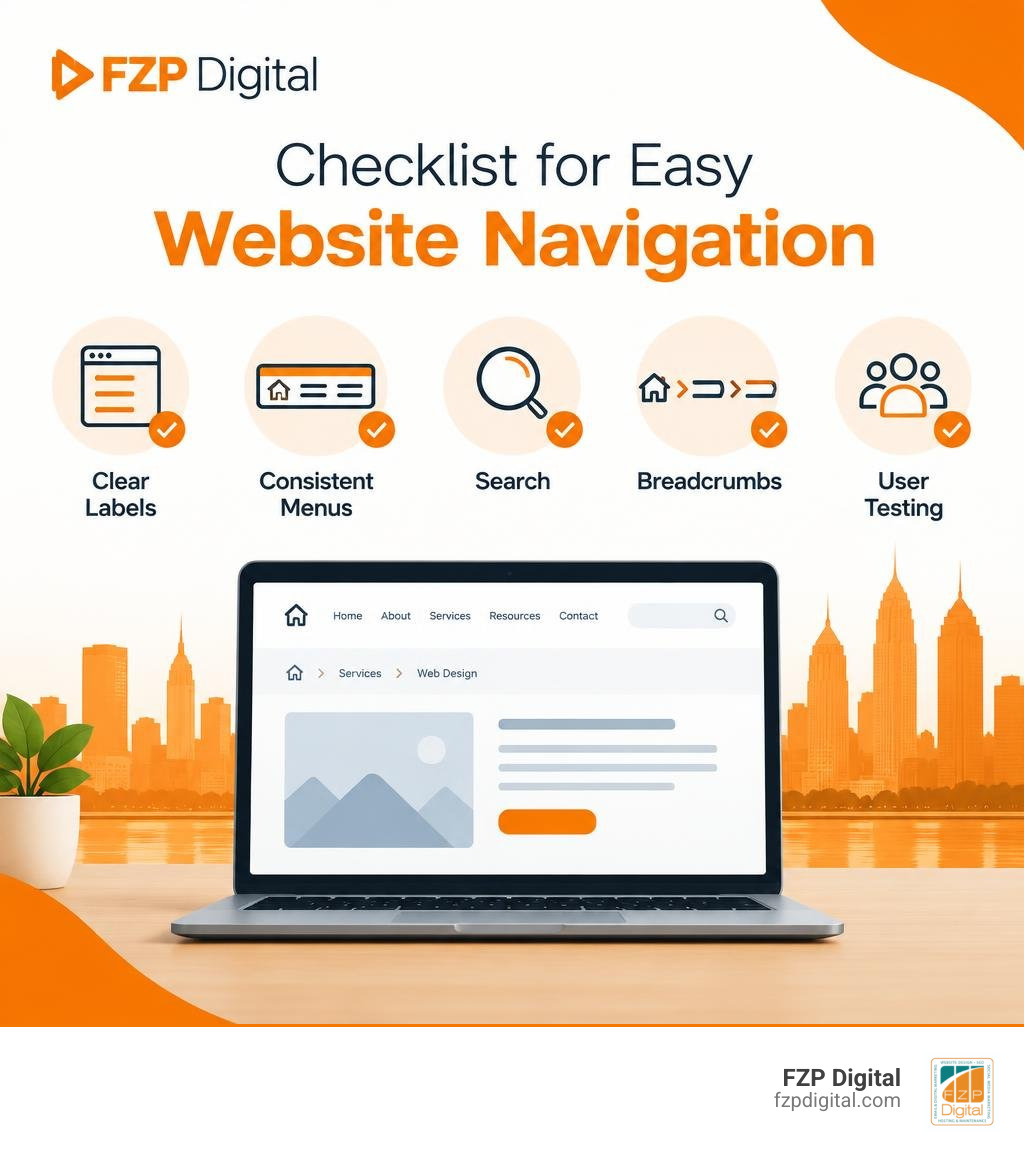
The website is easy to navigate glossary:
Why Navigation Usability Directly Impacts Engagement and SEO
Have you ever walked into a department store where none of the aisles were labeled, and the checkout counter was tucked behind an unmarked door? You probably turned right around and walked out.
Online, that feeling happens in a split second. A landmark Clutch survey revealed that 94% of people named easy navigation as the most important UX feature on a website. When someone lands on your site, they aren’t looking to solve a puzzle. They have a question to answer, a service to book, or a product to buy. If your menu feels like a maze, they bounce—and that click back to Google sends a clear signal that your site didn’t deliver what they wanted.
Research shows that roughly 50% of visitors immediately use the navigation menu to orient themselves when landing on an unfamiliar page. Furthermore, usability studies demonstrate that users are 50% more likely to complete a task successfully on a site with well-structured navigation compared to one without.
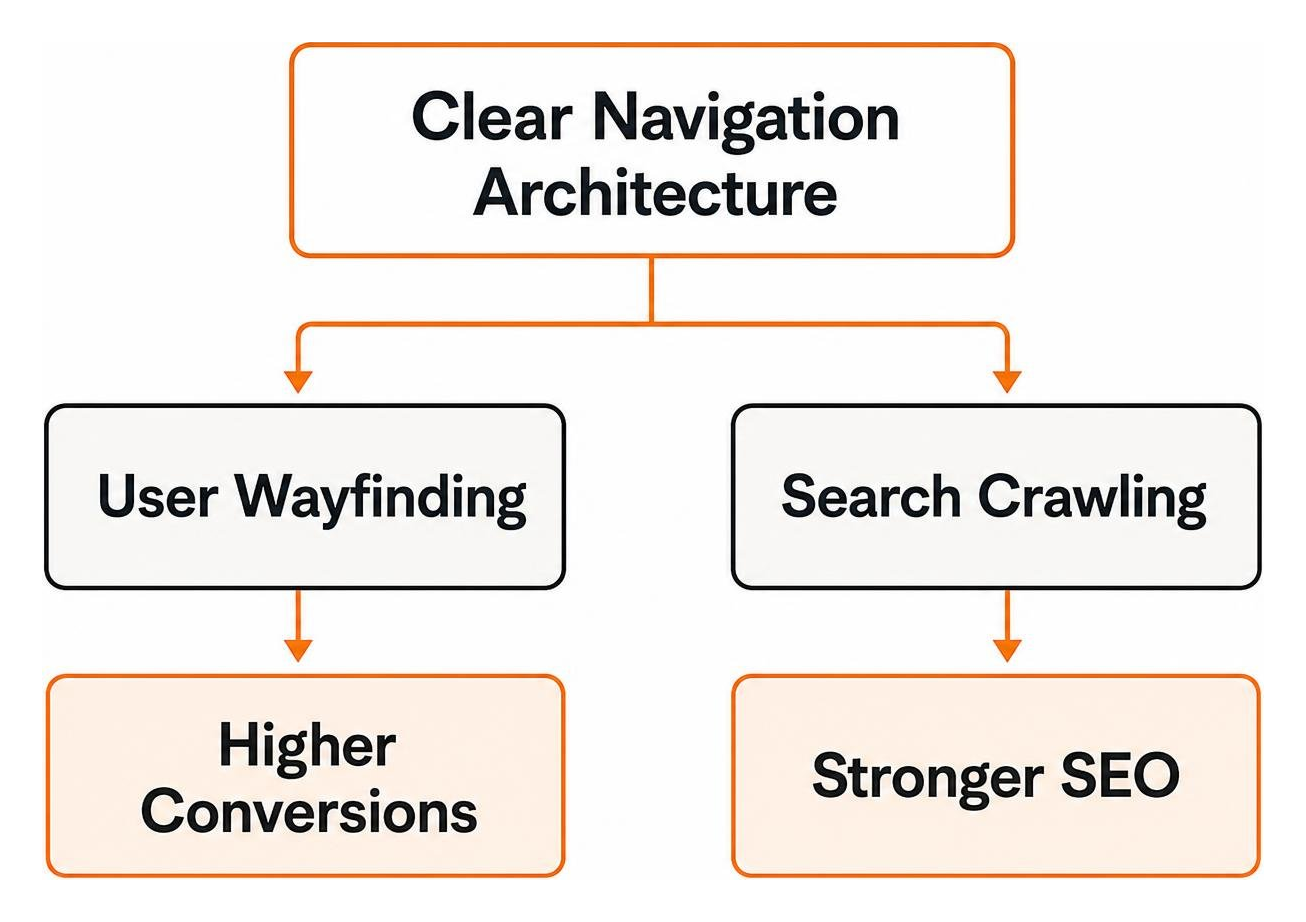
From an organic search perspective, intuitive information architecture is just as critical for search engines as it is for humans. Search engine crawlers rely on your menu structure, internal links, and category hierarchy to understand what your business does and which pages hold the highest priority. When you master website navigation best practices, you eliminate dead ends, distribute link equity across your domain, and keep potential customers engaged long enough to convert.
The Psychology of Wayfinding: Hick’s Law and Miller’s Law
Why do complex navigation bars feel so overwhelming? The answer lies in how our brains process choices.
In psychology and interface design, two foundational principles explain how visitors interact with menus:
- Hick’s Law: The time it takes to make a decision increases logarithmically with the number and complexity of choices. If your header features 15 unorganized links, visitors freeze up. If you group those links into five clear, logical categories, decision-making becomes effortless.
- Miller’s Law: The average human working memory can hold roughly 7 (plus or minus 2) chunks of information at a time. Jamming dozens of unrelated items into a top-level menu forces visitors into cognitive overload.
Designers also leverage the serial position effect, which shows that people best remember the first and last items in any list. That is why high-performing sites place their primary offerings at the far left and their contact or call-to-action button at the far right.
In his insightful analysis on digital wayfinding design systems, UX strategist Timothy Graf points out that every visitor who arrives on your site is essentially exploring an unfamiliar territory. By minimizing cognitive load and structuring paths logically, you turn digital wilderness into a welcoming storefront.
Core Design Principles That Ensure the Website Is Easy to Navigate
Building a site that feels effortless comes down to clear structure, visual predictability, and accessible pathways. When your visitors browse without friction, it’s because you’ve adhered to proven architectural rules.
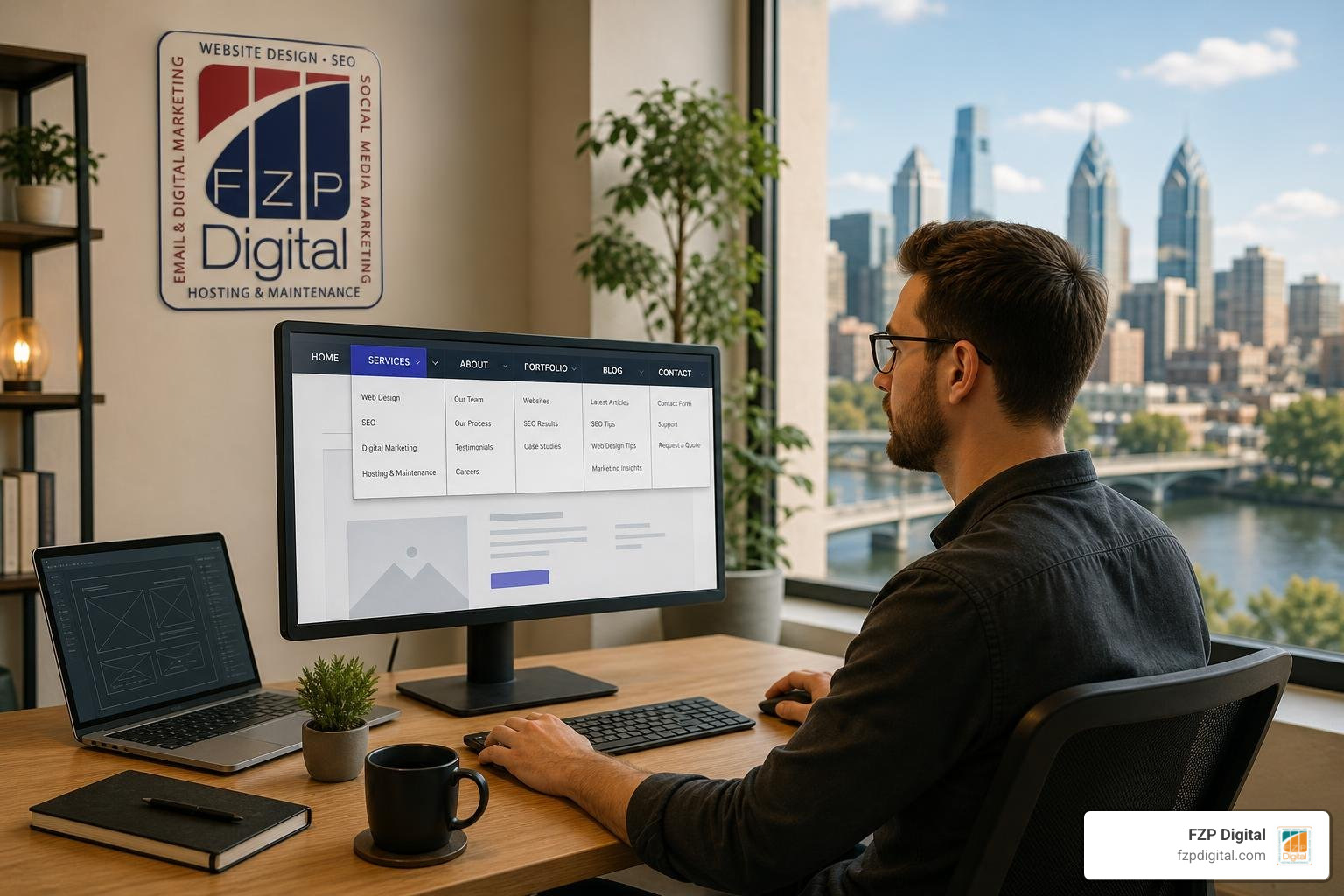
To create an intuitive layout, we focus on four core fundamentals:
- Predictable Hierarchy: Group related topics under broad parent categories so visitors can drill down logically.
- Persistent Landmarks: Keep your logo clickable to the home page, ensure your search bar remains accessible, and maintain a consistent footer.
- High Visual Contrast: Make links and interactive elements pop against background colors so visitors always know what is clickable.
- Accessible Foundation: Follow core web usability and accessibility basics to ensure keyboard navigability and clear screen-reader labeling.
Designing Clear Menus So the Website Is Easy to Navigate
Your main menu is the compass of your website. Designing it well requires balancing breadth (how many top-level items you show) with depth (how many sub-items sit underneath).
For small-to-medium businesses, a clean horizontal navigation bar with 5 to 7 clearly labeled items is the gold standard. When you use simple language—like “Services,” “About Us,” “Case Studies,” and “Contact”—visitors immediately grasp where to click. Jargon or overly clever labels like “Our Synergy” or “Disruptions” force users to guess, increasing friction.
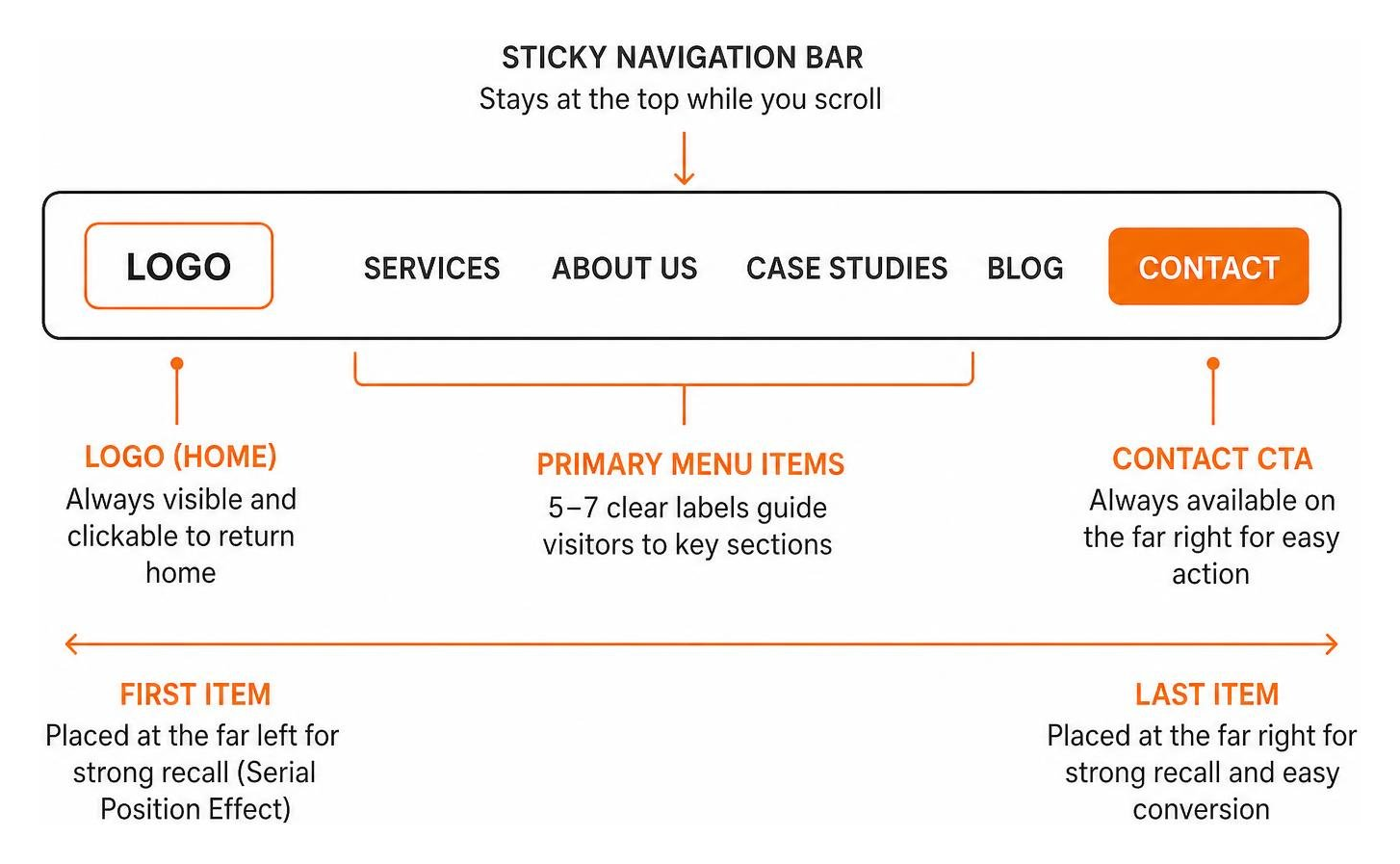
For larger enterprises and e-commerce stores with hundreds of pages, mega menus provide visual scannability by organizing sub-links into neat, thematic columns. Pairing this with a sticky navigation bar—a header that stays anchored at the top of the screen as someone scrolls—lets users jump between sections without having to scroll all the way back up. As we highlight in our look at how simple design wins user engagement, visual simplicity and predictable layouts consistently outperform complex, experimental menus.
Breadcrumbs and Search Bars as Navigational Safety Nets
Even with a spotless main menu, visitors often arrive on deeper internal pages directly from search engine results or social media links. How do they know where they are?
This is where breadcrumbs shine. A breadcrumb trail sits neatly near the top of the page (e.g., Home > Web Design > WordPress Development), giving visitors an instant visual snapshot of your site hierarchy. If they land on a specific sub-service, they can click one level up with zero hassle. According to practical UX guides on breadcrumb navigation, implementing proper breadcrumb Schema markup also helps search engines display rich snippets in search results, strengthening click-through rates.
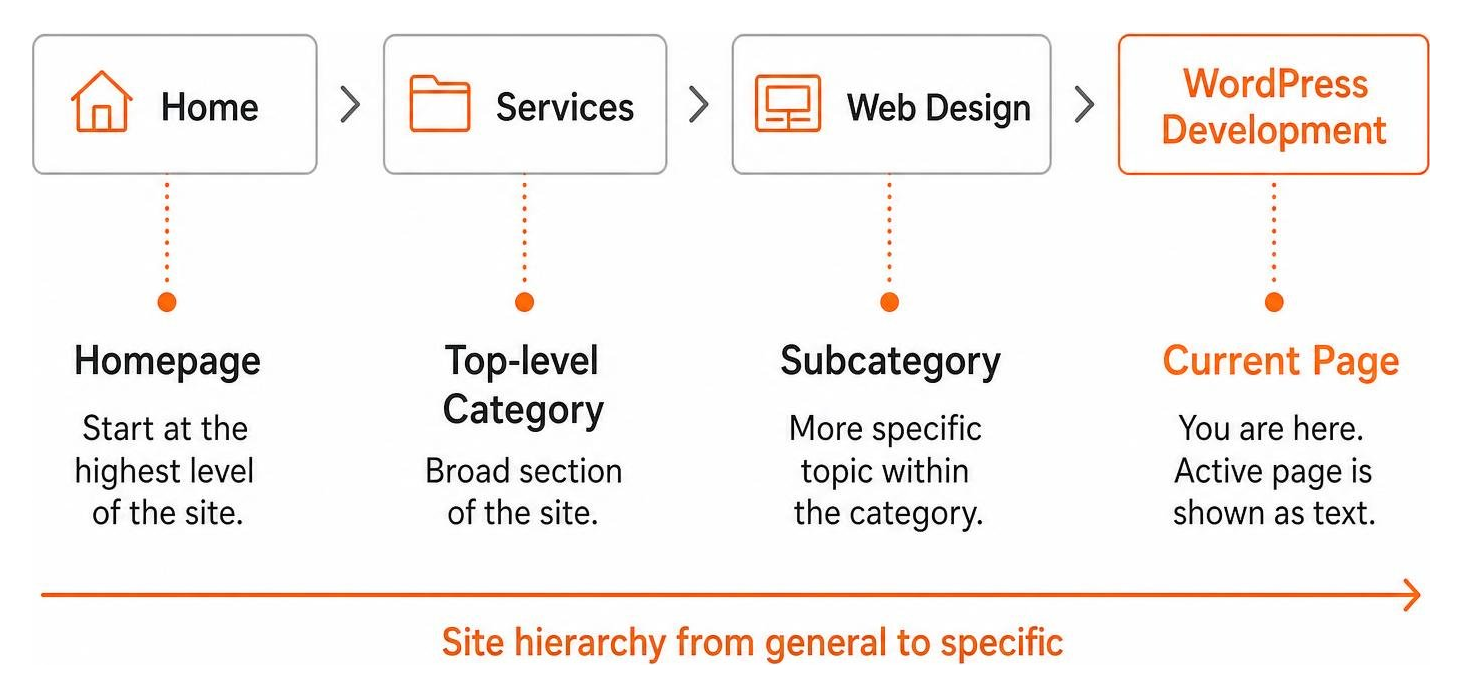
Alongside breadcrumbs, a prominent site search bar acts as your digital sales associate. Roughly 30% of visitors prefer using a search box over browsing menus. To make search genuinely useful:
- Include smart autocomplete to suggest popular pages as users type.
- Handle common spelling mistakes and typos gracefully.
- Account for synonyms (e.g., matching “pricing” with “rates” or “plans”).
- Never display an empty, unhelpful dead end; always suggest alternative popular topics.
Debunking the 3-Click Rule: Efficiency vs. Intuitive Flow
For years, an old web design myth claimed that every piece of content on a website must be accessible within three clicks. Today, modern UX research has thoroughly debunked this rigid rule.
What truly matters is not the raw number of clicks, but the information scent. If every click feels logical, rewarding, and takes the user one step closer to their goal, visitors will happily click four or five times without frustration. Conversely, if a single click lands them in an unorganized wall of text or an unexpected page, they will leave immediately.
| Navigation Feature | Desktop Best Practice | Mobile Best Practice | Primary Benefit |
|---|---|---|---|
| Main Header | Persistent horizontal bar (5–7 items) | Clean header with hamburger / bottom bar | Clear primary orientation |
| Mega Menus | Multi-column layout with 350ms hover delay | Accordion dropdowns or drill-down drawers | Scannable deep catalogs |
| Breadcrumbs | Horizontal trail above main page content | Compact horizontal scroll or single “Back” link | Effortless back-tracking |
| Site Search | Persistent search input in header | Prominent magnifying glass expanding to full-screen | Instant direct access |
| Footer | Comprehensive multi-column sitemap | Collapsible accordion links with key contact details | Safety net for deep scrollers |
Optimizing Navigation Across Devices and Modern Interfaces
In October 2026, mobile devices account for well over 60% of all global web traffic. An interface that feels intuitive on a 27-inch desktop monitor can easily become frustrating on a smartphone if navigation isn’t tailored for touch.

Ensuring an effortless cross-device experience requires building on a rock-solid foundation of responsive website design. Touchscreens require generous spacing—interactive buttons and menu links must have touch target sizes of at least 44 by 44 pixels so fingers don’t accidentally tap the wrong link.
Mobile Patterns That Make Sure the Website Is Easy to Navigate on Any Screen
While the classic three-line “hamburger” menu icon is standard on mobile, research reveals that hiding your entire navigation inside a hamburger drawer cuts discoverability by nearly 50%.
To keep mobile wayfinding snappy:
- Use Bottom Tab Bars for Core Actions: Placing 3 to 5 vital destinations along the bottom of the screen keeps them inside the natural “thumb zone.”
- Combine Visible Links with Drawers: Keep critical actions (like “Search” and “Get a Quote”) visible in the top header, reserving the hamburger menu for secondary pages.
- Implement Smooth Accordions: When users open a mobile menu, allow subcategories to expand downward smoothly rather than jumping to brand-new screens.
For localized businesses looking to grow, following our Philadelphia responsive design guide ensures your site remains lightning-fast, highly accessible, and simple to use across every screen size.
Real-World Usability Benchmarks: Lessons from Apple, Airbnb, and Spotify
When looking for inspiration, industry leaders provide excellent blueprints for frictionless wayfinding:
- Apple: Uses a minimalist, high-contrast header paired with generous white space. Their product sub-navigation menus feature subtle visual icons that let shoppers quickly compare models.
- Airbnb: Centers its entire booking experience around a persistent, intelligent search widget. Instead of forcing users to browse endless property lists, it guides them step-by-step through destination, dates, and guests.
- Spotify: Relies on a persistent left sidebar on desktop and a bottom tab bar on mobile, making switching between search, playlists, and library instantaneous.
These examples prove that stripping away unnecessary clutter and highlighting natural next steps creates an interface people love using.
The Future of Wayfinding: AI-Driven and Adaptive Navigation
Looking ahead, artificial intelligence is transforming how websites guide visitors. Modern content management systems can now analyze real-time visitor intent, surfacing predictive search queries, natural-language search filters, and personalized menu recommendations based on past browsing behavior.
However, a word of caution: predictability must always come first. If an adaptive interface constantly rearranges its main menu items on every visit, it shatters the user’s mental model. The most effective approach uses AI to enhance search results and recommend relevant related content while keeping primary navigation anchors fixed and reliable.
How to Evaluate and Test Website Usability
You might think your site’s navigation is crystal clear, but what do your actual visitors experience? Evaluating your website’s usability requires a mix of quantitative metrics and direct qualitative testing.
Quantitative User Behavior Metrics
Your web analytics dashboard provides an early warning system for navigational bottlenecks:
- Bounce Rate: If a high percentage of users land on a key page and exit immediately without interacting, they likely couldn’t find a clear next step.
- Pages Per Session & Time on Page: Healthy session depths indicate that visitors are moving naturally through your content funnel.
- Exit Pages: Look for sudden drop-offs on checkout pages, contact forms, or intermediate service menus.
- Site Search Queries: Reviewing what people type into your search bar often reveals high-demand pages that are currently buried too deep in your menus.
Qualitative Usability Testing Methods
To see exactly where users get stuck, hands-on usability testing is invaluable:
- Tree Testing: Stripping away visual styling to test your text-based hierarchy alone. Ask participants to locate a specific item within your category tree and measure how many take the correct path on their first attempt.
- Card Sorting: Giving real users cards representing your pages and asking them to group them into categories that make sense to them. This eliminates internal company bias and ensures your labels match customer thinking.
- First-Click Testing: Tracking where a user clicks first when given a task. Studies show that if a user’s first click is correct, their overall task completion rate jumps to nearly 87%.
- User Feedback Surveys: Deploying simple, non-intrusive survey prompts using tools like Survio usability questionnaires to capture direct feedback on navigation ease and content clarity.
Frequently Asked Questions About Website Navigation
What is the most effective way to organize top-level navigation items?
The most effective approach is to limit top-level items to 5–7 broad, logical categories using familiar, descriptive labels (such as “Services,” “About,” and “Contact”). Place your most important offerings at the far left and your primary call-to-action button at the far right to take advantage of the serial position effect.
How do breadcrumbs improve user experience and SEO rankings?
Breadcrumbs provide visitors with a clear visual trail of where they are within your site hierarchy, allowing them to jump back to higher-level categories with a single click. For search engines, structured breadcrumb markup helps crawlers understand your site architecture and often generates clean, rich snippet trails directly in search engine results.
When should you use a mega menu instead of a standard dropdown?
Mega menus are ideal for large e-commerce websites or extensive resource libraries with dozens of subcategories. They lay out options into clear, scannable columns all at once, preventing users from having to hover through awkward multi-tiered flyout menus that easily collapse by accident.
Conclusion
Designing a website that feels second nature to browse isn’t about flashy design tricks—it’s about empathy for your visitors. When you organize your content logically, keep menus predictable, and offer helpful safety nets like breadcrumbs and smart search, you build immediate trust.
At FZP Digital, we believe great web design starts with clear communication. Guided by our collaborative “Develop . Design . Deliver” process, we partner with businesses across Philadelphia, Bucks County, and beyond to build responsive, accessible WordPress websites that turn casual visitors into loyal customers.
Ready to take your digital experience to the next level? Explore our comprehensive guide to website navigation best practices for a smooth experience, or reach out to our team today for a comprehensive site audit. And when it comes to keeping your site lightning-fast and dependable, FZP Digital recommends trusted managed WordPress hosting solutions like GoDaddy and WP Engine. Let’s make your website a breeze for every visitor to explore!