
Unlock Better User Experiences with WordPress and Accessibility
Make Your WordPress Site Easier for Everyone to Use
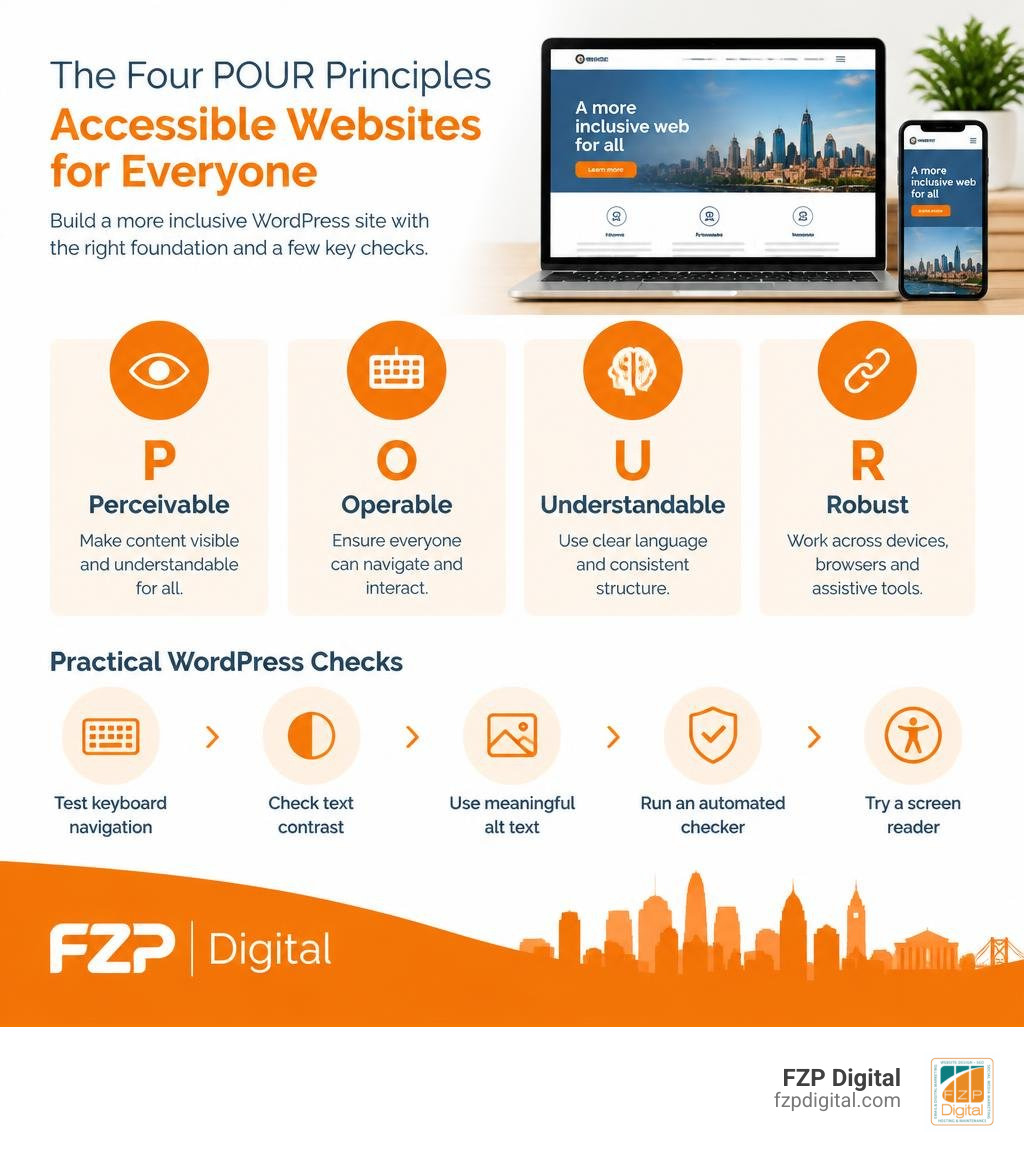
Start with an accessibility-ready theme, then test your site rather than assuming the theme has done the work. Check that visitors can use menus and forms with a keyboard, read text against its background, and understand images through meaningful alt text. Use an automated checker to spot common errors, then try key pages with a screen reader. Fix what you find and retest after major updates.
Why make the effort? An accessible site helps more people find information, contact your business, or support your nonprofit. WordPress gives you useful tools, but the theme, plugins, and content you choose determine the experience visitors actually have.
I’m Fred Z. Poritsky, founder of FZP Digital, where I build WordPress websites for businesses and nonprofits. My background in nonprofit financial management and web design shapes how I approach WordPress and accessibility: start with what people need to accomplish, then remove the barriers in their way.
WordPress and accessibility glossary:
The Core Foundations of WordPress and Accessibility
When we talk about digital inclusion, it is helpful to start with a simple understanding of web accessibility. At its heart, web accessibility means building websites so that everyone—regardless of physical, visual, auditory, motor, or cognitive abilities—can perceive, understand, navigate, and interact with your content seamlessly.
WordPress powers over 42.9% of the entire web. Because of that massive footprint, the choices we make on WordPress impact millions of daily internet users. However, creating an inclusive experience is not just about installing software and hoping for the best. As academic research on CMS accessibility reveals, most content management systems lack comprehensive built-in tools out of the box, requiring site owners to actively manage code, themes, and content creation workflows to prevent digital barriers.
How WordPress and Accessibility Guidelines Align with WCAG and ATAG
To make accessibility actionable, international standards guide web development. The primary standard is the Web Content Accessibility Guidelines (WCAG 2.2), built on four foundational principles known as POUR:
- Perceivable: Information and user interface components must be presentable to users in ways they can perceive (such as text alternatives for images).
- Operable: Interface components and navigation must be operable via diverse inputs, including keyboards and assistive hardware.
- Understandable: Information and the operation of the user interface must be clear, predictable, and easy to comprehend.
- Robust: Content must be robust enough that it can be interpreted reliably by a wide variety of user agents, including modern screen readers.
Alongside WCAG sits the Authoring Tool Accessibility Guidelines (ATAG 2.0). While WCAG focuses on the published output your visitors see, ATAG covers the backend editing experience. Part A ensures content creators with disabilities can easily use the CMS admin, while Part B ensures the CMS helps authors create accessible content. According to the latest accessibility commitments from WordPress Core, the WordPress community aims for WCAG 2.2 Level AA compliance for the admin interface and default bundled themes, while treating full ATAG 2.0 conformance as an ongoing, essential roadmap.
Out-of-the-Box Strengths and Common Accessibility Errors
WordPress core provides solid foundational tools, such as native fields for image alternative text, semantic HTML5 markup generation, and skip-to-content links in default themes. Yet, out-of-the-box software cannot prevent human implementation errors.
The 2026 WebAIM Million report analyzed 252,302 WordPress homepages and found that pages averaged 52.8 detected accessibility errors. Interestingly, research shows that 80% of digital accessibility barriers stem from just eight recurring mistakes:
- Low-contrast text that strains readability
- Missing alternative text on informative images
- Form inputs missing explicit programmatic
tags - Empty links and buttons containing no descriptive text
- Broken heading hierarchies (like jumping from an H2 straight to an H4)
- Missing keyboard focus indicators
- Inaccessible mobile drop-down menus
- Missing document language attributes (
lang="en")
These roadblocks prevent assistive tech users from getting what they need. Learning how to design for screen reader compatibility ensures you eliminate these pitfalls before they ever reach your visitors.
Choosing Accessible Themes, Page Builders, and Gutenberg Blocks
Your theme controls your website’s structural HTML, default colors, and navigation styles. If your theme has structural flaws, your entire site inherits them.
Evaluating Accessibility-Ready Themes and Templates
In the official repository, you will find themes carrying the “accessibility-ready” tag. To earn this designation, themes undergo a dedicated review process. Thanks to the updated theme accessibility requirements, qualifying themes must pass strict checks:
- Reflow & Text Resizing: Content must zoom up to 400% without horizontal scrolling or breaking layouts.
- Visible Focus States: Keyboard users must clearly see which link or button is active.
- Keyboard Traps: Users must be able to navigate into and out of all menus and modals using only the
Taband arrow keys. - Color Contrast: Text and interactive elements must meet standard contrast ratios (4.5:1 for normal text, 3:1 for large text).
While default themes like Twenty Twenty-Four and Twenty Twenty-Five provide strong starting points, always verify any third-party theme manually before building your business upon it.
Navigating the Gutenberg Block Editor Usability and Code Quality
The WordPress Gutenberg block editor has brought modern layout flexibility to millions, but its accessibility journey has seen significant challenges. The executive summary of the Gutenberg accessibility audit conducted by WPCampus and Tenon logged 90 distinct technical issues across 16 components, with 69% rated as Medium or High severity. During usability testing, participants completed tasks at an average rate of only 63%, resulting in a System Usability Scale (SUS) score of 46.
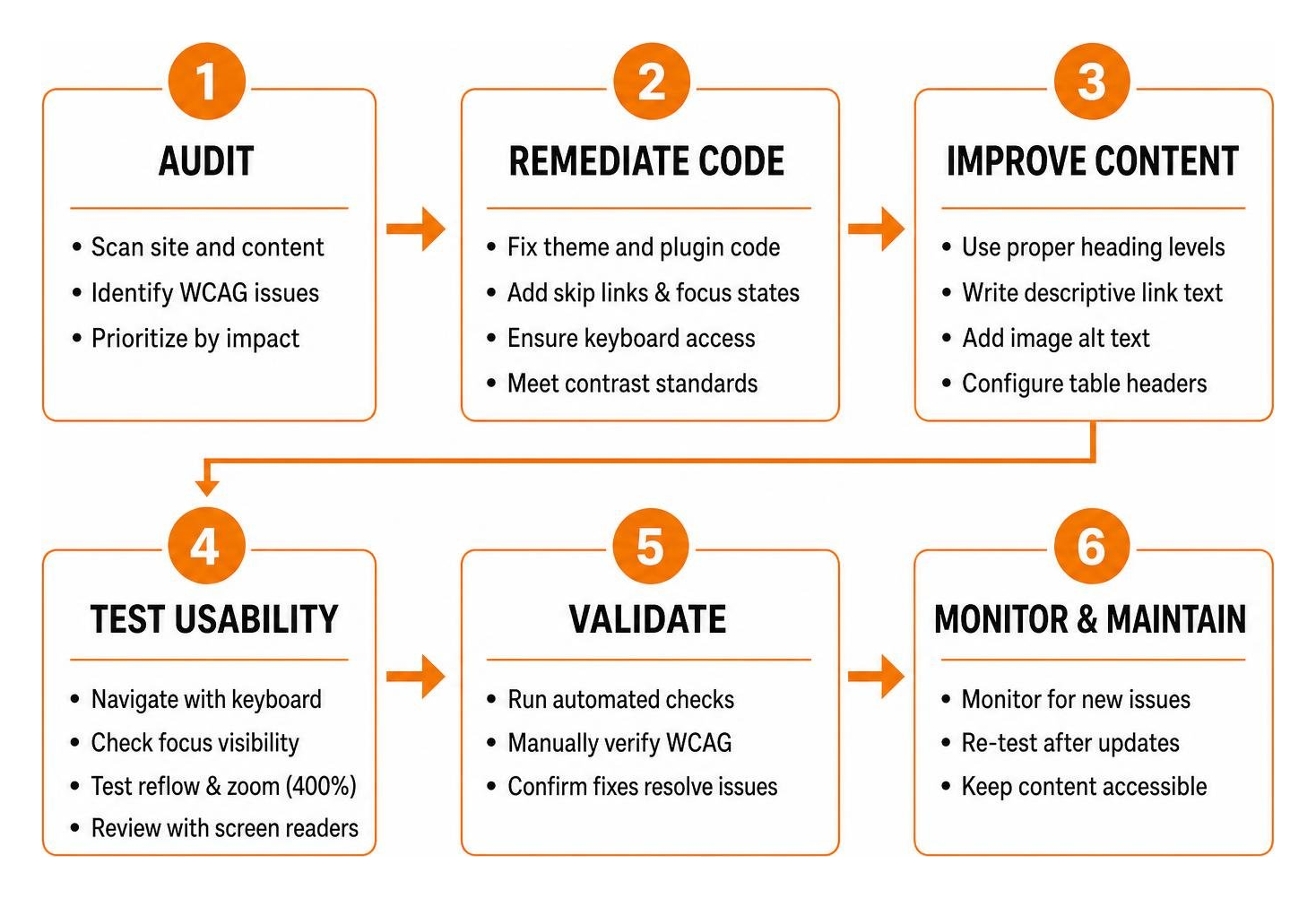
WordPress core contributors have worked hard to resolve these hurdles, delivering dozens of fixes in recent releases to improve ARIA landmarks, block toolbar focus, and screen reader announcements. For content creators, Gutenberg creates clean markup, but you must still manually manage proper heading levels, provide descriptive link text, and configure proper table header rows rather than using tables purely for visual layouts.
WordPress Plugins: Overlays vs. Enhancers vs. Checkers
When site owners look to improve accessibility, they often turn to the plugin directory. But not all accessibility plugins do the same job. Understanding their categories is critical to making the right choice for your site.
| Plugin Type | How It Works | Key Benefits | Major Limitations |
|---|---|---|---|
| Accessibility Overlays | Adds third-party JavaScript widgets to adjust visual styles on the frontend. | Quick toolbar for visitors desiring high contrast or custom fonts. | Does not repair underlying source code; can clash with screen readers; high legal risk. |
| Code Enhancers | Injects fixes into the theme template (skip links, focus outlines, ARIA roles). | Resolves code-level gaps without rewriting core theme templates. | Cannot fix editorial mistakes like missing image alt text or poor content structure. |
| Automated Checkers | Scans pages and posts in the admin area to highlight WCAG violations. | Catches mistakes directly inside your editorial workflow before publishing. | Automated rules only catch 30% to 57% of WCAG criteria; human review is still required. |
Why JavaScript Overlays Fall Short for True Compliance
It is tempting to look for a one-click plugin that promises instant legal compliance, but automated JavaScript overlays cannot replace semantic web development. As highlighted in Pantheon’s technical breakdown of CMS accessibility requirements, overlays simply sit on top of broken markup without fixing the underlying issues.
In fact, overlays often interfere with actual assistive technology, overriding personalized screen reader settings and creating frustrating keyboard traps. In 2024, 25% of digital accessibility lawsuits targeted websites utilizing overlay widgets. If you want sustainable compliance and genuine usability, you need clean code at the source level.
Top Enhancers and Code-Level Remediation Tools
Rather than relying on visual overlay widgets, smart site owners use reputable enhancer and scanning tools:
- WP Accessibility: Developed by Joe Dolson, this free utility solves common theme deficiencies by adding skip-links, enforcing focus outlines, stripping redundant title attributes, and adding language attributes. Review the WP Accessibility plugin documentation for simple configuration steps.
- Equalize Digital Accessibility Checker: This plugin audits your content directly in the post editor, providing real-time feedback on color contrast, missing alt text, and heading order before you hit publish.
To see how these tools fit into your overall audit process, check out our guide on which website accessibility checker catches the most errors.
How to Build and Maintain Accessible Content in WordPress

Even the cleanest, most accessible theme can become inaccessible if your daily publishing habits introduce barriers. Accessibility is an ongoing editorial practice.
Practical Content Strategies for WordPress and Accessibility
Content teams should follow simple, repeatable best practices:
- Descriptive Alternative Text: Write succinct alt text that describes the function or meaning of an image. If an image is purely decorative, mark it as such so screen readers skip it.
- Logical Heading Hierarchy: Never pick a heading level based on how large you want the text to look. Use a single
H1for the page title, followed sequentially byH2,H3, andH4subheadings. - Descriptive Hyperlinks: Avoid phrases like “Click Here” or “Read More.” Instead, write descriptive links such as “explore our custom WordPress design services” so users navigating via link lists understand the destination.
- Accessible Forms: Ensure every field has an associated
tag. Never rely solely on placeholder text inside the input box, as placeholders disappear when typing and often lack contrast. - Multimedia Accommodations: Always provide closed captions and full text transcripts for video and audio content.
For a complete reference you can keep on your desk, explore our essential checklist of WCAG guidelines.
Testing Workflows: Combining Automated Scanners with Manual Auditing
Automated testing tools identify roughly 57% of common issues, but they only cover 20% to 30% of all WCAG success criteria. You cannot automate human judgment, which is why manual auditing is essential.
Adopt a balanced testing routine using modern web accessibility testing methods:
- Automated Scanners: Run tools like axe DevTools, WAVE, and Google Lighthouse to instantly flag low-contrast text, missing attributes, and structural markup errors.
- Keyboard-Only Audits: Unplug your mouse. Can you reach every menu item, link, and form field using only the
Tab,Shift + Tab,Enter, and arrow keys? Is your focus location clearly visible at all times? - Screen Reader Testing: Test primary conversion flows (like contact forms and checkout pages) using free screen readers such as NVDA on Windows or VoiceOver on Apple devices.
Legal Obligations and SEO Benefits in 2026
Building an accessible WordPress website is not just the right thing to do—it protects your business legally and drives tangible commercial results.
EAA, ADA Title III, and Section 508 Requirements
The legal landscape for web accessibility has tightened substantially across the globe:
- Americans with Disabilities Act (ADA Title III): In the United States, courts consistently interpret commercial websites as places of public accommodation, making WCAG 2.1/2.2 Level AA the benchmark for compliance.
- European Accessibility Act (EAA): Fully enforced across the European Union, the EAA mandates accessible digital experiences for e-commerce, banking, and consumer services operating in or selling to the European market.
- Section 508 & RGAA: Public institutions, government contractors, and large enterprises must adhere to strict federal and national standards (such as Section 508 in the US and RGAA in France).
Navigating these requirements does not have to be overwhelming once you understand Americans with Disabilities Act legal compliance and clear technical standards.
The 70% Overlap Between Accessibility Best Practices and SEO
Did you know that web accessibility and Search Engine Optimization (SEO) share approximately 70% of their best practices?
Search engine crawlers cannot “see” your website visually; they browse your content much like a screen reader does. By implementing semantic HTML tags, logical heading hierarchies, descriptive anchor text, fast-loading clean code, and informative alt text, you directly enhance search engine crawlability.
Moreover, accessible websites deliver cleaner layouts and lower bounce rates, sending positive user experience signals that elevate organic rankings. See how leveraging accessibility to grow brand reach can expand your organic audience while improving digital equity.
Frequently Asked Questions About WordPress Accessibility
Is WordPress fully accessible out of the box?
WordPress core provides solid accessibility features in its admin panel and default themes, but your live site’s accessibility ultimately depends on the theme, third-party plugins, and editorial content you introduce. Regular testing is required to maintain compliance.
Can accessibility plugins make my site 100% compliant?
No automated plugin can make a site 100% compliant on its own. While enhancer plugins fix specific coding gaps and checkers help flag errors, human judgment and manual testing are indispensable for evaluating context, contrast, and real-world keyboard usability.
How often should I run accessibility audits on WordPress?
You should run automated scans whenever publishing new content layouts or installing major plugin updates. Comprehensive manual audits—combining keyboard testing and screen reader verification—should be conducted at least quarterly or whenever undergoing a major website redesign.
Conclusion
Creating an inclusive digital presence is a continuous journey of design, development, and thoughtful content management. By investing in clean code, accessible themes, and solid testing practices, you open your business to every visitor while fortifying your brand against legal liabilities.
When choosing managed hosting for your WordPress site, reliability and performance are essential foundations for accessible user experiences. At FZP Digital, we recommend GoDaddy and WP Engine as top managed hosting providers to keep your WordPress environment secure, fast, and stable.
If navigating WCAG guidelines and technical code remediation feels complex, you don’t have to tackle it alone. Fred Z. Poritsky and our expert team at FZP Digital are here to help. Reach out today for professional WordPress accessibility audits and development to create an extraordinary, inclusive experience for all your visitors.