


Connect Your CRM to Google Analytics for Real Revenue Attribution
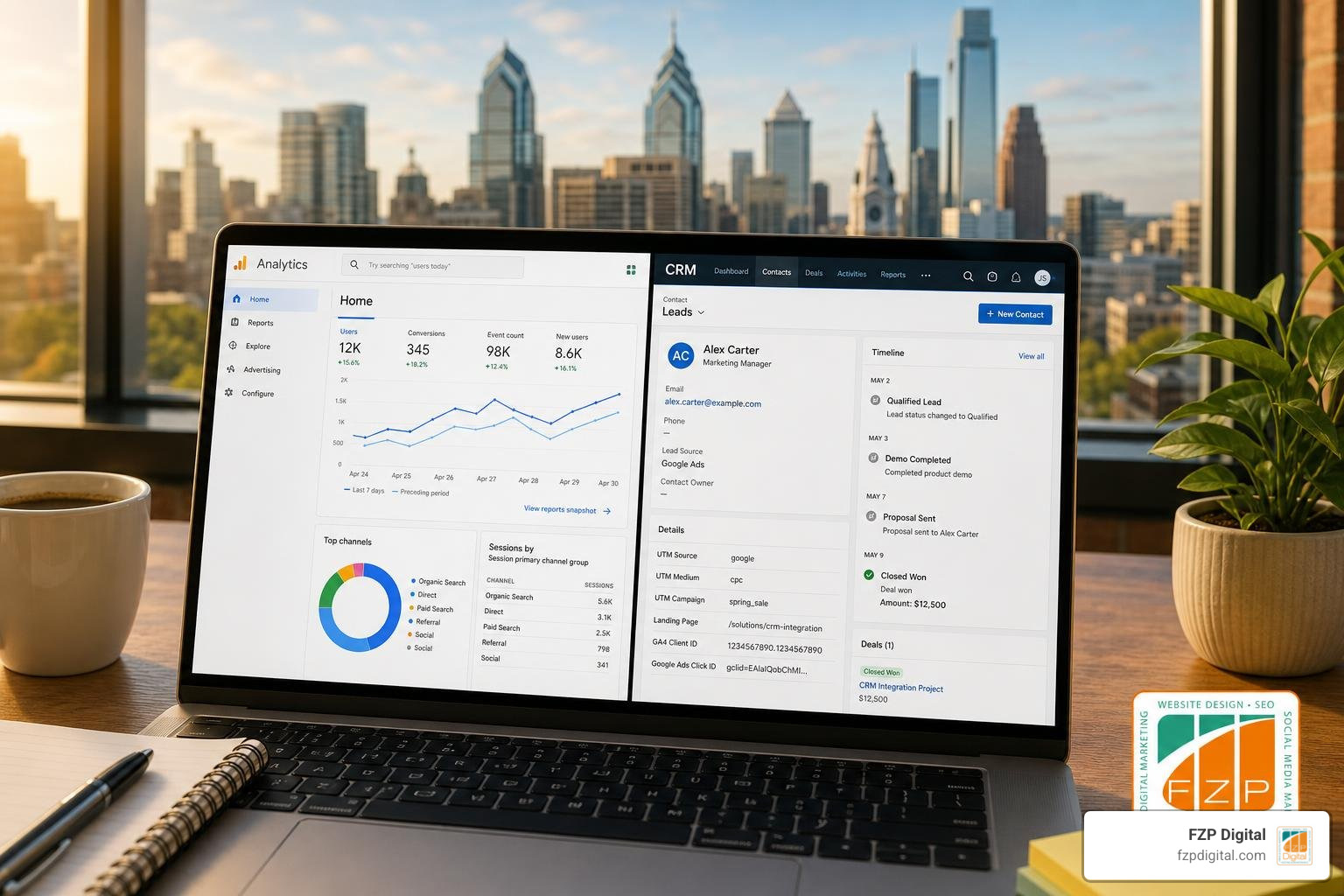
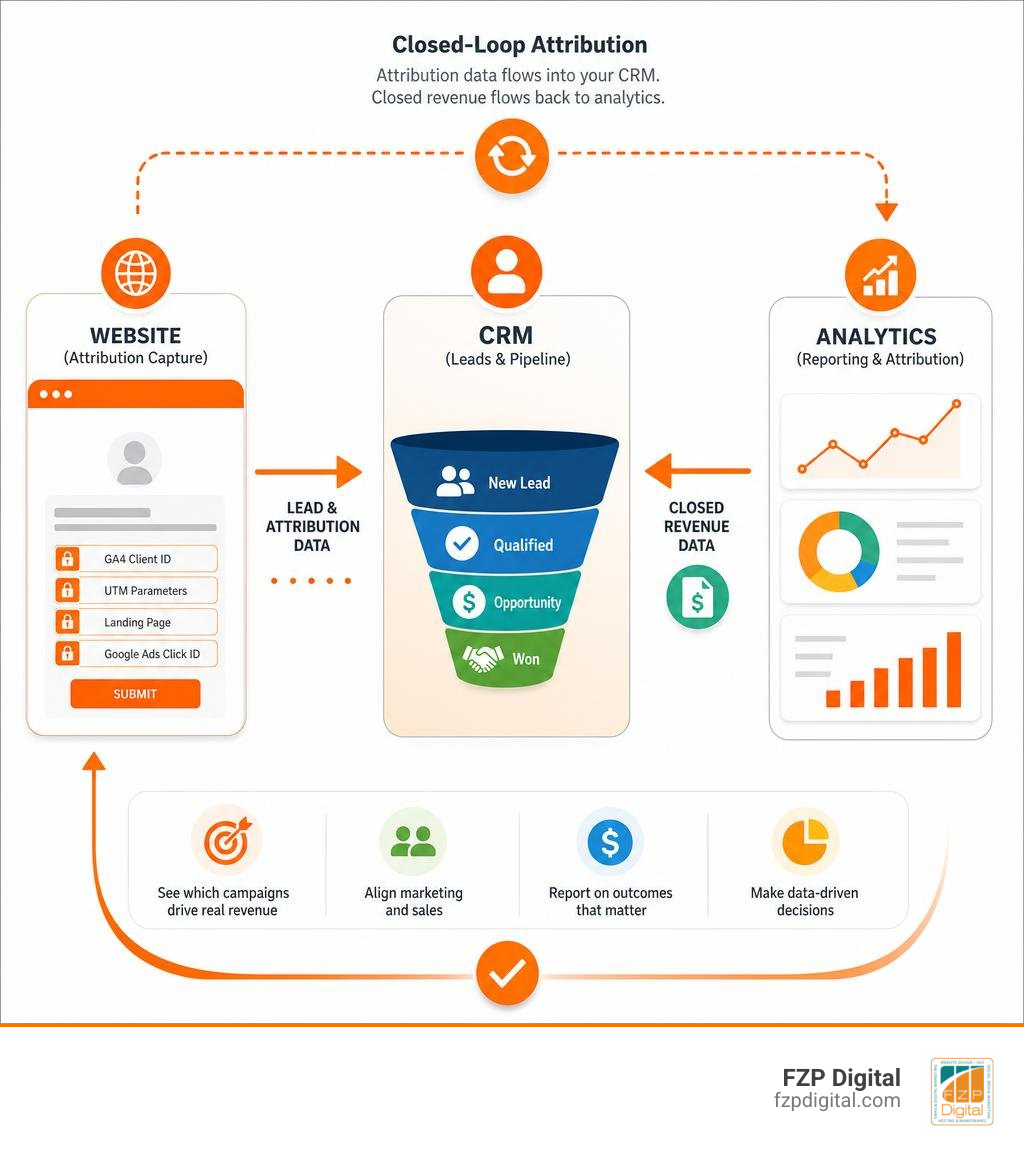
To set up CRM integration with Google Analytics, capture each website lead’s GA4 Client ID, UTM parameters, landing page, and Google Ads click ID in hidden form fields; save them on the CRM contact or deal record; then send important CRM milestones, such as qualified leads and closed-won revenue, back to GA4 through an integration tool or Google’s Measurement Protocol.
This creates a practical, closed-loop view of marketing: not just which channel produced a form fill, but which campaign produced a customer, donation, or signed contract.
Without that connection, your GA4 reports may show plenty of conversions while your CRM tells a different story. A campaign can generate dozens of leads and still bring in no revenue, while a smaller campaign may produce your most valuable customers.
Over the next 30 days, you can build a dependable foundation by connecting web activity to CRM records, preserving attribution as leads move through your pipeline, and reporting on the outcomes that matter most to your organization.
I’m Fred Z. Poritsky, founder of FZP Digital. My background in accounting, nonprofit financial management, web design, and digital marketing helps me approach CRM integration with Google Analytics as both a technical project and a business reporting tool, so the numbers can support better decisions.
Crm integration with google analytics terms to learn:
- integrate crm with website
- integrated customer relationship management
- how to integrate crm with outlook
The Strategic Value of CRM Integration with Google Analytics
Have you ever looked at your marketing reports and wondered why your ad spend looks fantastic on paper, but your actual bank account tells a completely different story?
That disconnect happens when your analytics platform and your customer database live in isolated silos. Your digital ad platforms celebrate top-of-funnel form fills, while your sales reps battle low-intent inquiries. When you build a unified system based on our comprehensive guide to CRM integration, you bridge the gap between initial web engagement and finalized sales pipeline revenue.
Consider a real-world scenario from a B2B software campaign: one digital advertising channel produced 40 form submissions but resulted in €0 in closed-won revenue. Meanwhile, a targeted campaign produced only 12 inquiries but generated €24,000 in closed contracts. If you only look at your web analytics dashboard, you’d double down on the channel driving high lead volume. When you integrate your CRM with GA4, you quickly shift your marketing budget into the campaigns that generate true revenue.
Strategic tracking has become even more vital as advertising ecosystems change. As of June 15, 2026, Google Signals has lost its role as a co-controller of advertising data in linked GA4 and Google Ads accounts. This regulatory and architectural shift means third-party modeled signals can no longer carry your attribution on their own. First-party customer relationship records are now your primary source of truth for measuring return on ad spend (ROAS) and customer lifetime value (LTV).
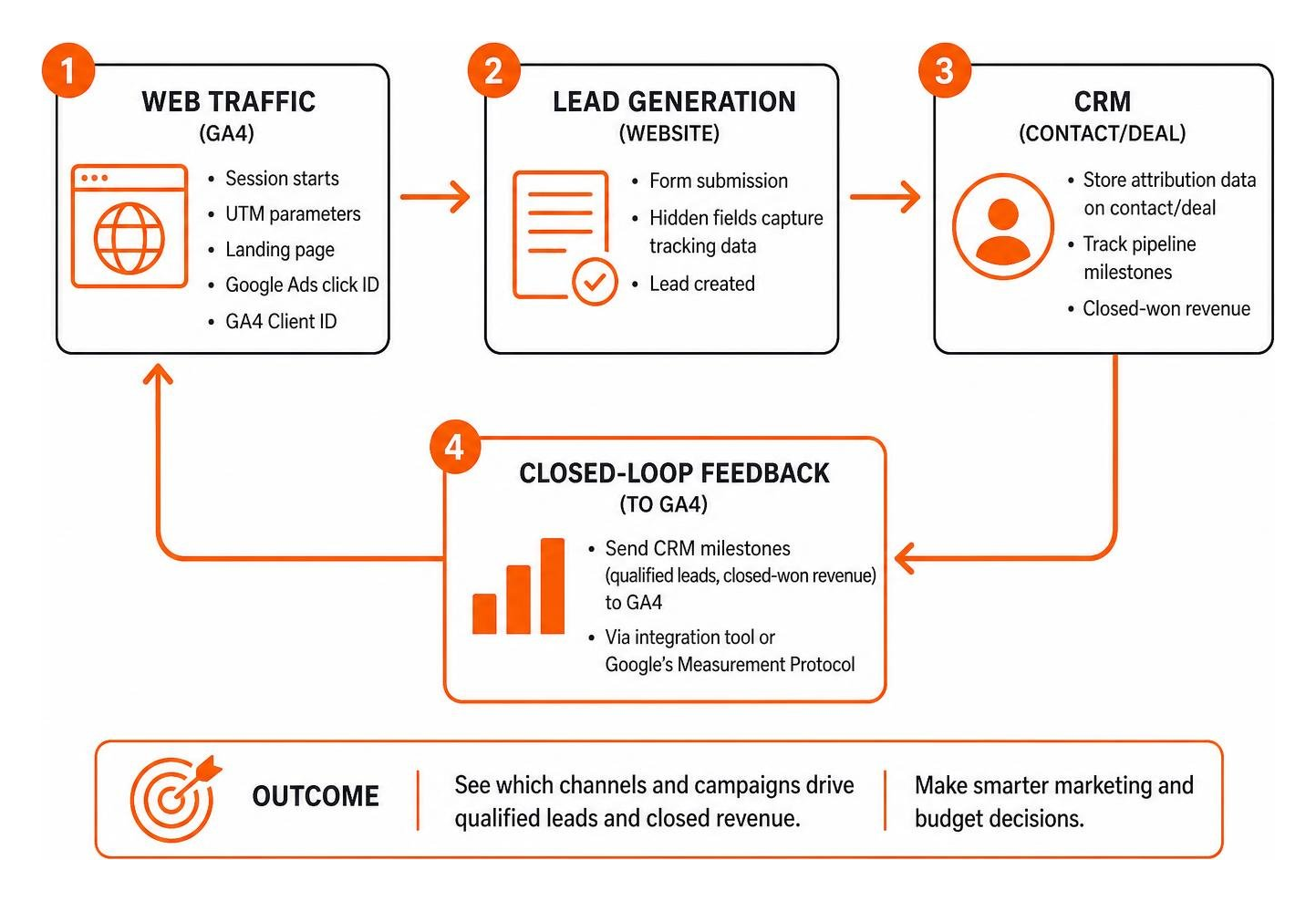
Capturing Web Traffic and Session Data in the CRM
Attribution begins the moment a prospect lands on your website. If a visitor arrives via a paid Google Search ad, an organic search result, or a social media campaign, critical tracking values exist in the URL string and browser storage.
To preserve this context, you need to set up connecting your website to your CRM so that lead forms automatically extract:
utm_source,utm_medium,utm_campaign,utm_term, andutm_content- The Google Click Identifier (
gclid), which carries a 90-day attribution window for Google Ads - The unique GA4
client_idstored inside the first-party_gacookie - The initial landing page URL and referral pathway
By embedding hidden fields into your website forms, your front-end scripts or Google Tag Manager (GTM) variables will inject these values upon submission. When the lead record is created inside your CRM, your sales team receives immediate visibility into the exact ad, keyword, or blog post that sparked the prospect’s interest.
Syncing Closed-Won Deals and Revenue Back to GA4
Attribution is not a one-way street. Capturing source data on the CRM lead record gives your sales reps helpful context, but it doesn’t solve your marketing optimization challenge unless that value flows back into Google Analytics.
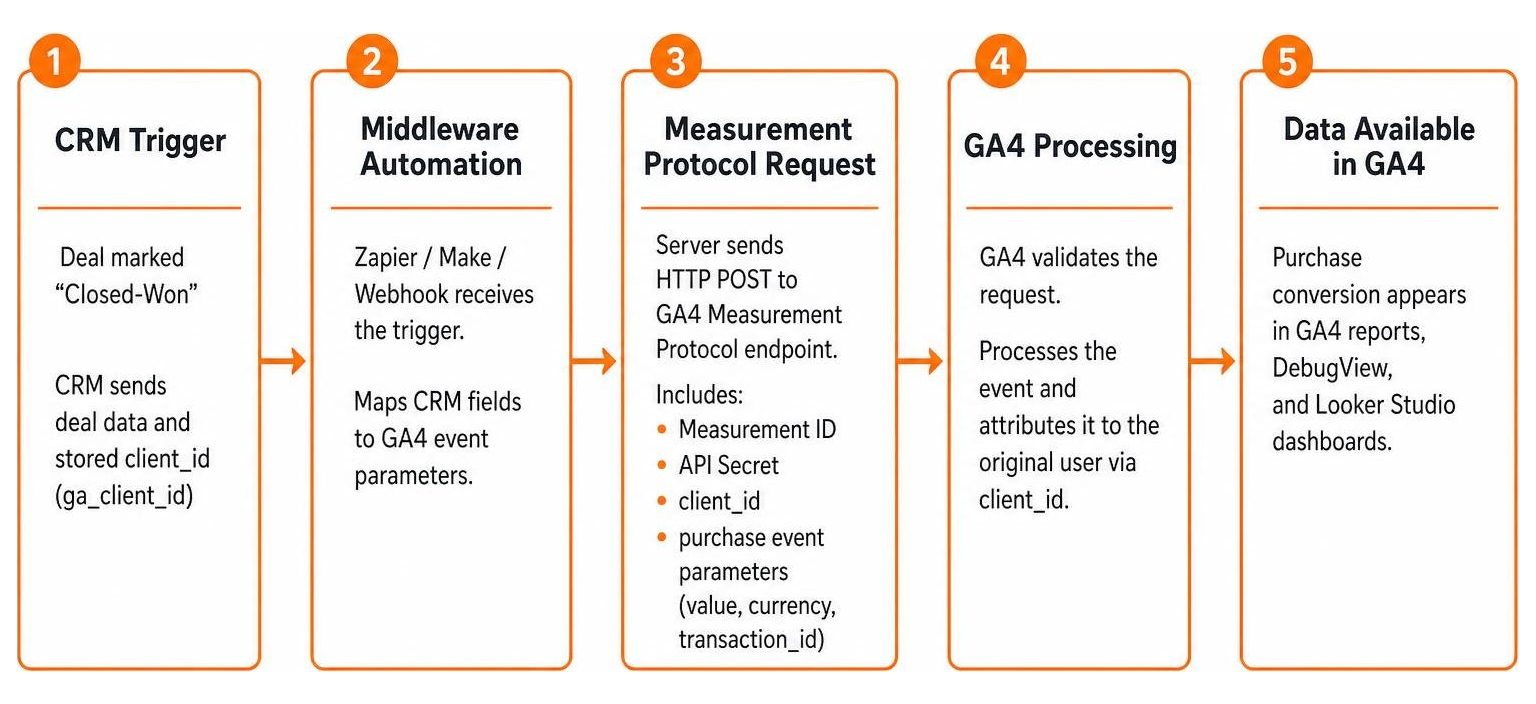
When an opportunity moves from “Discovery Call” to “Closed-Won,” your sales team logs the final dollar value and transaction date. By sending this offline milestone back to GA4 as a custom conversion event (such as a server-side purchase event), you close the loop. GA4 ties that dollar amount back to the initial source session using the stored client_id.
This closed-loop feedback loop allows you to:
- Calculate ROAS by specific marketing campaign rather than generic default channel groupings
- Feed high-value conversion signals back into Google Ads Smart Bidding algorithms
- Identify pipeline drop-offs where high-traffic landing pages attract leads that fail to pass qualification
5 Methods to Connect Your CRM to GA4
There isn’t a single universal way to connect your CRM to Google Analytics. Depending on your team’s technical resources, CRM software architecture, and monthly lead volume, you can choose from five primary integration paths.
| Integration Method | Setup Complexity | Ongoing Maintenance | Real-Time Sync | Ideal Use Case |
|---|---|---|---|---|
| Native Connectors | Low (Turnkey) | Minimal | High | Platforms with built-in marketplace apps (HubSpot, Salesforce) |
| No-Code Automation | Low to Medium | Low | Instant (Event-driven) | Small to mid-market teams using tools like Zapier or Make |
| GA4 Data Import | Low | Low (if SFTP) | Batch (Daily/Weekly) | Periodic historical offline data joins or catalog updates |
| Measurement Protocol | High (Technical) | Medium | Instant (Server-to-server) | Custom apps, phone orders, signed contracts, backend platforms |
| BigQuery Warehousing | High | Low (Automated) | Batch or Streaming | Enterprise multi-touch attribution and complex SQL modeling |
Native Connectors and Middleware Automations
If your organization uses popular platforms like Salesforce, HubSpot, or Pipedrive, you can often take advantage of pre-built integrations. For instance, native connectors can automatically sync lifecycle stages, form submissions, and basic channel data between systems with minimal setup time.
When out-of-the-box native tools lack custom field mapping, no-code and low-code automation tools like Zapier or Make bridge the gap nicely. By understanding how to hook your data up to your CRM using APIs, you can configure webhook triggers that listen for CRM deal stage changes and relay that data directly to webhooks.
Exploring dedicated Pipedrive CRM integrations can save your sales team hours of manual data entry while ensuring attribution tags stay attached to deals as they progress through your pipeline stages. Zapier offers a free tier supporting up to 100 tasks per month, with Starter plans beginning at $19.99 monthly for 750 tasks. Make provides a free tier with 1,000 operations per month, moving to a Core plan at approximately $10.59 monthly for 10,000 operations.
GA4 Data Import, Measurement Protocol, and BigQuery Warehousing
For custom architectures, offline service contracts, or large data volumes, native connectors may not provide enough flexibility. In those cases, you can utilize Google’s advanced ingestion methods:
- GA4 Data Import (CSV / SFTP): You can upload offline transaction data or user attributes manually using CSV files or automatically via scheduled SFTP transfers. This approach is straightforward but comes with a major caveat: data imported directly into GA4 cannot be retroactively modified once processed.
- Measurement Protocol API: This server-to-server protocol lets you dispatch HTTP POST requests directly into GA4’s data collection servers. When a contract is signed offline, your server sends a payload containing the deal value, currency, and the original
client_id. Referencing standard GTM and GA integration documentation can help you properly structure user-defined variables and triggers. That as of May 2026, the maximum backdating window for Measurement Protocol hits is 72 hours. - BigQuery Export and Warehousing: If your sales cycle spans several months, GA4’s standard 14-month user data retention limit might cut your multi-touch reporting short. By streaming raw, unsampled GA4 event data directly into Google BigQuery, you can use SQL to join your CRM customer tables with web event logs. As of May 2026, the free tier of GA4 BigQuery Export includes 10 GB of active storage and 1 TB of query processing per month, making it exceptionally cost-effective for growing businesses.
30-Day Step-by-Step Implementation Roadmap
A complete CRM and GA4 integration typically takes between 8 to 10 total hours of hands-on setup time spread across a structured 30-day testing window. Following a phased rollout ensures you don’t corrupt historical records or lose attribution parameters during pipeline conversions.
Phase 1: Planning and Architecting (Days 1–10)
The first ten days focus on defining your data architecture and setting up client-side data capture:
- Day 1–3: Build Your Data Dictionary: Document every field needed across platforms. Standardize field naming using consistent
snake_case(for example:ga_client_id,gclid,utm_campaign,lead_source_detail). - Day 4–6: Add CRM Custom Properties: In your CRM (such as HubSpot, Salesforce, Zoho, or Pipedrive), create custom text properties on the Lead, Contact, and Deal/Opportunity objects. Ensure mapping rules pass these properties down automatically when a Lead converts into an Opportunity.
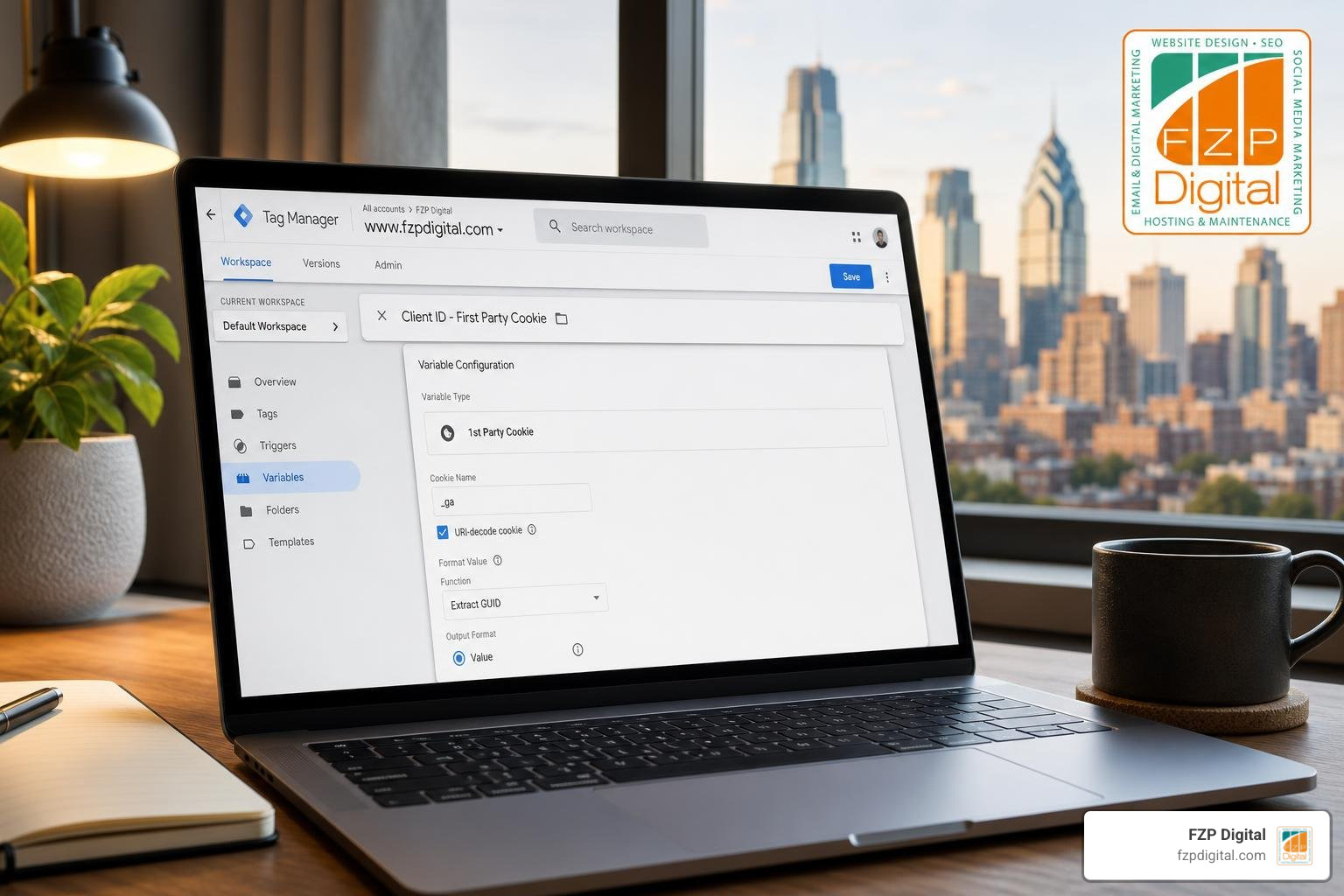
- Day 7–10: Set Up Hidden Fields and GTM Variables: Add hidden input fields to all website forms. In Google Tag Manager, write a Custom JavaScript variable to read the
_gacookie value and extract the unique Client ID (the numeric string following the first two dots). Configure GTM to populate your form’s hidden inputs automatically when the page loads.
Phase 2: Building and Testing (Days 11–30)
The second phase establishes the connection back to GA4, validates data integrity, and creates clear reporting views:
- Day 11–15: Configure the Server-Side Connection: Set up an automation workflow in Zapier, Make, or a custom webhook. Configure the trigger to fire when a deal enters “Closed-Won.” Map the trigger’s payload to a GA4 Measurement Protocol POST request containing your GA4 Measurement ID, API Secret,
client_id, andpurchaseevent parameters (includingvalue,currency, andtransaction_id). - Day 16–20: Server-Side Signal Recovery: Consider deploying server-side GTM using a container provider like Stape.io (starting around $20/month as of May 2026). While standard client-side GTM signal recovery rates hover around 65% to 70% due to ad blockers, server-side tracking can recover roughly 90% of your attribution signal.
- Day 21–25: Run End-to-End Validation Audits: Submit test leads through your website with test UTM parameters. Verify that hidden fields pass data into the CRM correctly. Move the test deal to “Closed-Won” and use the GA4 DebugView to confirm the offline conversion event registers properly with the correct revenue value. This is also an ideal time to run a comprehensive technical SEO audit to ensure form scripts do not slow down your site’s core web vitals.
- Day 26–30: Build Looker Studio Dashboards: Connect GA4, your Google Ads account, and your CRM data sources to Looker Studio. Create dashboards that display your marketing ad spend right alongside closed CRM revenue, giving your leadership team instant visibility into real ROAS by campaign.
Privacy, Compliance, and Data Governance Rules
When syncing data between analytics platforms and customer databases, strict compliance with global privacy regulations is essential.
Google Analytics maintains strict terms of service regarding Personally Identifiable Information (PII). Transmitting unhashed personal information directly into GA4 custom dimensions or event parameters is a direct violation that can result in account suspension and data deletion.
To keep your setup fully compliant:
- Never Send Plaintext PII to GA4: Do not pass names, email addresses, phone numbers, or physical addresses into GA4 event parameters or user properties.
- Use Pseudonymous User IDs: If you want to track customer journeys across multiple devices, assign an internal database identifier (or a securely SHA-256 hashed email string) to the GA4
user_idproperty when a user logs into your portal. - Implement Google Consent Mode v2: In regions governed by GDPR and similar privacy regulations, consent denial rates for non-essential cookies regularly run between 30% and 50%. Make sure your consent banner communicates choices to GA4 so tags dynamically adjust data collection and rely on behavioral modeling when consent is not granted.
- Manage Data Retention Limits: Standard GA4 properties store user-level and event-level data for a maximum retention window of 14 months. If your enterprise sales cycles require multi-year attribution tracking, ensure you enable the BigQuery export early to preserve historical event data.
Frequently Asked Questions About CRM and GA4 Integration
What is the difference between GA4 Client ID and User-ID?
The Client ID (client_id) is a pseudonymous, browser-level identifier generated automatically by GA4 and stored in the first-party _ga cookie. It uniquely identifies a specific browser on a single device. The Client ID is the key parameter needed for Measurement Protocol offline conversion tracking because it stitches offline revenue back to the original website session.
The User-ID (user_id) is a first-party, non-PII identifier that your business creates and assigns to a user (such as an internal CRM account number). When a user logs into your website or customer portal across different devices (like their phone and work laptop), passing this ID enables GA4 to unify those separate sessions under a single customer journey.
How do you send offline closed-won revenue back to GA4?
Offline closed-won revenue is sent back to GA4 using Google’s Measurement Protocol API.
When an opportunity is marked as won in your CRM:
- An automated workflow (built in Zapier, Make, or custom back-end code) pulls the stored
client_id, transaction total, currency code, and unique deal ID. - The automation issues an HTTPS POST request to
https://www.google-analytics.com/mp/collectwith your API secret and measurement ID. - The JSON payload includes a standard
purchaseevent containing the transaction parameters. - GA4 processes the event, reconciles it with the visitor’s original browsing session, and attributes the closed revenue to the appropriate traffic source.
Offline conversion hits must be submitted within GA4’s 72-hour backdating window to match session-level attribution models accurately.
Can you integrate any CRM with GA4 without ongoing developer support?
Yes! Most small and mid-sized businesses can establish a reliable, closed-loop integration without dedicated software engineers.
Using no-code automation platforms like Zapier or Make combined with Google Tag Manager allows marketing and RevOps teams to configure hidden form fields and Measurement Protocol webhooks through visual interfaces.
A foundational setup can run for as little as $0 per month using free tiers across Zapier, Looker Studio, and Google BigQuery. For growing businesses with higher volume, a standard setup using tools like Zapier Starter or Make Core alongside server-side tracking (such as Stape.io) typically costs between $30 and $40 per month. Once properly configured and tested, these workflows run automatically and only require a brief monthly audit to verify that API tokens and form mappings remain active.
Conclusion
Closing the loop between your website analytics and your sales pipeline changes the way you evaluate marketing performance. Instead of guessing whether an advertising campaign generated quality leads, a well-planned CRM integration provides clear visibility into the specific channels, campaigns, and landing pages that drive real revenue.
Setting up your tracking foundation doesn’t have to be overwhelming. By breaking the project into structured phases over 30 days—capturing session data, establishing unique keys, configuring server-side conversions, and testing data flows—you build a dependable measurement system that helps your team make confident, profitable decisions.
At FZP Digital, we bring a collaborative approach to digital growth, blending technical analytics configuration with practical business strategy. When you pair clean data with high-performance web infrastructure, you set your business up for sustainable growth. If you are evaluating web platforms for your business, we recommend reliable managed solutions like GoDaddy and WP Engine for secure, scalable WordPress hosting.
Are you ready to stop paying for leads that don’t convert into customers and gain true visibility into your marketing ROI? Explore our full range of digital marketing services to see how our team can help you build an integrated, revenue-focused marketing engine.